
UAT release
This guide describes the upcoming portal update. Some screens or actions may differ in the current UAT portal.
PPA Billing Calculation & 3-Tier Approval Guide
The WattDee billing module (/billing) calculates Private Solar PPA monthly invoices from 15-minute smart meter telemetry under Thailand's Provincial Electricity Authority (PEA) Time-of-Use (TOU) tariff structure, protected by a 3-tier verification and approval workflow (Draft → Checked → Approved) with full audit traceability and Segregation of Duties (SoD).
Access to /billing
Opening PPA Billing & Invoicing requires the invoice.view capability (see Roles and Permissions):
- Developer & Platform Staff (
Platform ADMIN,Developer ADMIN,SERVICE,ACCOUNTING): Access the full billing workspace and 3-tier approval controls. - Customer / Off-Taker Users (
Customer ADMIN,CUSTOMER): Automatically routed to the dedicated Customer Billing view showing onlyAPPROVEDinvoices (see the Customer Portal Guide). OPERATORandREADERroles: Do not holdinvoice.view. Navigating directly to/billingdisplays anAccessDeniedscreen.
1. Billing Workspace Views: Table vs. Stage Board
From /billing, you can manage monthly invoicing across all active sites using two synchronized views:
Top Toolbar & Filters
- Billing period: Select the target Month and Year. The subtitle shows the exact calendar dates covered based on the site's cut-off day (e.g.,
1 Oct – 31 Oct, or25 Sep – 24 OctwhenbillingCycleDay = 25). - Search: Filter by site name, site code, customer company name, or invoice number.
- Invoice status filter:
- All stages
- 1. Missing bills: Active sites without a live invoice for the selected period.
- 2. Draft: Calculated and persisted; awaiting Stage 2 technical review.
- 3. Checked: Technically verified by Service; awaiting Stage 3 accounting sign-off.
- 4. Approved: Finalized with an Invoice Reference Code and published to the Customer Portal.
- 5. Voided: Canceled (
REJECTED) invoices retained for audit history; eligible for replacement reissue.
- More tools: Opens Compare PPA rate with utility (Tariff Savings Comparison) and Create bill with incomplete meter data (Fallback billing).
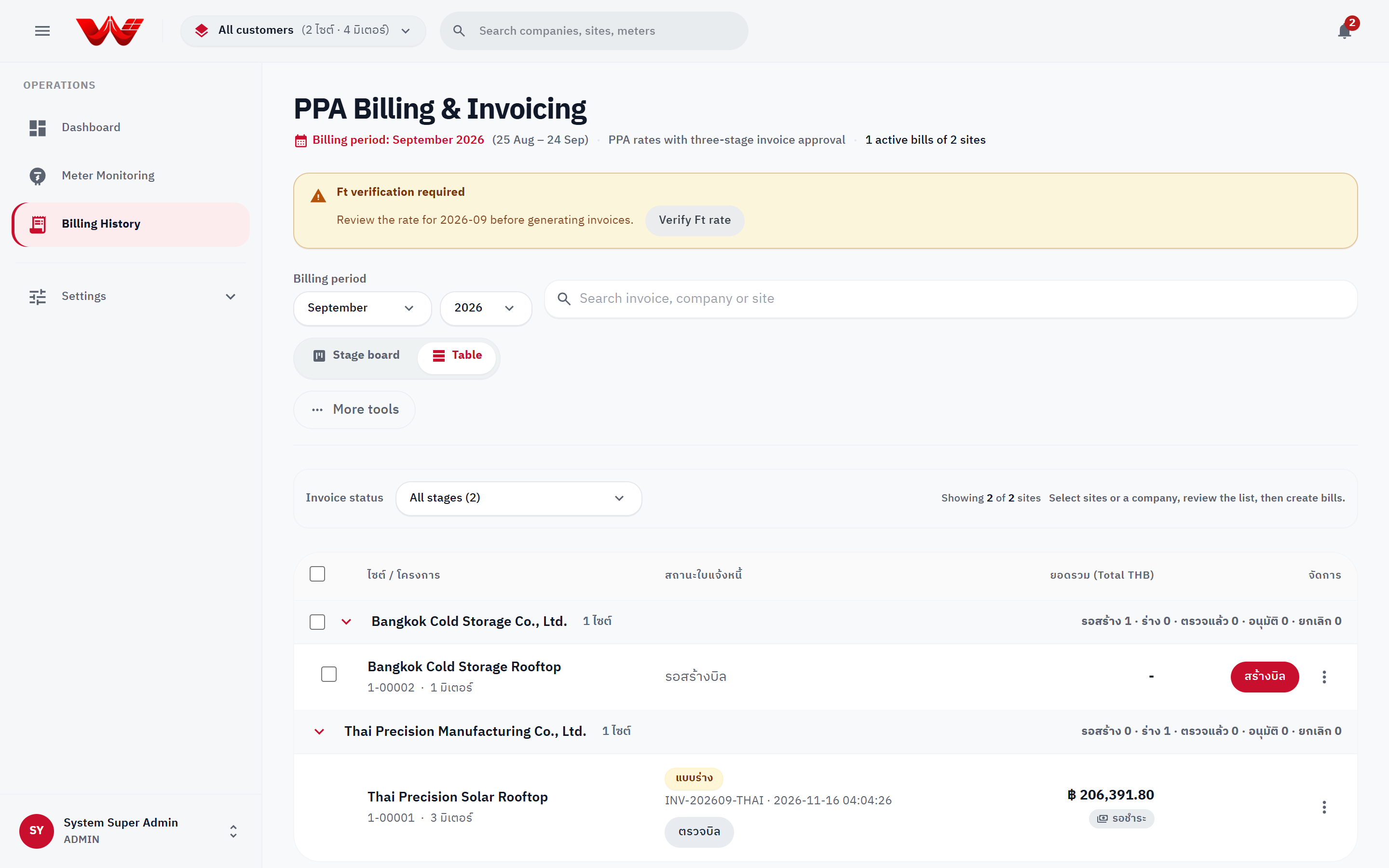
View 1: Table View
The Table view groups sites by customer company (collapsible groups with per-stage counts) and supports multi-select checkboxes for batch invoice generation and batch Stage 3 approval.
View 2: 5-Stage Kanban Board (Stage board)
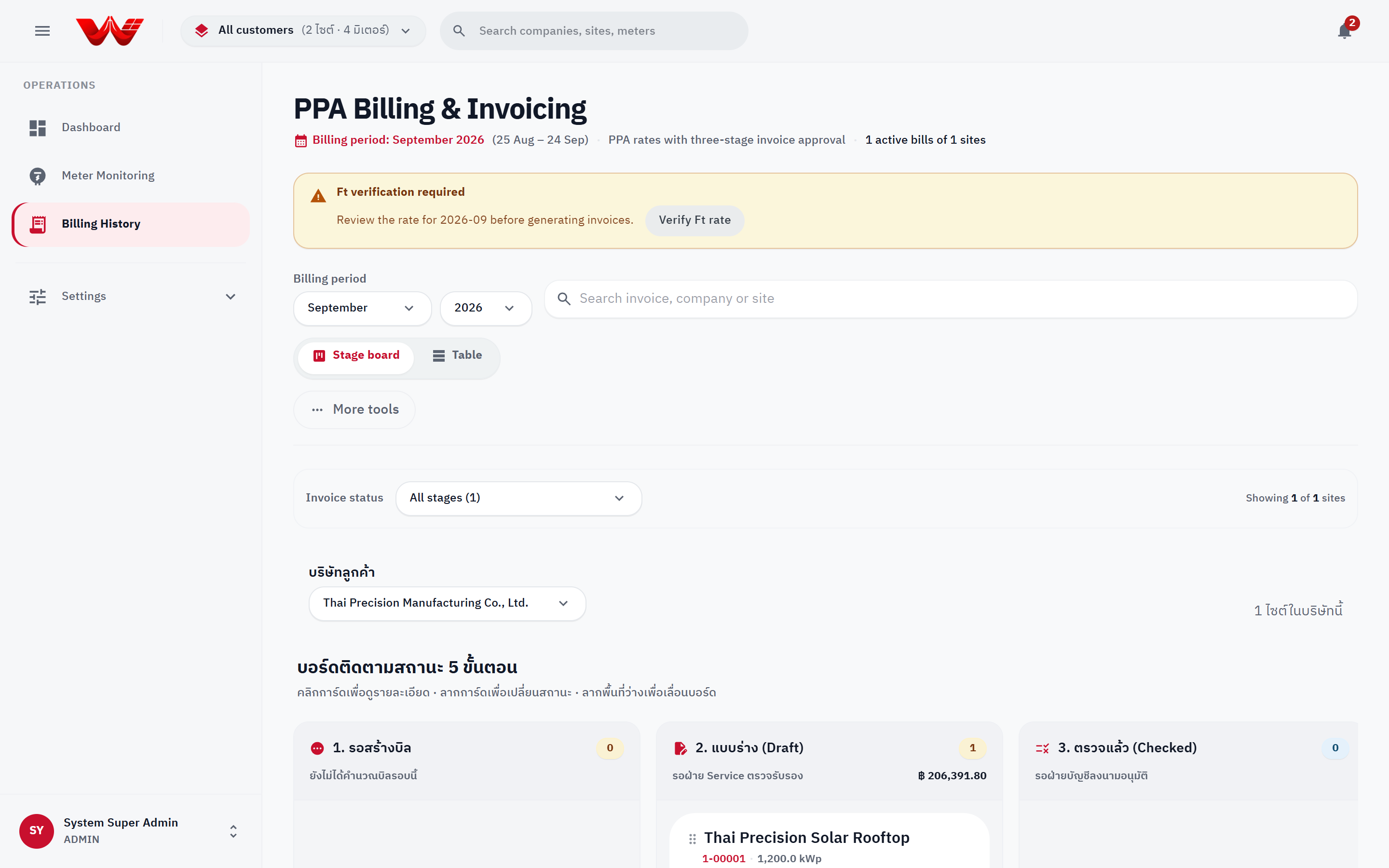
Switch the view toggle to Stage board and pick a customer company (บริษัทลูกค้า / Customer company) to display the 5 workflow columns:
- 1. Missing (
รอสร้างบิล): No bill calculated for this period yet. - 2. Draft (
แบบร่าง): Awaiting Stage 2 Service verification. - 3. Checked (
ตรวจแล้ว): Awaiting Stage 3 Accounting approval. - 4. Approved (
อนุมัติแล้ว): Issued and awaiting customer payment/countersignature. - 5. Voided (
ยกเลิกแล้ว): Canceled; ready to reissue a replacement.
Click any card to open the Invoice Detail dialog, drag empty board space to pan horizontally, or drag cards between columns (3-tier rules are enforced: for instance, you cannot drag directly from Draft to Approved without passing Checked).
2. Billing Window, Bangkok Timezone (UTC+7), and Open-Period Guard
To ensure interval totals agree with physical meter end-of-month register resets, every billing window is evaluated on Asia/Bangkok (UTC+7) midnight (Thailand has no daylight saving time):
- Standard calendar cut-off (
billingCycleDay = 1): Billing monthYYYY-MMruns fromYYYY-MM-01 00:00:00+07:00(inclusive) to the1st of the following month 00:00:00+07:00(exclusive). - Cross-month cut-off (
billingCycleDay = 2..28): For example, withcycleDay = 25, billing month2026-10covers2026-09-25 00:00:00+07:00(inclusive) to2026-10-25 00:00:00+07:00(exclusive). - First invoice for newly commissioned sites (
activeFrom): When every active meter on a site was commissioned (activeFrom) inside the billing cycle, the invoice'sbillingPeriodStartstarts at the earliest meter'sactiveFromtimestamp so the first invoice reflects true operating days and Stage 2 coverage checks do not penalize pre-commissioning days. - Payment due date (
dueDate): Calculated aspaymentTermDays(default30days) after the cut-off date at23:59:59+07:00(e.g.,2026-10cut on the 25th with 30-day terms is due on24 Nov).
Open-Period Guard (BL-1)
By default, invoices can only be generated after the billing period has ended (endDate <= now):
- Attempting to bill a period that has not started yet is rejected with HTTP
422. - Attempting to bill an ongoing period before its cut-off date is rejected with HTTP
422, unless confirmed by a user holdinginvoice.issueEarly(Developer ADMINorPlatform ADMIN) through the early-issuance confirmation dialog showing elapsed vs. total period days (e.g.,18/31 days).
3. Mandatory Ft Rate Verification & Public Holiday Calendar
3.1 Verifying the Monthly Ft Rate
Because the Energy Regulatory Commission (ERC) Fuel Adjustment Tariff (Ft) is a system-wide regulatory parameter, only a Platform Administrator (ftrate.write) can configure or update it:
- If the selected month has no verified Ft rate on record, a warning banner (Ft verification required) appears at the top of
/billing. - Click Verify Ft rate (or open Settings → Billing & tariffs).
- Verify the target
YYYY-MMbilling month and enter the declared Ft rate (THB/kWh) between-2.0000and10.0000. (If unconfigured, the input starts blank rather than auto-filling an unverified value; the latest configured month is shown below as reference only.) - Click Confirm to save.
Mandatory Ft Refusal (422) & Period Lock
- Both preview calculations and invoice generation refuse with HTTP
422if no Ft rate exists forYYYY-MM. The billing engine never invents a fallback Ft rate for real invoices. - Once any invoice for a billing month reaches
CHECKEDorAPPROVED, the Ft rate for that month is locked and cannot be modified.
3.2 Public Holiday Calendar
Platform Administrators manage official Thai public holidays under Settings → Holidays (supporting annual PEA preset auto-fill as well as manual entries). Dates are evaluated in Asia/Bangkok calendar dates (YYYY-MM-DD) so official holidays, including Songkran and substitution holidays, always bill at the Holiday Off-Peak rate.
4. TOU Billing Formulas, Rounding Rules & Worked Examples
4.1 Official PEA TOU Schedule (Asia/Bangkok UTC+7)
| TOU Period | Days | Time Window (24-Hour) | Applied Contract Rate |
|---|---|---|---|
| On-Peak | Monday – Friday | 09:00:00 – 21:59:59 | Contract On-Peak Rate |
| Off-Peak | Monday – Friday | 22:00:00 – 08:59:59 | Contract Off-Peak Rate |
| Holiday & Weekend Off-Peak | Saturday, Sunday & Official Public Holidays | 00:00:00 – 23:59:59 | Contract Off-Peak Rate |
4.2 Multi-Meter & Mid-Cycle Swap Aggregation
- Strict Active-Window Clipping: Intervals from each meter are clipped to
[activeFrom, activeTo)so bench-test packets or post-decommission readings never leak into billing. - Total Energy: Sum of scaled kWh across all contributing active meters.
- Site Concurrent Peak Demand (
demandPeakKw): At every 15-minute timestampt, the engine sums active powerkWacross all active meters simultaneously (max_t Σ P_m(t)). For example, if Meter A draws 400 kW while Meter B draws 1,600 kW in the same 15-minute slot, site Peak Demand is2,000.000 kW.demandOnPeakKwanddemandOffPeakKware also recorded for reference, while any demand charge bills on overalldemandPeakKw. - Meter Replacement Schedule Annex: Whenever >1 meter contributes during a billing period,
meterIdon the invoice header isnulland Page 2 of the PDF automatically attaches the Attached Meter Replacement Schedule showing per-meter active dates, kWh, peak kW, and interval counts.
4.3 Step-by-Step Rounding & Formulas (ROUND_HALF_UP)
All calculations execute in arbitrary-precision decimal arithmetic (BigNumber) and round half-up at every step so printed invoice lines always reconcile to the exact satang (0.01 THB):
- Quantities:
energyOnPeakKwh,energyOffPeakKwh, andenergyHolidayOffPeakKwhare each rounded to 2 decimal places (default; configurable 0–4).totalEnergyKwhis the exact sum of the three printed rounded energy lines.demandPeakKwandpeakKvarare rounded to 3 decimal places.
- Base Energy & Demand Charges:
onPeakAmount=round_2(energyOnPeakKwh × onPeakRate)offPeakAmount=round_2(energyOffPeakKwh × offPeakRate)holidayOffPeakAmount=round_2(energyHolidayOffPeakKwh × offPeakRate)baseEnergyAmountThb=onPeakAmount + offPeakAmount + holidayOffPeakAmountdemandAmountThb=round_2(demandPeakKw × demandRateKw)(0.00for energy-only Solar PPAs)
- Float Tariff (Ft):
ftTotalAmountThb=round_2(totalEnergyKwh × ftRateThb)
- Contract Discount:
- Eligible when
discountPercent > 0and the billing month falls within[discountStartDate, discountExpiryDate]. - Applied strictly to
(Base Energy + Ft), never to Demand Charge or Power Factor Penalty: discountAmountThb=round_2((baseEnergyAmountThb + ftTotalAmountThb) × (discountPercent / 100))
- Eligible when
- Optional Power Factor (PF) Penalty:
- Evaluated only when
pfPenaltyEnabled = true,demandPeakKw > 0, andpeakKvar > 0. - At default
pfThreshold = 0.85,tan(arccos(0.85)) = 0.6197. allowanceKvar = demandPeakKw × tanPhi.- If
peakKvar > allowanceKvar:excessKvar = round_2(peakKvar - allowanceKvar)andpfPenaltyAmountThb = round_2(excessKvar × pfPenaltyRateThb)(default56.07 THB/kVAR).
- Evaluated only when
- Net Subtotal, 7% VAT & Total Payable:
netSubtotal=baseEnergyAmountThb + ftTotalAmountThb - discountAmountThb + demandAmountThb + pfPenaltyAmountThbvatAmountThb=round_2(netSubtotal × 0.07)totalPayableThb=netSubtotal + vatAmountThb
4.4 Worked Calculation Examples
Example 1: Standard Energy-Only Solar PPA (15% Discount, No Demand Charge)
Suppose for billing month 2026-10:
- On-Peak Energy:
10,000.00 kWh@4.1839 THB/kWh - Off-Peak Energy:
5,000.00 kWh@2.6037 THB/kWh - Holiday Off-Peak Energy:
2,000.00 kWh@2.6037 THB/kWh - Peak Demand:
120.000 kW@0.0000 THB/kW| PF Penalty disabled - Ft Rate:
0.3972 THB/kWh| PPA Discount:15.00%
| Step | Line Item | Calculation & Half-Up Rounding | Amount (THB) |
|---|---|---|---|
| 1 | On-Peak Energy Charge | 10,000.00 × 4.1839 = 41,839.00 | 41,839.00 |
| 2 | Off-Peak Energy Charge | 5,000.00 × 2.6037 = 13,018.50 | 13,018.50 |
| 3 | Holiday Off-Peak Charge | 2,000.00 × 2.6037 = 5,207.40 | 5,207.40 |
| 4 | Base Energy Subtotal | 41,839.00 + 13,018.50 + 5,207.40 | 60,064.90 |
| 5 | Ft Surcharge (17,000.00 kWh) | 17,000.00 × 0.3972 = 6,752.40 | 6,752.40 |
| 6 | Energy + Ft (Discount Base) | 60,064.90 + 6,752.40 | 66,817.30 |
| 7 | Contract Discount (15.00%) | 66,817.30 × 0.15 = 10,022.595 (half-up) | -10,022.60 |
| 8 | Net Subtotal before VAT | 66,817.30 - 10,022.60 | 56,794.70 |
| 9 | VAT (7.00%) | 56,794.70 × 0.07 = 3,975.629 (half-up) | 3,975.63 |
| 10 | Total Payable | 56,794.70 + 3,975.63 | 60,770.33 |
Example 2: Contract with Demand Charge & Power Factor Penalty
Using the same energy and Ft figures as Example 1, plus:
- Peak Demand:
120.000 kW@132.9300 THB/kW - Peak kVAR:
100.000 kVAR(PF threshold0.85, penalty rate56.07 THB/kVAR)
- PPA Discount (15%) remains
-10,022.60 THBbecause the discount applies only to(Base Energy + Ft). - Peak Demand Charge:
120.000 × 132.9300=15,951.60 THB. - PF Penalty:
- Reactive allowance (
tanPhi = 0.6197):120.000 × 0.6197 = 74.364 kVAR - Excess kVAR:
round_2(100.000 - 74.364) = 25.64 kVAR - Penalty:
round_2(25.64 × 56.07) = round_2(1,437.6348)=1,437.63 THB
- Reactive allowance (
- Net Subtotal before VAT:
60,064.90 + 6,752.40 - 10,022.60 + 15,951.60 + 1,437.63=74,183.93 THB - VAT (7.00%):
round_2(74,183.93 × 0.07) = round_2(5,192.8751)=5,192.88 THB - Total Payable:
74,183.93 + 5,192.88=79,376.81 THB
5. Stage 1: Generating Draft Invoices & Fallback Modes
Required capability: invoice.generate (Developer ADMIN, Developer ACCOUNTING, Platform ADMIN).
Single or Batch Invoice Generation
- Select the billing month and year, ensuring the monthly Ft rate has been verified.
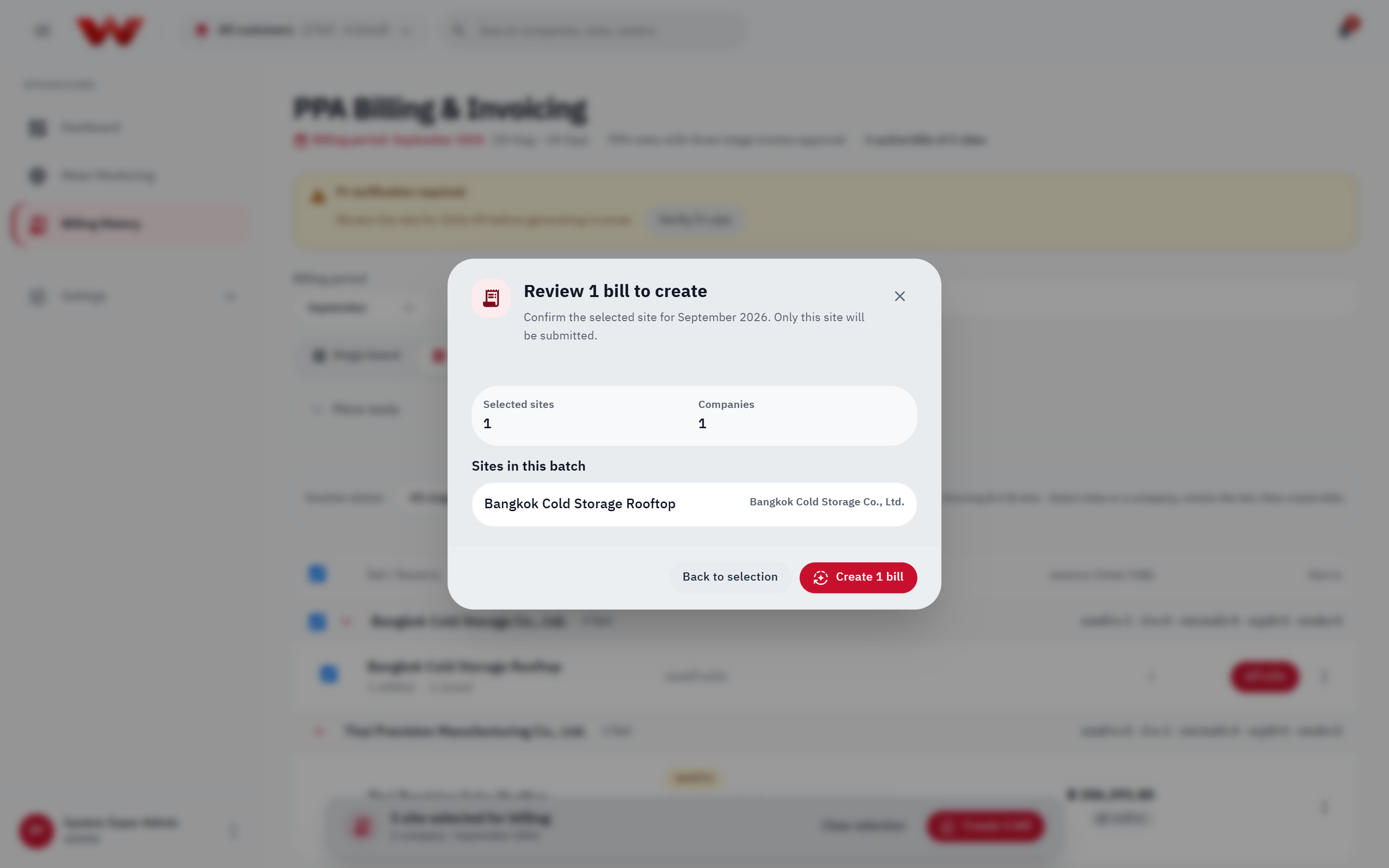
- Single site: Click Create bill (
สร้างบิล) or Reissue (ออกบิลใหม่) on the table row or Kanban card. - Batch generation: Check multiple sites in Missing or Voided state (or select an entire company group), click Create X bills in the floating action bar, review the list in the confirmation dialog, and confirm.
Automatic Backfill Refresh & Recalculation Rules
- Before calculating an
AUTOinvoice, the server automatically re-projectshes.meter_readingsacross the entire billing window (refreshProjection) so any telemetry recovered after an outage is included. - Recalculating an existing
DRAFTorCHECKEDinvoice preserves itsinvoiceNumber, incrementsrevision, resets status toDRAFT(requiring a fresh Stage 2 check), and never alters anAPPROVEDinvoice. - Only
DRAFTinvoices can be deleted (Delete draft);CHECKED,APPROVED, andREJECTEDinvoices must use Void to preserve the audit trail.
Incomplete Meter Data Fallback (ROLLING_AVG / MANUAL)
If a meter experienced a prolonged outage:
- Click More tools → Create bill with incomplete meter data.
- Pick the Site and choose a calculation mode:
ROLLING_AVG: Averages On-Peak, Off-Peak, Holiday, Peak Demand kW, and Peak kVAR from up to the 3 most recent non-voided invoices.MANUAL: Enter on-site meter readings directly (On-Peak kWh,Off-Peak kWh,Holiday kWh,Peak kW,Peak kVAR).AUTO: Standard 15-minute interval projection.
- Click Calculate & create invoice to save as
DRAFT.
6. Stage 2: Technical Service Verification (DRAFT → CHECKED)
Required capability: invoice.check (Developer ADMIN, Developer SERVICE, Platform ADMIN).
Click a DRAFT card or row to inspect its financial, TOU telemetry, and audit details, then click Check bill (ตรวจบิล).
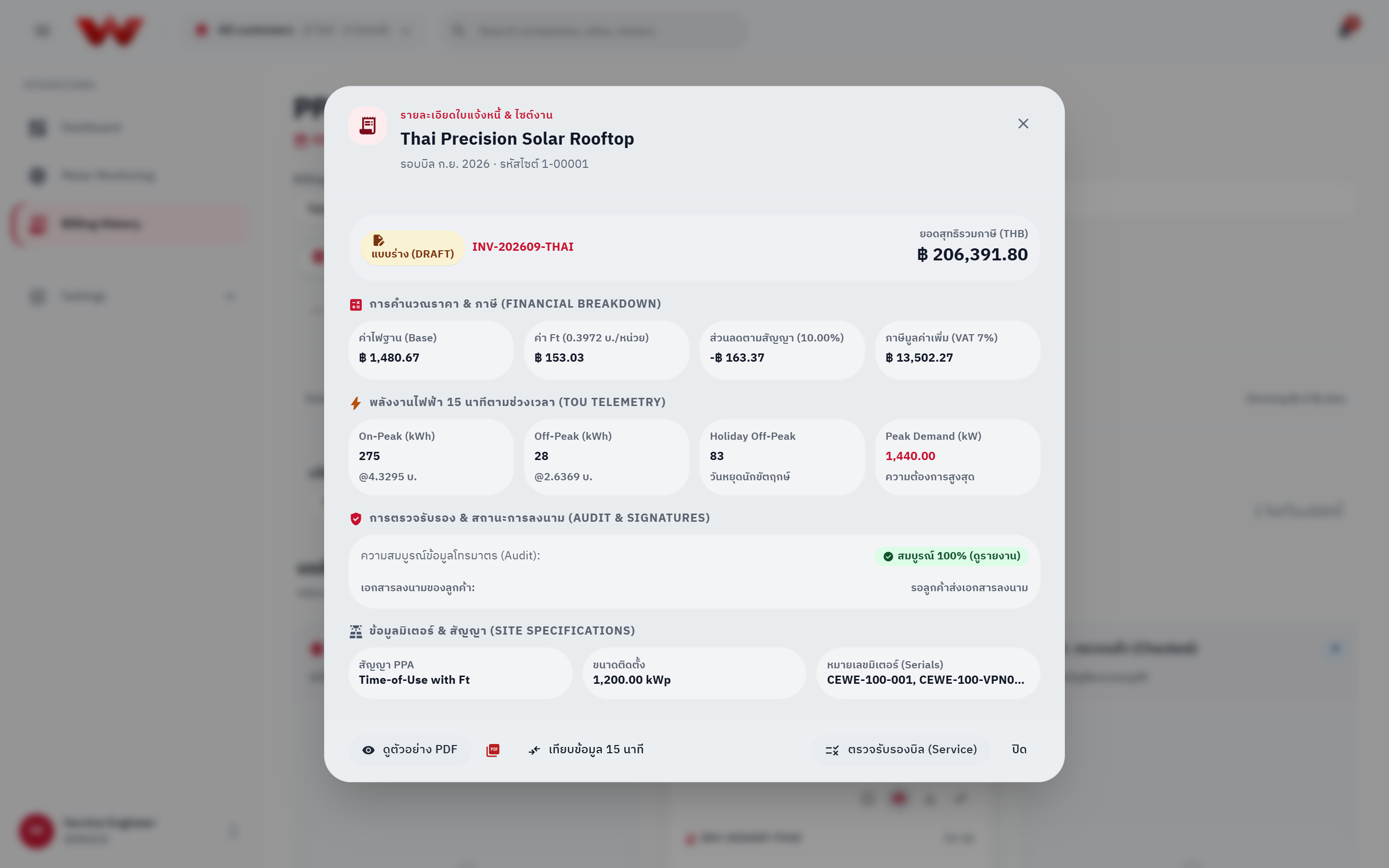
Transitioning to CHECKED executes the 6-point Stage 2 Telemetry & Multiplier Audit (verifyInvoiceTelemetry):
- CT/VT Multiplier & Reading Side: Verifies
readingSideisPRIMARYorSECONDARY(neverUNKNOWN), HES meter identity is verified, multiplier is within[0.001, 1000000], andmultiplierRatiomatches(CT × VT)within 5%. - 15-Minute Telemetry Coverage: Compares actual vs. expected intervals (
>= 95%PASSED;< 95%or< 80%WARNING;0intervals FAILED). - Meter Swap Continuity: Confirms zero overlapping interval timestamps between retired (
activeTo) and replacement meters. - Physical Sanity: Flags negative active energy intervals (
FAILED) or Peak Demand >125%of plant ratedkWp(WARNING). - Register Reconciliation: Compares summed 15-minute kWh against the meter's cumulative register delta over the period and counts
ESTIMATEDoutage-gap intervals. - HES Interval Quality (when interval confirmation rules or
PLAUSIBILITY_GUARDflags apply): Reports intervals requiring manual review before approval.
If any critical check is FAILED, transition to CHECKED is blocked (400). Non-critical observations (WARNING) are recorded on the audit report and still allow checking. Moving to CHECKED also locks the billing month (periodLock) so subsequent late telemetry is routed to late_intervals rather than mutating the audited bill (see Locked Periods & Late Intervals).
7. Stage 3: Accounting Final Approval (CHECKED → APPROVED)
Required capability: invoice.approve (Developer ADMIN, Developer ACCOUNTING, Platform ADMIN).
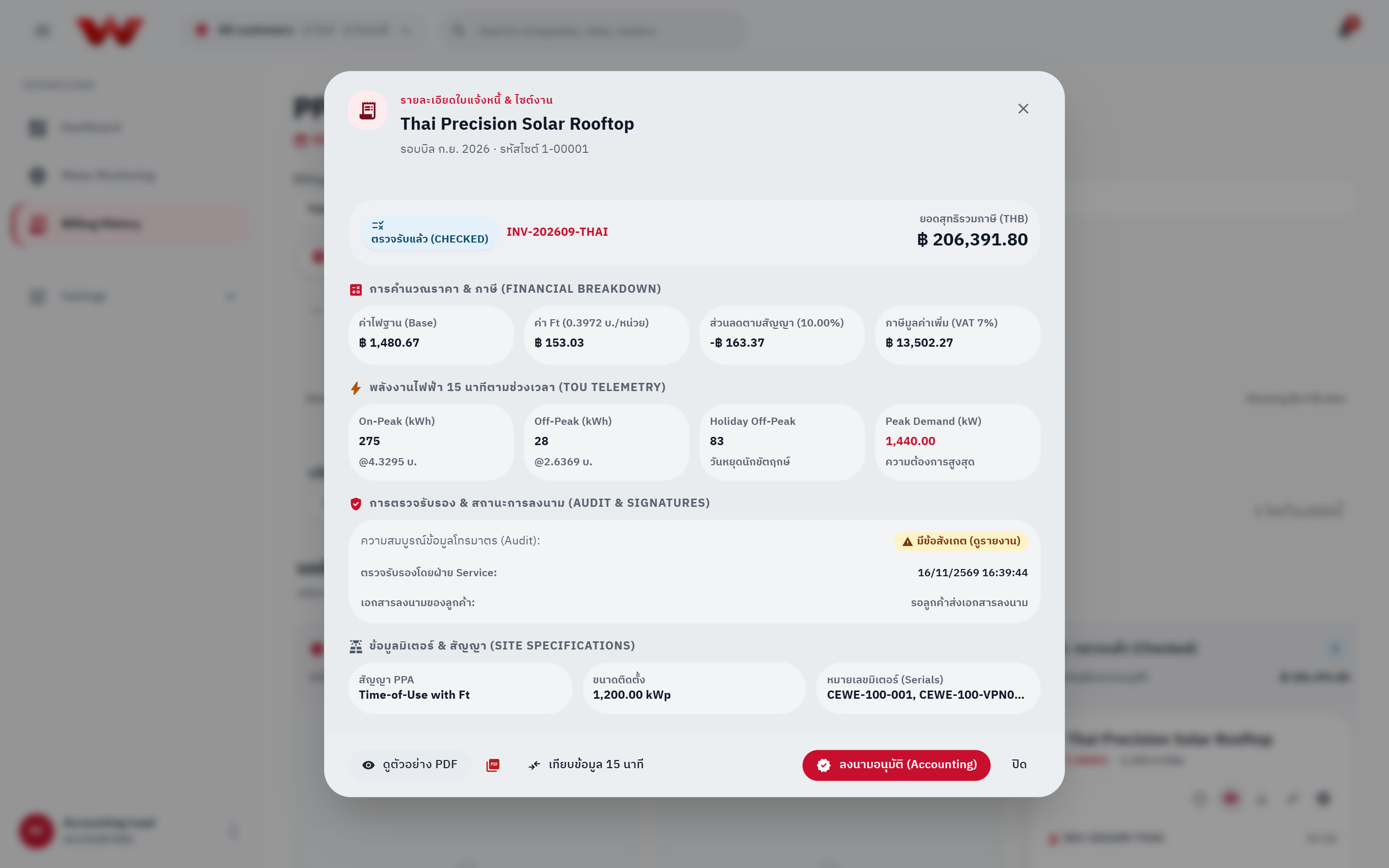
- Review the
CHECKEDinvoice and Stage 2 audit report (View verification report). - Click Sign & Approve (
ลงนามอนุมัติ) (or batch-select multipleCHECKEDinvoices). - Verify the site, invoice number, billing month, and Total Payable in the Final Approval modal, then click Confirm & Apply Digital Signature.
Inviolable Stage 3 Governance Rules
- No Direct Jump: Invoices cannot skip from
DRAFTdirectly toAPPROVED; Stage 2CHECKEDis mandatory. - Segregation of Duties (
checker ≠ approver): The user who approves (APPROVED) cannot be the same user who performed Stage 2 verification (checkedByServiceUserId), even if that user holds anADMINrole. In the UI, the checker sees aSoD restriction(ติดเงื่อนไข SoD) shield badge instead of the approve button. - Invoice Reference Code (
รหัสอ้างอิงใบแจ้งหนี้): Approval generates a SHA-256 hash formatted asSIG_AVG_<32_HEX_CHARS>frominvoiceNumber|totalPayableThb|billingMonth|checkedByServiceUserId, printed on the PDF audit strip asInvoice reference code(รหัสอ้างอิงใบแจ้งหนี้in the UI, replacing the legacy electronic certification wording). issuedSnapshot: At approval time, the seller, buyer, project, and default bank account details are frozen inissued_snapshotso later settings updates never alter historical tax invoices.- Immutability & Customer Publication: The invoice is locked permanently and immediately visible in the Customer Portal.
8. PDF Preview, Exports, Voiding, Payment & Email Delivery
8.1 PDF Preview & Exports (PDF / Billing Notice / Excel / Word)
Click Preview PDF (พรีวิว PDF) to open the live A4 document viewer:
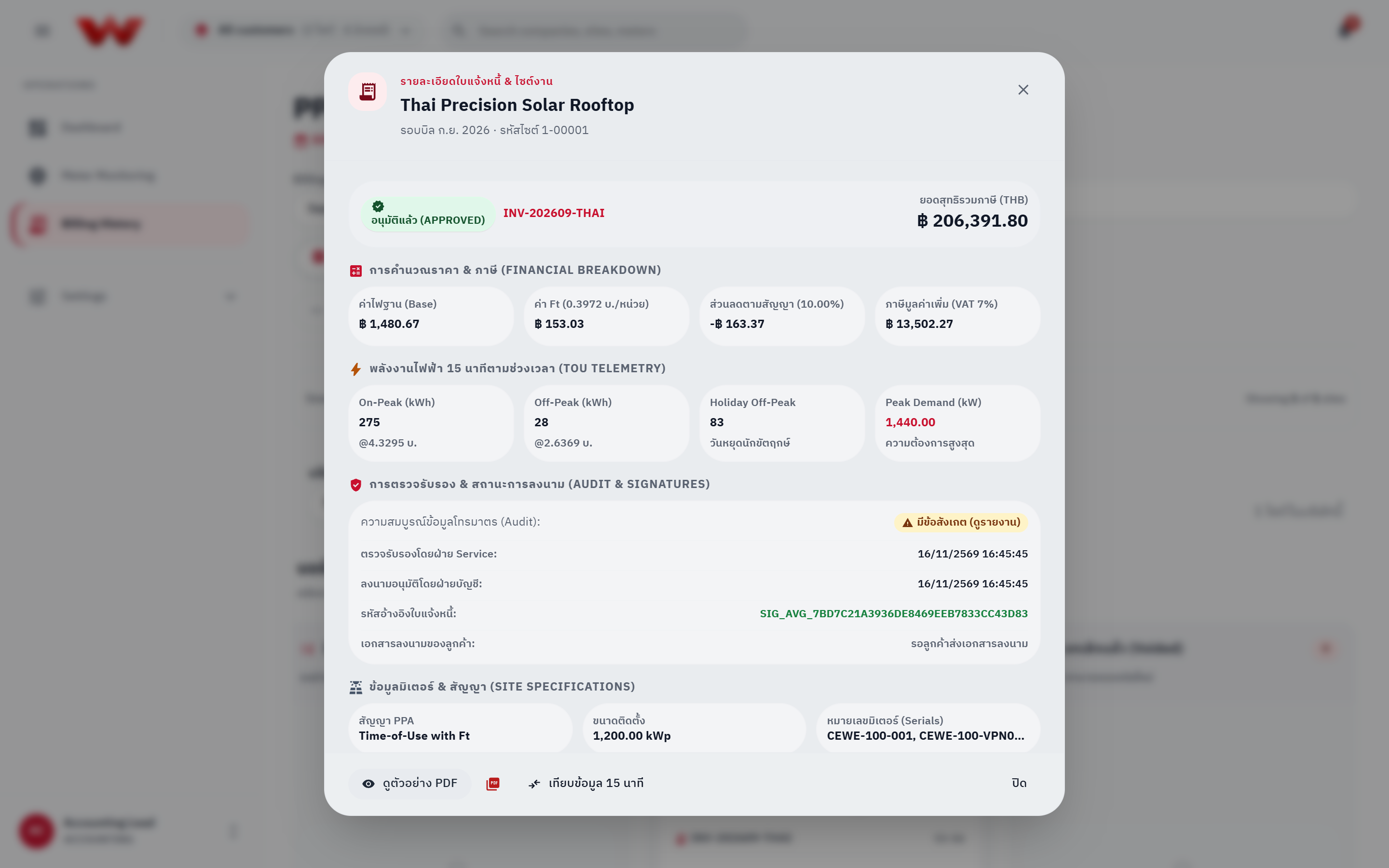
- Status Watermarks:
DRAFTandCHECKEDdocuments display a diagonalร่าง – ยังไม่อนุมัติ / DRAFT – NOT APPROVEDwatermark; voided documents displayยกเลิก / VOID; onlyAPPROVEDdocuments carryต้นฉบับ / Original. - System vs. Signed PDF Toggle: Once the customer uploads a countersigned PDF, switch between System PDF and Signed PDF right inside the preview dialog.
- Private Signature Previews: Organization signatory images and customer countersignature images are stored privately (
private/signatures/...) and retrieved strictly through authenticated endpoints (/api/organizations/:id/signatureand/api/invoices/:id/customer-signaturewithCache-Control: private, no-store), never exposed via public URLs. - Legal Identity Guard (
422): Exporting documents refuses with422if either seller or buyer lacks a company name, valid 13-digit Tax ID, or address. - Export Formats: Official bilingual A4 PDF (with Annex Page 2 for multi-meter sites), Billing Notice PDF (
ใบวางบิล) (single or consolidated), multi-sheet Excel (.xlsx) with 15-min interval load curves, and Word (.docx) executive summary.
8.2 Voiding (REJECTED) & Reissuing
If a DRAFT, CHECKED, or APPROVED invoice must be canceled (requires invoice.void):
- Open the row
⋮menu (or card icon) and select Void (ยกเลิกบิล). - Enter a mandatory cancellation reason (minimum 3 characters) and confirm.
- The invoice transitions permanently to
REJECTED(voidedAt,voidedByUserId,voidReasonpreserved), any pendinglate_intervalsfor that period are replayed intoload_profile_15minin the same transaction, and you can immediately click Reissue (ออกบิลใหม่) to generate a new replacement invoice with the next running number.
8.3 Payment Tracking & Email Dispatch
- Payment Status: Click the payment status pill (
Unpaid,Paid,Partial,Overdue) on any row or card to record paid amount, due date, and transfer/receipt reference. - Email Dispatch: Use
⋮ → Send emailto dispatch the invoice PDF notification to the off-taker's accounting contact.
9. Tariff Savings Comparison & Parallel Run Diagnostics
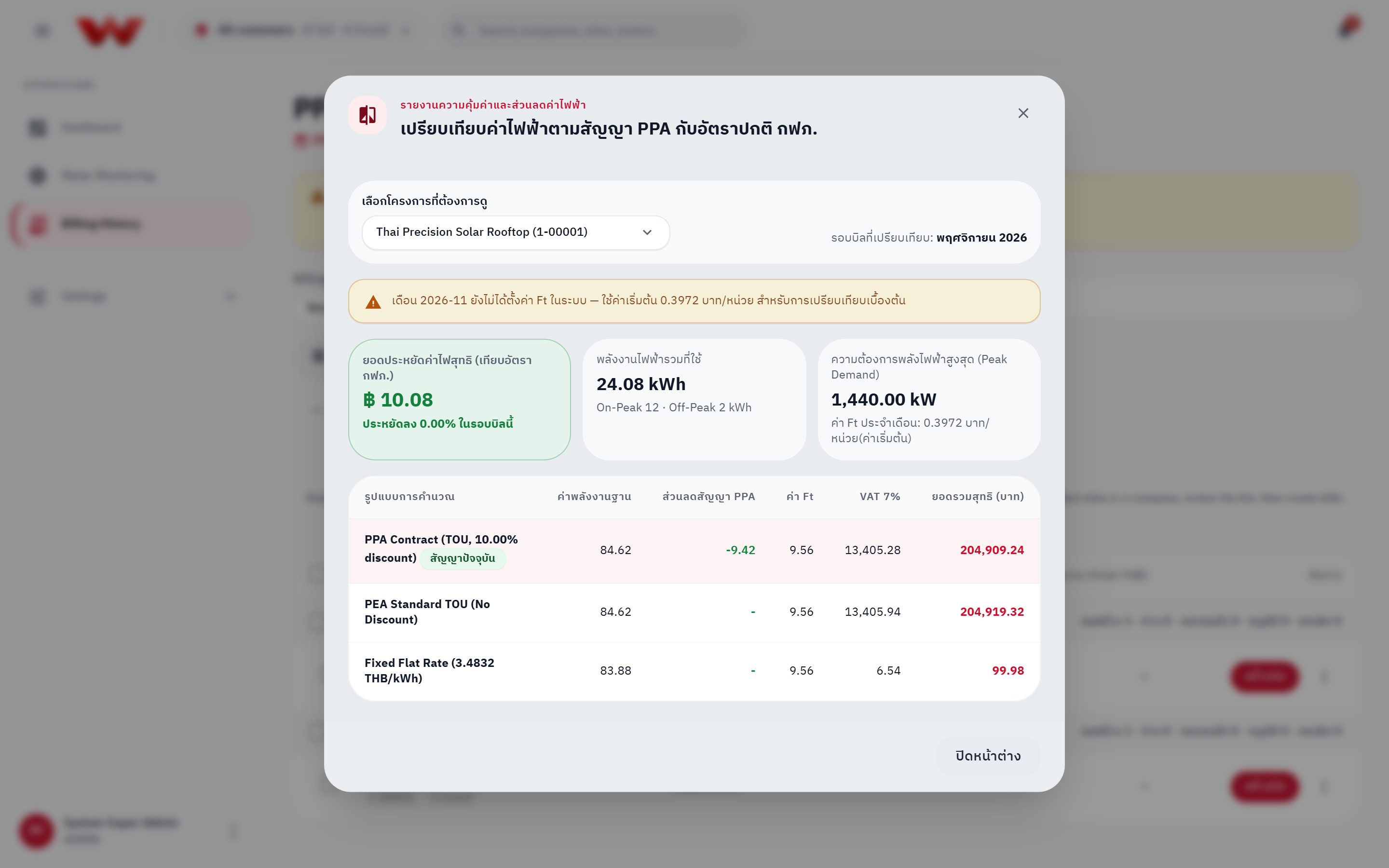
9.1 Tariff Savings Comparison (Compare PPA rate with utility)
- Open More tools → Compare PPA rate with utility.
- Choose a site for the active billing month. The report computes three side-by-side totals from the exact same interval stream:
- PPA Contract: Actual contracted TOU rates and PPA discount.
- PEA Standard TOU:
0%discount benchmark. - Fixed Flat Rate Benchmark: Midpoint average of On-Peak and Off-Peak rates (
0%discount, no demand charge).
- Review net THB savings and
%savings versus PEA.
0.3972 Ft Fallback Warning Banner
If the selected YYYY-MM billing month has no configured Ft rate in the database (ftRateIsFallback = true), Tariff Savings Comparison uses a provisional 0.3972 THB/kWh fallback rate so teams can preview estimated savings, and displays a yellow warning banner:
"Month YYYY-MM has no Ft rate configured: using fallback 0.3972 THB/kWh for preliminary comparison."
Unlike comparison previews, actual invoice calculation and generation strictly refuse with 422 until a verified Ft rate is saved.
9.2 Parallel Run (invoice.compare)
Users with invoice.compare can open ⋮ → Compare meter data (เทียบข้อมูลมิเตอร์) to inspect a read-only comparison between bills computed from cumulative readings projection versus direct HES 15-minute intervals, broken down per meter and TOU band along with any unconfirmed or flagged intervals.