
UAT release
This guide describes the upcoming portal update. Some screens or actions may differ in the current UAT portal.
Customer Portal Guide (Off-Taker Experience)
The WattDee Customer Portal provides electricity off-takers (Customer / Off-Taker Tier) with a focused workspace to track real-time solar energy generation, verify PPA contract savings against PEA utility rates, inspect issued statements, and countersign approved invoices.
1. Customer Tier Roles & Access Boundaries
Access within the Customer Portal depends on your assigned role inside your organization (see Roles and Permissions for the complete capability matrix):
| Role | Dashboard & 15-Min Charts | Meter Status | View Issued Invoices (APPROVED) | Countersign Invoices | Manage Company Users & Profile |
|---|---|---|---|---|---|
Customer Administrator (ADMIN) | Allowed | Allowed (IPs hidden) | Allowed | Allowed | Allowed (manage staff & company signature) |
Customer Representative (CUSTOMER) | Allowed | Allowed (IPs hidden) | Allowed | Allowed | Restricted |
Read Only (READER) | Allowed | Allowed (IPs hidden) | Restricted (/billing shows AccessDenied) | Restricted | Restricted |
Privacy & Working-Paper Isolation
- Approved Invoices Only: Customers only see
APPROVED(officially issued) invoices. Internal developerDRAFT,CHECKED, andREJECTEDrecords, along with internal Stage 2 verification reports, are never exposed to the customer tier. - Hidden Network & HES Internals: For infrastructure security, customer accounts (including Customer
ADMIN) never receive meter IP addresses, TCP ports, SIM card IDs, DLMS credential status, or backfill triggers.
2. Customer Dashboard & Meter Monitoring
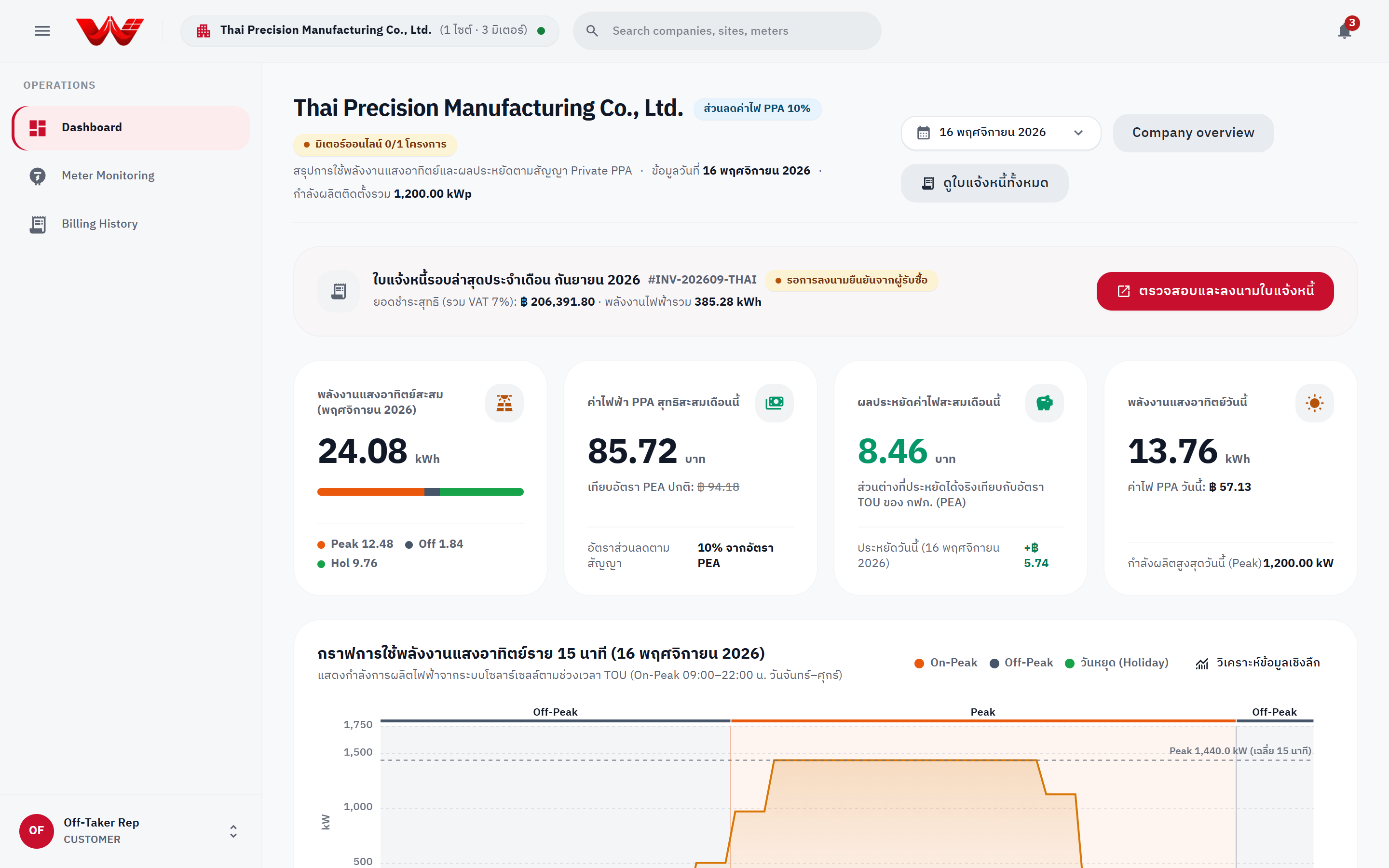
Signing in as a customer user lands on the Solar Energy & Savings Overview (/):
- Header & Date Picker:
- Displays your company name, active PPA Discount (%) tag, and site meter health status (
Normal operationorX/Y sites online). - Use the top-right DatePicker to inspect any historical date.
- Quick shortcuts open Company overview or View all invoices (
/billing, visible toADMINandCUSTOMERonly).
- Displays your company name, active PPA Discount (%) tag, and site meter health status (
- Latest Statement Quick-Access Banner:
- Highlights the newest
APPROVEDinvoice with its#invoiceNumber, net payable (incl. 7% VAT), total energy (kWh), and countersignature badge (CountersignedorPending customer signature). - Click Review & Sign Invoice to jump directly to
/billing.
- Highlights the newest
- 4 Customer-Centric KPI Cards:
- Month-to-Date Solar Energy (
kWh): Cumulative energy with a stacked On-Peak / Off-Peak / Holiday breakdown bar. - Month-to-Date PPA Net Cost (
THB): Pre-VAT PPA energy cost compared against the crossed-out PEA standard tariff equivalent. - Month-to-Date Contract Savings (
THB): Net savings versus PEA TOU plus savings earned on the selected day. - Today's Solar Generation (
kWh): Selected day energy, PPA cost, and today's Peak Power (kW).
- Month-to-Date Solar Energy (
- Daily 15-Minute Solar Generation Curve:
- Color-coded by TOU band (
On-PeakMon–Fri09:00–22:00,Off-Peak, andHoliday). - Telemetry outages appear as true broken gaps (
null), never fabricated as zero. - Click In-depth Data Analysis (
/view-data) for multi-day or multi-month drilldowns.
- Color-coded by TOU band (
- PPA Contract & Installed Sites Cards:
- Shows installed capacity (
kWp), meter serial numbers, connection status badge (Online,Communication lost,Waiting first connection, orDisabled), Effective Discounted PPA Rates vs. PEA base rates (On-Peak,Off-Peak,Holiday), and monthly totals per site. - Click View meter status or Daily/Monthly charts for per-site details (see Meter & Telemetry Guide).
- Shows installed capacity (
3. Viewing Approved Statements & Downloading Documents (/billing)
Users with ADMIN or CUSTOMER roles can open Electricity Statements & Billing History (/billing):
3.1 Filtering & Summary Cards
- Filter statements using Billing Year, Site (if your organization has multiple sites), or Search (by invoice number, site name, or billing month).
- Review the 3 top summary tiles:
- Total Issued Invoices (
approvedCount) - Countersigned (
signedCount) - Pending Customer Signature (
pendingSignCount)
- Total Issued Invoices (
3.2 Inspecting the Spotlight Statement Card
Click any row in the Statement History table below to load its full breakdown into the Spotlight Card:
- Left Panel (TOU Energy Summary):
On-Peak,Off-Peak,Holiday / WeekendkWh,Peak Demand (kW), andTotal Energy (kWh). - Right Panel (Financial Breakdown, THB): Base energy charge,
Ftsurcharge (with rate per kWh), PPA contract discount deduction (applied toenergy + Ftper the Billing & Approval Guide),VAT 7%, andTotal Payable. - Footer Strip: Displays countersignature status and the
Invoice Reference Code(รหัสอ้างอิงใบแจ้งหนี้,SIG_AVG_...) matching the official PDF audit strip.
3.3 Previewing & Exporting Documents
From the Spotlight Card footer or table action buttons:
- Preview Invoice (PDF): Opens the A4 viewer where you can toggle between System PDF and Signed PDF (once uploaded).
- Download Invoice (PDF): Official bilingual A4 Tax Invoice (includes Page 2 Annex if meters were swapped mid-cycle).
- Download Billing Notice (PDF): Official
Billing Notice / ใบวางบิลsummary document. - Calculation Sheet (Excel): Multi-sheet
.xlsxworkbook containing the full 15-minute interval dataset for independent accounting verification. - Document (Word):
.docxexecutive summary report. - View Signed PDF: Downloads the countersigned PDF attached to the invoice.
4. Countersigning Approved Invoices
For any APPROVED invoice marked Pending customer signature, users holding invoice.countersign (Customer ADMIN or CUSTOMER) can countersign using either of two methods:
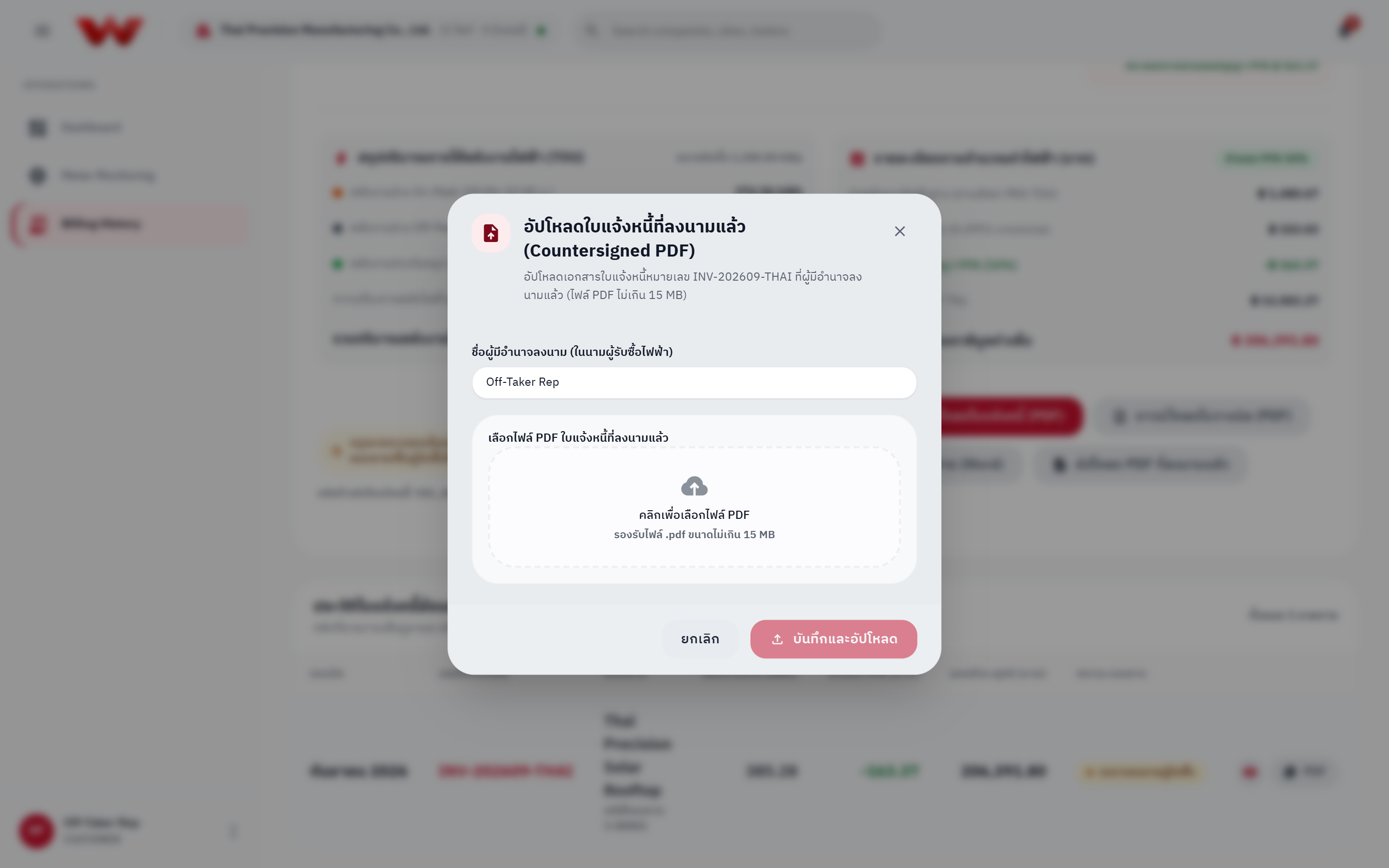
Option A: Upload a Countersigned PDF (อัปโหลด PDF ที่ลงนามแล้ว)
Best when your organization prints/stamps/signs hard copies or applies an external corporate digital signature:
- Click Download Invoice (PDF) and have your authorized signatory sign/stamp the document.
- Return to
/billingand click Upload Signed PDF (or Sign in the history table). - Enter the Authorized Signatory Name.
- Select the signed
.pdffile (maximum 15 MB; validated by%PDFmagic bytes). - Click Save & Upload. The statement immediately updates to Countersigned.
Option B: Attach a Customer Signature Image (แนบลายเซ็นผู้รับซื้อ)
Best for embedding your authorized signature directly into the WattDee-generated invoice PDF:
- Click Attach Customer Signature on the Spotlight Card.
- Enter the Authorized Signatory Name.
- Upload a signature image (transparent PNG recommended; supports
PNG,JPEG, andWebPup to 2 MB). - Review the preview (fetched securely over the private authenticated endpoint
/api/invoices/:id/customer-signature, never via public URLs). - Click Save Signature. Your signature and signatory name are embedded directly into the "For / Customer Signature" box on the PDF invoice.
Countersignature Immutability (409 Conflict)
Once a countersigned PDF or customer signature image is saved to an invoice, customer and developer users cannot overwrite or replace it (the API returns 409 Conflict). If an incorrect file was uploaded by mistake, contact a Platform Super Administrator to replace it.
5. Managing Customer Accounts & Changing Your Password
- Customer Administrator (
ADMIN): Open Settings to add, edit, or suspendCUSTOMERandREADERusers in your company, maintain your legal Tax ID (13 digits) and VAT address, or upload an organization-wide signature image. - Any User: Click your profile card at the bottom-left of the sidebar and select Change password (
เปลี่ยนรหัสผ่าน) to update your own password anytime (automatically signs out all other active devices).
Need help with access restrictions, login errors, or billing rules? See the Troubleshooting, FAQ & AI Integration Guide.