
UAT release
This guide describes the upcoming portal update. Some screens or actions may differ in the current UAT portal.
Platform Admin Guide
Who is this for: Platform Administrator (Platform ADMIN) Central Operations Team (Platform SERVICE, read/health tabs only)
Prerequisites:
- Signed in with a Platform administrator account under the platform organization (
Advanced Grid Co., Ltd.). - Solar developer details (Thai/English names, 13-digit Tax ID) and official ERC/PEA monthly Ft rates and public holiday schedules.
1. Portfolio Dashboard Overview
After signing in, the Dashboard (Solar portfolio) provides a real-time view across every solar developer and site:
- Scope with the top switcher: Choose All developers to monitor the entire platform, or select a specific solar developer to inspect their fleet.
- Review the Health Strip: Check live counts for
online,offline,not reporting,meters with alarms, and HES data projection lag. Click any pill to jump straight to the filtered meter list. - Check the 4 KPI cards:
- Today Energy (kWh) with Peak / Off-Peak / Holiday bar and comparison vs. the same time yesterday.
- Today Value (THB) (intentionally displays
-when the selected portfolio spans sites on different tariff rates rather than guessing an average). - Month Cumulative Energy (kWh) and revenue.
- Total Installed Capacity (kWp) and active site count.
- Act on the right-hand Action Queue:
- If the current billing month has no verified Ft rate, an item Verify Ft rate for YYYY-MM appears. Click it to confirm and publish the Ft rate right from the Dashboard.
- Also lists urgent meter alarms, draft/checked invoices waiting on action, and late telemetry intervals.
- Analyze Generation Curves & Site List: Switch between Day (15-minute kW curve against the dashed clear-sky expected ceiling), Month (daily bars), and Year (monthly bars). Click bars to drill down, expand the TOU Day/Month Summary, or toggle the site portfolio between Table and Cards.
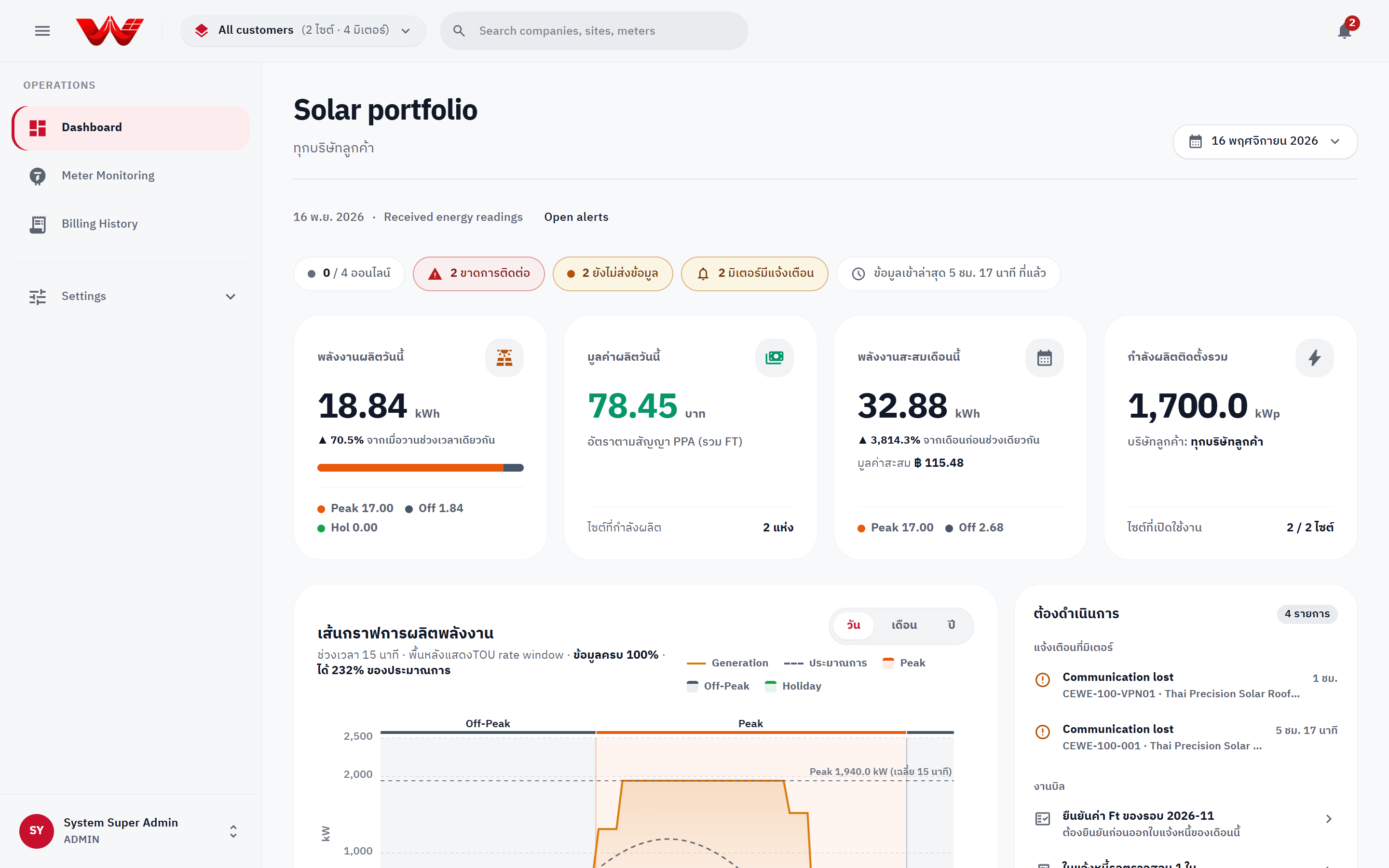 Figure 1: Portfolio Dashboard showing Health Strip, TOU KPIs, generation curve, and Action Queue.
2. Company Directory & Creating Solar Developers
Only Platform administrators can create developer companies, delete companies, change organization types, and adjust active meter limits.
Browsing the Company Directory
- Click Settings > Companies in the left navigation sidebar.
- Use Search companies to filter by company name or ID.
- Organizations are grouped under Platform administration, Developer companies, and Unassigned customers.
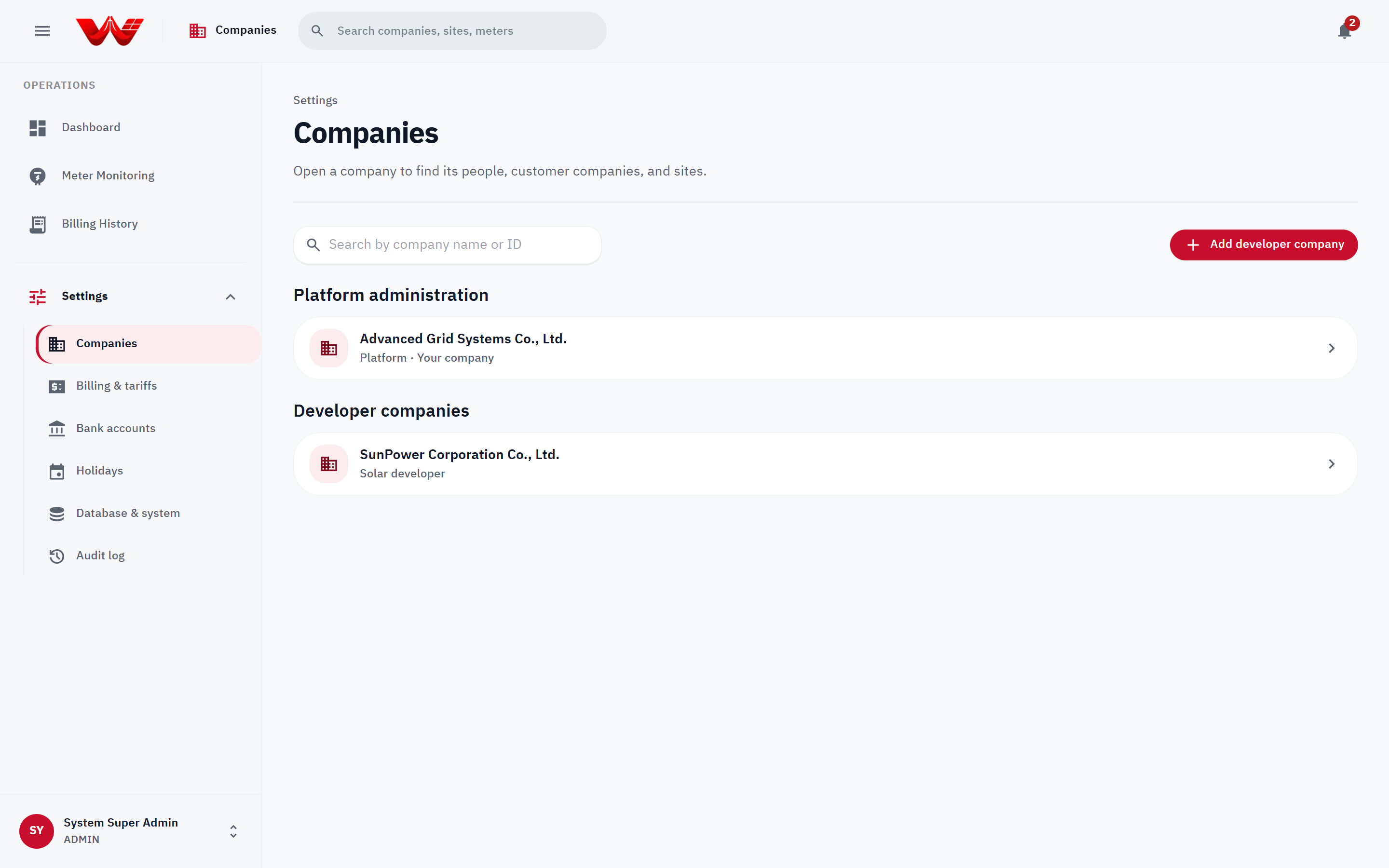 Figure 2: Companies directory grouped by tier, with the Add developer company action.
Creating a New Solar Developer Company
- On Settings > Companies, click Add developer company.
- Enter Company name (Thai) and Company name (English) (required).
- Ensure Organization type is set to Solar developer.
- Enter tax and billing details: Tax ID (13 digits), Phone (shown on invoices), Billing email, and Head office address (shown on tax invoices).
- Optionally enter Authorized signatory name, Signatory title, and upload the Authorized signature (transparent PNG/JPG/WebP) and Company logo.
- Click Add company to save.
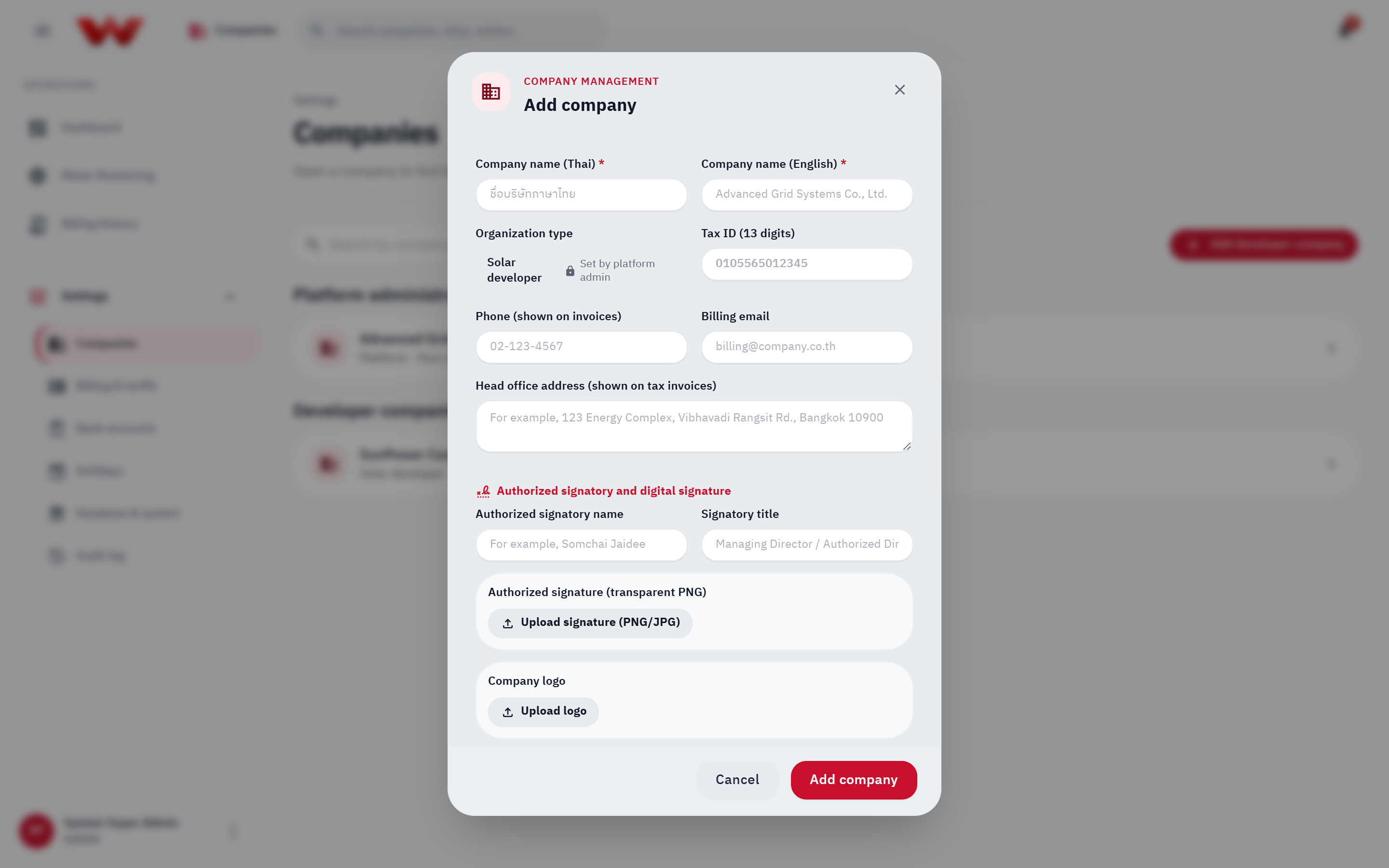 Figure 3: Add company dialog for creating a new solar developer and configuring branding.
Setting Meter Limits & Creating the First Company Admin
- Open the newly created developer company, go to Company information, and click Edit company profile.
- Adjust Active meter limit (default is
100,000active meters per company; inactive meters are excluded) and click Save changes. - Open the People & access tab and click Add user to create the developer's first Company administrator so they can onboard customers, sites, and staff.
Deleting a Company
Clicking Delete company removes the company from active management while leaving previously issued invoices unchanged.
3. Tariffs & Monthly Ft Rates (Billing & tariffs)
Only Platform administrators can publish or update monthly Ft rates (ftrate.write).
- Under Settings in the sidebar, click Billing & tariffs.
Tab 1: Tariffs (Tariff structures)
- Review the Current billing rules summary strip (billing cut-off day, decimal precision for energy/rate/amount, and power factor penalty rules).
- Click Add tariff or Edit on an existing tariff schedule.
- Set Tariff category, Start date / End date, Peak / Off-peak / Holiday grid tariffs, Service charge, and Bill calculation type (With Ft or Without Ft).
- Expand Advanced billing rules to configure contracts tied to this tariff:
- Billing cut-off day (1–28) (e.g.,
25bills from the 25th to the 24th of the next month) - Payment due (days after cut-off) (
0–120days) - Decimal places for energy (
0–4), rate (2–6), and amount (0–4) - Power factor penalty (PEA): toggle on/off, Minimum PF threshold (PEA standard
0.85), and Penalty rate (PEA standard56.07THB/kVAR).
- Billing cut-off day (1–28) (e.g.,
- Click Save changes, or click CSV to export the tariff table.
Billing Cut-Off Day Locks After First Invoice
Once a site has any non-rejected invoice, its Billing cut-off day is locked (409 on change) so billing periods never overlap or leave unbilled gaps. Other terms still update, and the portal lists which sites kept their existing cut-off day.
Tab 2: Monthly Ft Rates
- Switch to the Monthly Ft rates tab.
- Click Publish Ft rate (or Edit on an existing month).
- Enter Billing month in
YYYY-MMformat (for example,2026-10). - Enter Ft rate (THB/kWh) (between
-2.0000and10.0000, e.g.0.3972). - Click Save Ft rate.
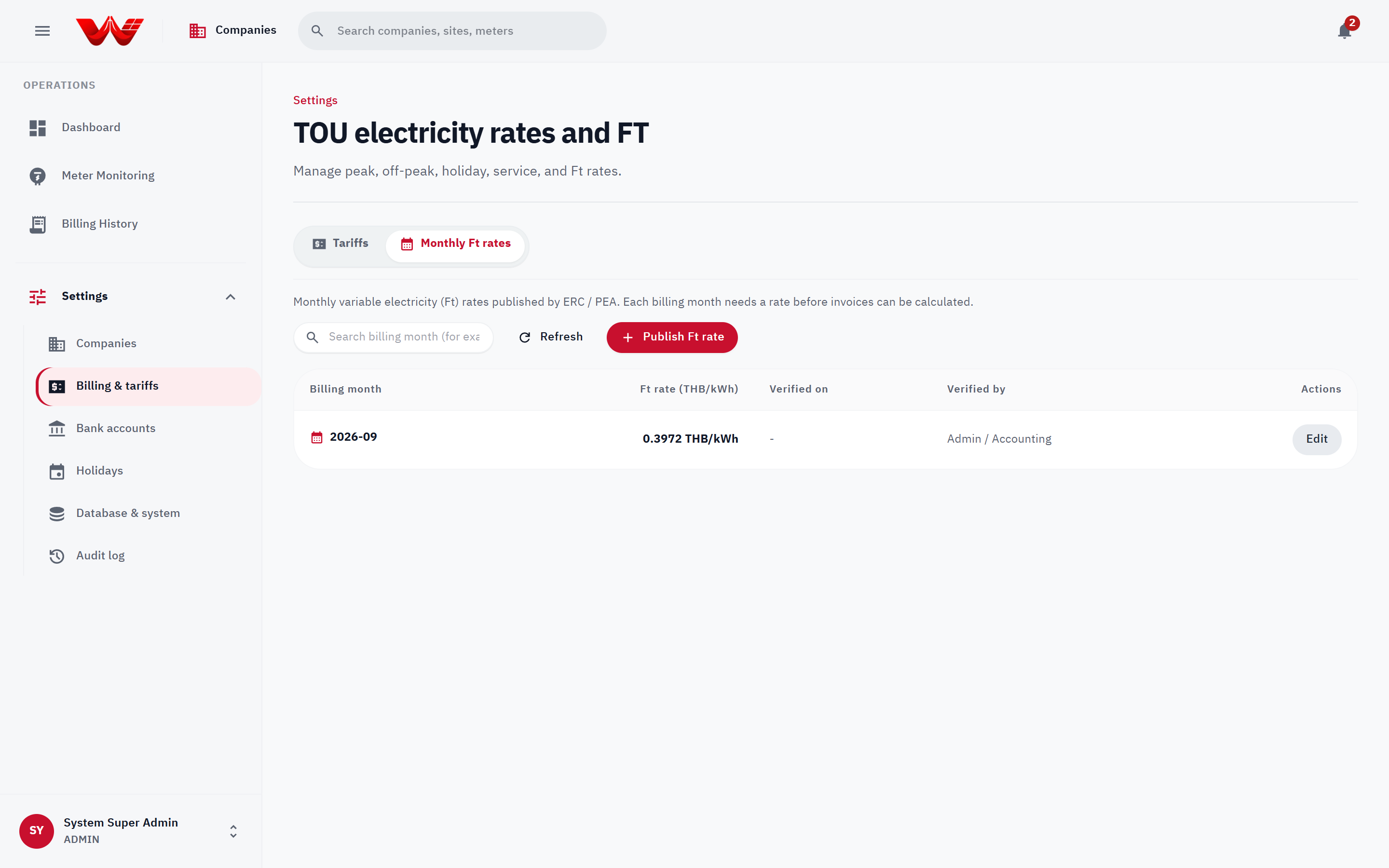 Figure 4: Billing & tariffs screen with Tariffs and Monthly Ft rates tabs.
Missing Ft Rate Blocks Invoice Calculation
Invoice calculation strictly rejects (422) any billing month that does not have a published Ft rate. Always publish or verify the month's Ft rate before billing run day.
4. Bank Accounts, Holidays, Database Health & Audit Log
Payment Bank Accounts (Settings > Bank accounts)
- Open Bank accounts under Settings.
- Click Add bank account (or Edit an existing row).
- Fill in Bank name, Branch, Seller (company receiving payments) (choose Platform (shared by all sellers) or a specific Solar developer so invoices print that seller's own bank account), Account name, Account number, and PromptPay / QR number.
- Click Add account / Save changes.
Public Holiday Calendar (Settings > Holidays)
Energy recorded on weekends and dates in this calendar is automatically classified as Rate C (Holiday).
- Open Holidays under Settings.
- Bulk annual load: Select a year (
2025,2026, or2027) under Load annual public holidays (PEA / MEA calendar) and click Load annual holidays. - Add a single holiday: Pick Holiday date (YYYY-MM-DD), enter an optional Holiday name, and click Add holiday.
Database & System Health (Settings > Database & system)
(Accessible to Platform administrator, Central operations team, and roles with meter.network.read.)
- Open Database & system to inspect:
- Database size and PostgreSQL version.
- Monthly partitions status (
ReadyvsPartition needs extension) and per-partition row counts and storage sizes. - Meter data sync (HES): projection lag in seconds and meters waiting over 1 hour.
- System record counts: Projects, Meters, Invoices, and Audit events.
- Click Refresh status to pull the latest health metrics.
System Audit Log (Settings > Audit log)
(Restricted to Platform administrators holding org.admin.)
- Open Audit log under Settings.
- Filter across the whole platform by:
- Search audit events (activity, record ID, or summary)
- Filter by actor email
- Category:
All categories,Meter data,Invoices,PPA contracts,Meters - From and To dates
- Click Export current page to download a CSV of the visible page (use filters and pagination to export older pages).
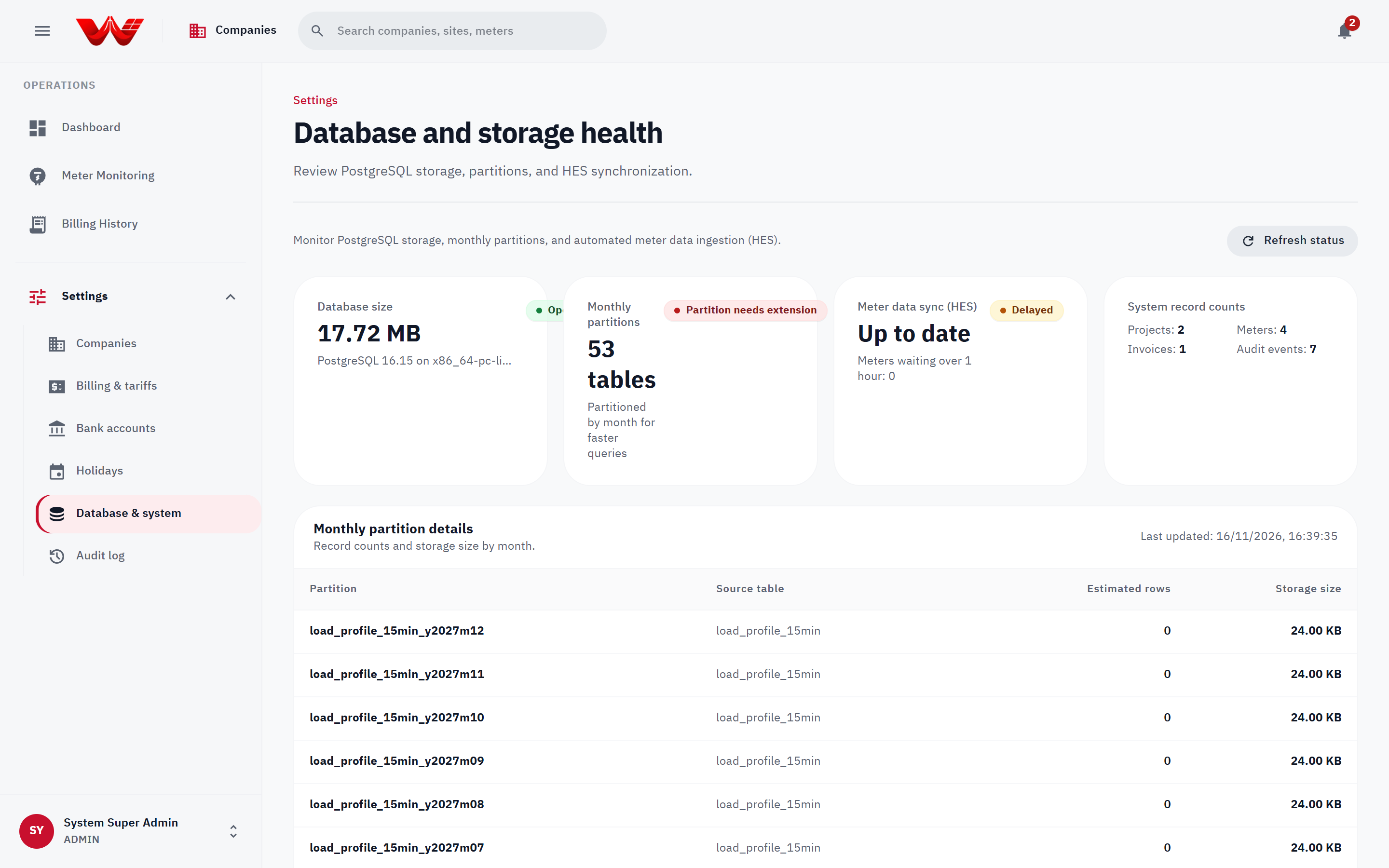 Figure 5: Platform reference and governance tools (Bank accounts, Holidays, Database health, and Audit log).
5. Platform-Exclusive Meter & VPN Responsibilities
Even when solar developers manage their own sites and meters, two cross-tenant safeguards remain exclusive to Platform administrators:
- VPN Profiles & Meter Assignment (
vpn.manage): Creating, editing, enabling/disabling WireGuard, IPsec, and OpenVPN profiles and assigning site meters under the site's Connectivity tab. - Serial Overrides & HES Swap Confirmation (
meter.identity.override): Resolving pending/duplicate/mismatch meter identities by verifying the physical nameplate on site and entering a mandatory audit reason (at least 5 characters) to Correct serial or Confirm swap.