
UAT release
This guide describes the upcoming portal update. Some screens or actions may differ in the current UAT portal.
Troubleshooting, FAQ & AI Assistant Integration
This guide covers common billing errors, role restrictions, sign-in and password recovery, meter connectivity diagnostics, and how to connect AI assistants and agents to the WattDee documentation.
1. Error 422: Missing Ft Rate When Generating an Invoice
Symptom
- Calculation or invoice generation fails with HTTP
422:No Ft (Fuel Adjustment Tariff) rate is on record for YYYY-MM. Refusing to generate: billing would require inventing a rate. - A yellow banner at the top of
/billing(or in the Dashboard Action Queue) prompts Ft verification required.
Cause
- Real invoices write financial amounts to the ledger, so the billing engine strictly refuses to invent an Energy Regulatory Commission (ERC) Ft rate when no verified record exists for
YYYY-MM. - Only a Platform Administrator (
ftrate.writecapability) can set or update Ft rates. DeveloperADMINandACCOUNTINGusers cannot configure Ft rates themselves.
Step-by-Step Resolution
- Ask a Platform Administrator to sign in, open
/billing, and click Verify Ft rate in the warning banner (or go to Settings → Billing & tariffs). - Confirm the target
YYYY-MMbilling month and enter the official Ft rate (THB/kWh) (valid range:-2.0000to10.0000). - Click Confirm, then retry invoice generation in
/billing(see Billing & Approval Guide).
Why Does "Compare PPA rate with utility" Still Work Without an Ft Rate?
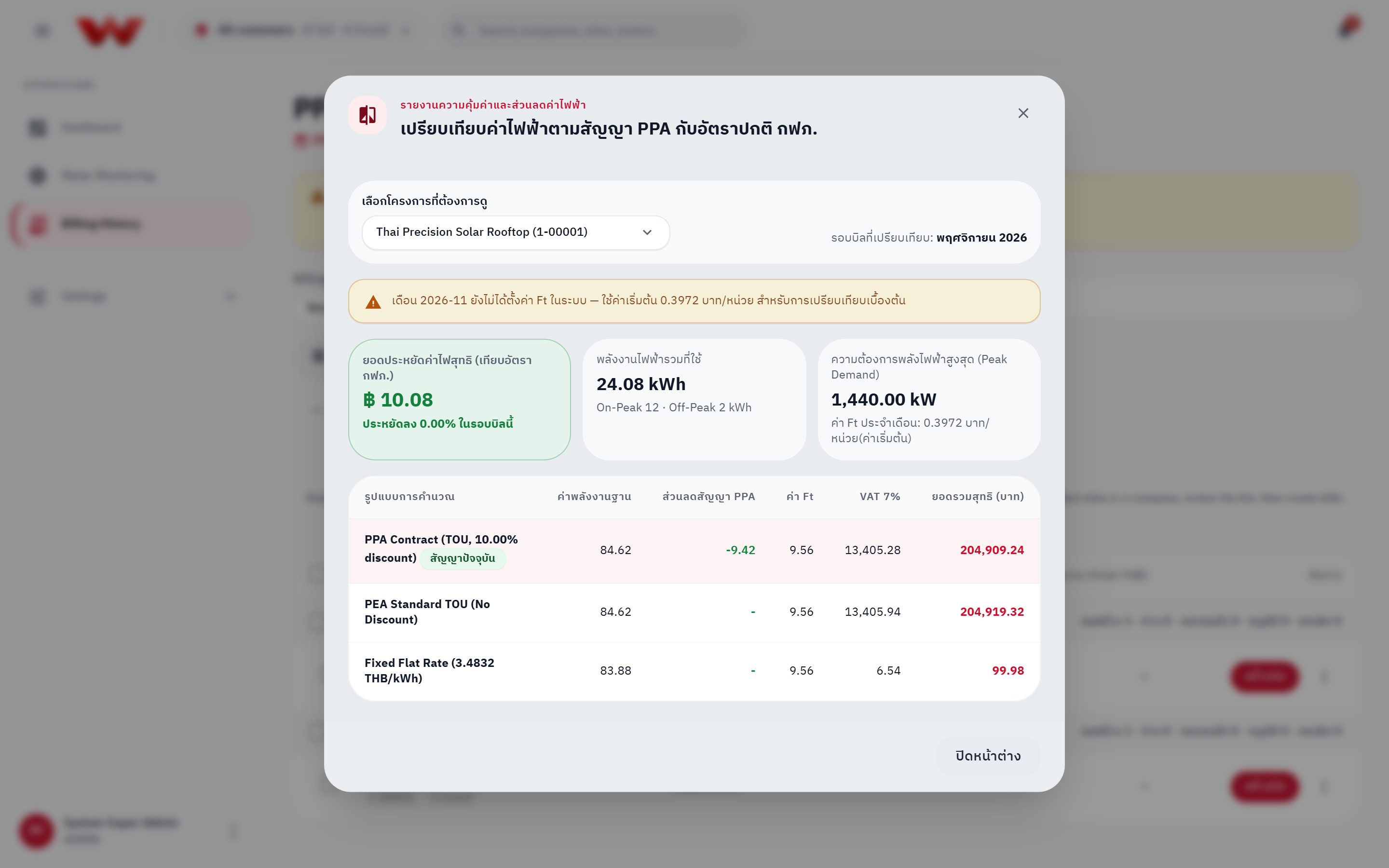
The Tariff Savings Comparison report (/api/billing/rate-comparison) is an exploratory comparison tool. When YYYY-MM has no configured Ft rate, it falls back to 0.3972 THB/kWh and displays a yellow warning banner so users know the savings preview is provisional.
2. Error 422: Billing Period Has Not Ended Yet (Open Period vs. invoice.issueEarly)
Symptom
- Clicking Create bill before the billing cut-off date fails with HTTP
422:Billing period YYYY-MM has not ended (X/Y days elapsed)...or a message stating the period has not finished yet.
Cause
- Under business rule BL-1, monthly invoices are generated after the billing cycle closes (
endDate <= now, honoringbillingCycleDayinAsia/Bangkok UTC+7). - Only users holding
invoice.issueEarly(Developer ADMINorPlatform ADMIN) can confirm early issuance.Developer ACCOUNTINGusers cannot issue before cut-off, and future periods that have not started are blocked for everyone.
Step-by-Step Resolution
- Wait until after
00:00Bangkok time on the site's cut-off date (cycleDay) to issue the full-month invoice. - If an early mid-cycle bill is genuinely required, ask a Developer ADMIN or Platform ADMIN to generate the bill and confirm the Billing period has not ended dialog (Issue early).
3. Why CHECKED and APPROVED Must Be Done by Two Different People (checker ≠ approver)
Symptom
- The approval button displays
SoD restriction(ติดเงื่อนไข SoD) with a shield-lock icon, or the API returns:Segregation of duties violation: The accounting approver cannot be the same user who performed the technical service check.
Cause
WattDee enforces strict Dual Control / Segregation of Duties (SoD):
- The user recorded in
checkedByServiceUserId(Stage 2) cannot perform Stage 3 final approval (APPROVED) on the same invoice, even if that person holds anADMINaccount with both capabilities. - Invoices also cannot jump directly from
DRAFTtoAPPROVEDwithout passing Stage 2CHECKED.
Step-by-Step Resolution
- Have an O&M engineer (
SERVICE) or a first administrator perform Stage 2 technical verification (DRAFT → CHECKED). - Have an Accounting user (
ACCOUNTING) or a second, different administrator sign in with their own account to perform Stage 3 approval (CHECKED → APPROVED).
4. Locked Billing Periods & Late Intervals (late_intervals)
Symptom
- The Dashboard Action Queue alerts that energy arrived after a billing period closed (
พลังงานเข้ามาหลังปิดรอบบิล X ไซต์ / Y kWh ยังไม่อยู่ในใบแจ้งหนี้), or re-projecting/swapping meters is blocked for an invoiced month.
Cause
- Once an invoice moves into
CHECKEDorAPPROVED, its billing period ([billingPeriodStart, billingPeriodEnd)) is locked (Period Lock) soload_profile_15mincannot change underneath an audited or issued invoice. - If HES later backfills missing intervals after a cellular/VPN outage, or modifies interval values inside that locked window, the projection worker refuses to overwrite
load_profile_15minand instead stores the new/changed intervals (or withdrawals) inlate_intervals, surfaced viaGET /api/billing/late-intervalsand the Dashboard Action Queue.
Step-by-Step Resolution
- Inspect the pending unbilled kWh (broken down by TOU period and peak demand) in the Action Queue or
/api/billing/late-intervals. - Act based on the invoice status:
- If
CHECKED(not yetAPPROVED): Recalculate the draft or return it toDRAFT; pendinglate_intervalsautomatically replay intoload_profile_15minin the same transaction, then re-check and approve. - If already
APPROVED: If the unbilled energy warrants correction, Void (REJECTED) the invoice with a reason (automatically replayinglate_intervalsin the same transaction), then click Reissue to generate a replacement invoice with the recovered telemetry.
- If
5. Why READER and OPERATOR Cannot Open /billing (AccessDenied) & Why READER Cannot See Meter IPs
Why /billing Shows AccessDenied
Permissions in WattDee follow Organization Tier × Role, never role name alone (see Roles and Permissions):
- Accessing
/billingrequires theinvoice.viewcapability. - Customer
READER(Read only): Holds zero billing capabilities, and is intended strictly for viewing site energy charts and operational meter status. - Developer
OPERATOR(System operator): Focuses on real-time meter monitoring, test connections (meter.command), network diagnostics (meter.network.read), and alarm triage, not billing. - Navigating directly to
/billingwith either role displays theAccessDeniedpage (and the Billing link is hidden in the sidebar).
Why READER (and All Customer Users) Cannot See Meter IP Addresses
- Viewing IP addresses, TCP ports, SIM card IDs, and HES gateway error details requires
meter.network.read. - All customer-tier roles (
Customer ADMIN,CUSTOMER,READER), as well as DeveloperACCOUNTING, do not havemeter.network.read. - Both the backend API (
stripMeterNetworkFields) and the SPA omitipAddress,port,simCardId, and gatewaylastErrorfrom customer responses to protect site network infrastructure.
Resolution
Ask your Organization Administrator to assign the appropriate role (CUSTOMER or Customer ADMIN to view and countersign issued invoices; Developer SERVICE/OPERATOR/ADMIN for meter network diagnostics).
6. Sign-In Rate Limit (429 Too Many Requests) & Forgotten Password Reset
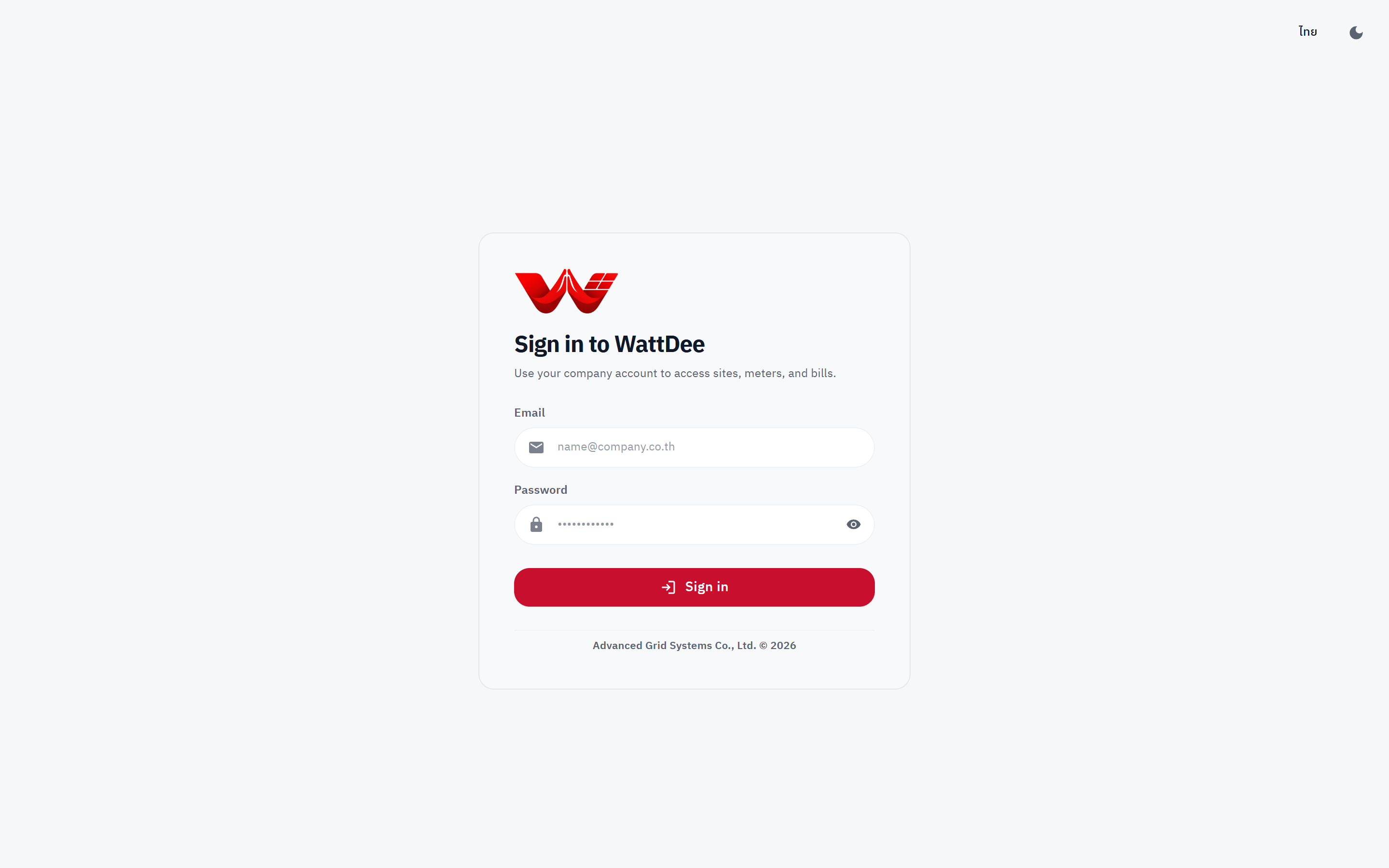
429 Too Many Requests ("Too many sign-in attempts")
- Cause: In production, BetterAuth enforces an anti-brute-force rate limit of approximately 3 sign-in attempts per 10 seconds per IP address.
- Resolution:
- Wait 10–15 seconds before attempting to sign in again.
- Double-check Caps Lock, keyboard layout, and email spelling.
Forgotten Password (No Self-Signup or "Forgot Password" Link)
- Cause: WattDee disables public sign-up (
disableSignUp: true) and unauthenticated self-resets to maintain strict multi-tenant security. Account provisioning and password resets are managed by organization administrators. - Step-by-Step Admin Password Reset:
- Contact your Company Administrator (
Customer ADMIN,Developer ADMIN) or Platform Administrator. - The administrator navigates to Settings → Company → People & access, clicks Edit on your user account, and locates Reset password.
- The administrator can either enter a policy-compliant password (minimum 8 characters, including uppercase, lowercase, digit, and special character
!@#$%&*) or leave the password blank to generate a one-time temporary password, then click Reset password. - Resetting immediately signs the user out of all active sessions. After signing in with the temporary password, open the bottom-left User Menu → Change password to set your own private password.
- Contact your Company Administrator (
7. Meter Shows Offline / Communication Lost (VPN & Test Connection Checks)
A meter transitions to Offline when no readings arrive for more than 1 hour (60 minutes) or when HES reports commLostAt / verification_failed / inactive. Follow this diagnostic checklist (requires meter.command, meter.network.read, or vpn.manage; see also Meter & Telemetry Guide):
- Check HES Activation Status:
- Under Settings → Site → Meters, verify the meter is active (
isActive = true) and HES status isHES is polling(active) rather thanDisabled in HESorverification pending. Remember that testing or editing does not automatically activate HES polling. Use Activate in HES when ready.
- Under Settings → Site → Meters, verify the meter is active (
- Verify Managed VPN Tunnel (if using
VPN (Mikrotik)):- Ask a
Platform ADMINto open Settings → Developer Company → VPN profiles and click Refresh status. - Confirm the VPN status tag reads
Tunnel established(tunnel_up) rather thancontroller_offline,runner_error,pending, ordisabled. - Confirm the meter is assigned to the correct VPN profile and its IP address falls within
allowed_ips.
- Ask a
- Run
Test connection:- Open the meter's Diagnostics panel (
/meterside panel or Settings → Site → Meters) and click Test connection. Review the returned diagnostic:config_error/ missing LLS password: Configure the DLMS LLS password on the HES host and restart HES.auth_failed: The meter rejected the LLS password; verify the HES host secret matches the physical meter.operation was canceled/ session timeout: TCP connected, but the meter did not answer; usually an interface mismatch betweenHDLC(4G modem / serial converter) andWRAPPER(direct Ethernet LAN on the meter).connect_failed/poll_timeout: Unreachable IP/port (default4059); inspect site power, 4G/APN SIM, Mikrotik VPN tunnel, and firewall rules.protocol_error: Verify the configured meter model (Saral 305,Premier 550,Prometer 100) and interface.
- Open the meter's Diagnostics panel (
- Recover Outage Gaps:
- Once
Test connectionsucceeds, click Read now or trigger a Backfill (up to 31 days per request) to pull stored 15-minute intervals from the meter's internal memory.
- Once
8. Using WattDee Docs with AI Assistants & Agents
The bilingual WattDee User Manual is published at https://docs.wattdee.com and provides three AI-native integration paths:
| Interface | URL / Command | Best For |
|---|---|---|
/llms.txt Index | https://docs.wattdee.com/llms.txt | Lightweight structured index of every Thai and English manual page with summaries for fast LLM discovery |
/llms-full.txt Bundle | https://docs.wattdee.com/llms-full.txt | Complete plain-Markdown bundle of both languages for one-shot context injection or RAG indexing (per-language bundles are also published at /th/llms-full.txt and /en/llms-full.txt) |
| Local MCP Server | bun run docs:mcp | Exposes WattDee documentation directly to MCP-capable AI clients (Claude Desktop, Cursor, Antigravity) with search_wattdee_manual, get_wattdee_guide, and get_role_capabilities |
Running the docs:mcp MCP Server
From the root of the AMR repository, launch the documentation MCP server with:
bun run docs:mcpOr register it in your MCP client configuration (replacing /path/to/AMR with your local repository path):
{
  "mcpServers": {
    "wattdee-docs": {
      "command": "bun",
      "args": ["run", "docs:mcp"],
      "cwd": "/path/to/AMR"
    }
  }
}
Example Questions to Ask Your AI Assistant
- "Walk me through the WattDee PPA discount and 7% VAT rounding steps with an example."
- "Why does a Customer READER or Developer OPERATOR hit AccessDenied on /billing?"
- "How do I replay late_intervals after voiding an APPROVED invoice?"