
# WattDee User Manual (English) ## WattDee User Manual (English) Source: https://docs.wattdee.com/en/ ::: warning UAT release This guide describes the upcoming portal update. Some screens or actions may differ in the current UAT portal. :::
WattDee LogoWattDee Operations Manual

WattDee AMR & Private PPA Operations Manual

Step-by-step operational documentation for platform administrators, solar developers, O&M engineers, accounting teams, and customer off-takers covering DLMS/COSEM meter onboarding, 15-minute VEE telemetry repair, PEA Time-of-Use billing, and 3-tier invoice approval.
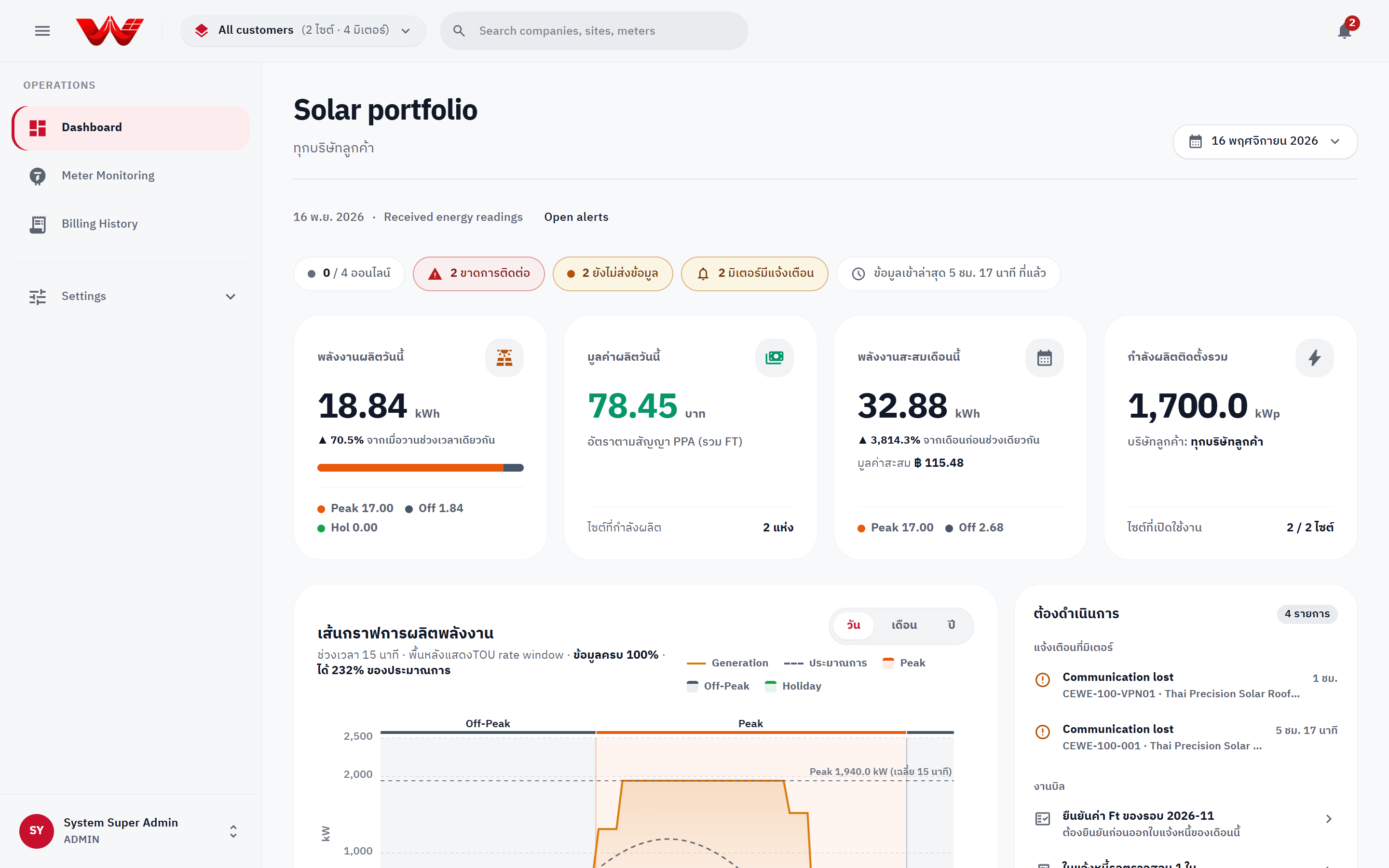
WattDee Portfolio Dashboard showing Health Strip, TOU KPIs, generation curve, and Action Queue
01 DLMS Meter & VPN Register meters under US-1.19 automatic serial discovery, configure CT/VT multipliers, and attach WireGuard, IPsec, or OpenVPN profiles.
02 15-Minute VEE Profile Track 15-minute Asia/Bangkok intervals with zero fake zeros, run linear or rolling-average VEE repair, and backfill from meter memory.
03 3-Stage TOU Invoice Calculate PEA Peak/Off-Peak/Holiday invoices using verified monthly Ft rates under DRAFT → CHECKED → APPROVED Segregation of Duties.
04 Off-Taker Countersign Customer off-takers monitor solar generation and countersign strictly APPROVED invoices (drafts and internal IPs stay isolated).
## Quick Role Lookup Jump directly to the guide that matches your organization tier and role: | Role | Core Responsibilities | Guide | | :--- | :--- | :--- | | **Platform Admin** | Monitor the full portfolio, onboard solar developer companies, publish electricity tariffs and monthly Ft rates, manage bank accounts, public holidays, database health, and audit logs. | [Platform Admin Guide](./03-platform-admin-guide) | | **Solar Developer** | Update company profile and invoice signatures, onboard customer companies (off-takers), configure sites and PPA contracts, register meters (`US-1.19`), coordinate VPN setup with a platform administrator, and invite staff. | [Developer Admin Guide](./04-developer-admin-guide) | | **Service & Operator** | Monitor fleet meter status, run live HES connection tests and read-now probes, handle mid-cycle swaps, inspect 15-minute telemetry, run VEE gap repair, backfill, and compare periods. | [Meter & Telemetry Guide](./05-meter-and-telemetry-guide) | | **Accounting** | Generate TOU PPA invoices, manage the 3-tier draft-check-approve workflow, handle late intervals and voiding, and export invoice PDFs. | [Billing & Approval Guide](./06-billing-and-approval-guide) | | **Customer Off-taker** | Sign in, monitor solar generation at your company sites, inspect TOU energy curves, manage customer staff, and countersign approved invoices. | [Customer Portal Guide](./07-customer-portal-guide) · [Roles & Permissions](./01-roles-and-permissions) | | **Troubleshooting & AI** | Resolve missing Ft `422` errors, period locks, `AccessDenied`, `429` sign-in limits, offline meters, and connect `llms.txt` or MCP clients. | [Troubleshooting & FAQ](./08-troubleshooting-faq) | ## Manual Directory (Chapters 01 to 08)
Chapter 01 Roles and Permissions Understand the Organization Tier × Role authorization model and how to inspect the read-only permissions matrix. Chapter 02 Login and Account Guide Sign in, navigate the portfolio switcher and global search, manage alerts in the notification center, switch language/theme, and change passwords. Chapter 03 Platform Admin Guide Portfolio dashboard, creating developer companies, tariffs and monthly Ft rates, bank accounts, public holidays, database partitions, and system audit logs. Chapter 04 Developer Admin Guide Company profile and digital signatures, onboarding customers, guided site/PPA/meter setup, VPN profiles, and user management. Chapter 05 Meter and Telemetry Guide Fleet monitoring, company/site/meter drill-down, HES diagnostics, mid-cycle swaps, 15-minute telemetry zoom ladder, VEE repair, backfill, and period comparison. Chapter 06 Billing and Approval Guide TOU invoice calculation, 3-tier check/approve workflow, customer countersigning, and period locks. Chapter 07 Customer Portal Guide Off-taker experience for monitoring site solar output, checking savings, inspecting approved invoices, and countersigning. Chapter 08 Troubleshooting, FAQ & AI Integration Step-by-step fixes for common billing, permission, sign-in, and meter issues, plus llms.txt and MCP usage.
::: info AI & Documentation Index Plain-text documentation index for AI tools and MCP clients is available at /llms.txt, with the full English bundle at /en/llms-full.txt and local MCP server via `bun run docs:mcp`. Looking for Thai? Open the [Thai Manual (`/th/`)](/th/). :::
--- ## Roles and Permissions Source: https://docs.wattdee.com/en/01-roles-and-permissions ::: warning UAT release This guide describes the upcoming portal update. Some screens or actions may differ in the current UAT portal. ::: # Roles and Permissions **Who is this for:** All Roles Platform Admin Developer Admin Customer Admin **Prerequisites:** - An active user account created by an administrator (public self-registration is disabled). - To view the in-app permissions table, your role must have user-management access (`Platform administrator`, `Company administrator`, or `Customer administrator`). --- ## How Access Works: Organization Tier × Role In WattDee, **access is never granted per individual site**. Every user's access comes from two facts enforced by the server: 1. **Organization Tier** determines **which companies and sites** you can reach. 2. **Role within that Organization** determines **which actions** you are allowed to perform on those companies and sites. ::: warning Same Role Name, Different Powers Across Tiers The `ADMIN` role does **not** mean the same thing in every organization: - `ADMIN` in the **Platform owner** organization (**Platform administrator**) manages all companies, all sites, shared reference data, and system settings. - `ADMIN` in a **Solar developer** organization (**Company administrator**) manages only their own company, their own customer companies, their developed sites, meters, and billing. - `ADMIN` in a **Customer company** (**Customer administrator**) manages only staff inside their own customer company and countersigns approved invoices. They cannot edit meters, contracts, or draft invoices. ::: --- ## Organization Tiers & Data Scope | Organization Tier | UI Label | Reachable Sites | Primary Purpose | | :--- | :--- | :--- | :--- | | **Platform owner** (`SUPER_ADMIN`) | **Platform owner** | **All companies and all sites** | Platform-wide governance: developer onboarding, electricity tariffs, monthly Ft rates, public holidays, bank accounts, VPN profiles, database health, and audit logs. | | **Solar developer** (`DEVELOPER`) | **Solar developer** | **Sites developed by the company** and its customer companies | Onboard off-taker customers, set up sites and PPA contracts, register/operate meters, repair telemetry, and issue/approve invoices. | | **Customer company** (`OFFTAKER`) | **Customer company** | **Sites where the company buys power** | Monitor generation, review 15-minute data, view approved invoices, and countersign invoices. | --- ## Roles by Organization Tier ### 1. Platform Owner Tier | Role Code | UI Title | Access Level | Capabilities & Scope | | :--- | :--- | :--- | :--- | | `ADMIN` | **Platform administrator** | Manage | Full platform authority (all 33 capabilities): create/delete companies, change company types, set active meter limits, manage users across all organizations, configure tariffs, publish monthly Ft rates, edit public holidays, manage bank accounts, manage VPN profiles, override meter serial numbers and confirm HES-detected swaps, issue early invoices, view database health, and inspect system audit logs. | | `SERVICE` | **Central operations team** | Operate | Monitors meters and communications across **all sites**: register/edit/replace meters (`meter.write`), run connection tests & read-now commands, view meter IP/port/SIM details, reprocess/repair 15-minute telemetry, view data quality reasons, acknowledge/snooze/assign meter alarms, view parallel billing comparisons, and read Ft rates/holidays. *(Cannot manage companies/users, change tariffs/banks/holidays, or generate/approve invoices.)* | ### 2. Solar Developer Tier | Role Code | UI Title | Access Level | Capabilities & Scope | | :--- | :--- | :--- | :--- | | `ADMIN` | **Company administrator** | Manage | Edits own developer profile, logo, and invoice signature; creates/edits/deletes its customer companies and their users; manages developer staff; creates/edits sites and PPA contracts; registers/edits/swaps meters; runs telemetry repair; manages alerts; and executes the full invoice lifecycle including early invoice issuance (`invoice.issueEarly`). *(Platform-only controls (creating developer companies, Ft rates, public holidays, bank accounts, VPN profile management, and manual serial override/swap confirmation) remain with the Platform administrator.)* | | `SERVICE` | **O&M engineer** | Operate | Registers/edits/swaps meters, runs connection tests & read-now commands, views meter IP/port/SIM details, repairs/imports 15-minute telemetry, views data quality reasons, manages meter alarms, views parallel billing comparisons, and performs the **Step 2 technical invoice review (`invoice.check`)**. *(Cannot generate or approve invoices.)* | | `ACCOUNTING` | **Accounting** | Billing | Views draft and approved invoices, generates/recalculates invoices, performs **Step 3 final invoice approval (`invoice.approve`)**, voids invoices with a reason, deletes draft invoices, views parallel billing comparisons, and reads Ft rates, holidays, and bank accounts. *(Under the 3-tier billing rule, Step 2 technical checker and Step 3 approver must be two different people.)* | | `OPERATOR` | **System operator** | Operate | Reviews meters and generation, runs connection tests and read-now commands, views meter network details and 15-minute data quality reasons, dispatches and manages alarms, and reads Ft rates/holidays. *(Cannot add/edit/delete meters or edit/import telemetry.)* | ### 3. Customer Company Tier (Off-taker) | Role Code | UI Title | Access Level | Capabilities & Scope | | :--- | :--- | :--- | :--- | | `ADMIN` | **Customer administrator** | Manage | Updates own customer company profile, logo, and signature; adds, edits, and suspends users inside their own company; views coworkers' emails and roles; views the customer permissions table; views **APPROVED** invoices and countersigns them on behalf of the customer. *(Never sees `DRAFT` or `CHECKED` invoices.)* | | `CUSTOMER` | **Customer representative** | Billing | Views **APPROVED** invoices and countersigns them on behalf of the customer, alongside site generation dashboards and 15-minute data. *(Sees colleague names only: no colleague emails/roles and no Settings access.)* | | `READER` | **Read only** | Read only | Views Dashboard, Meter Monitoring, and View Data / Analytics for the company's sites only. *(Cannot access Billing History or Settings, and cannot modify any data.)* | --- ## Viewing the Read-Only Permissions Matrix Administrators can verify the live server-enforced permission matrix at any time inside the portal: 1. Click **Settings** in the left navigation sidebar. 2. Open a company (Solar Developer administrators are taken directly to their company workspace). 3. Select the **People & access** tab. 4. Click **Role permissions** in the sub-navigation bar at the top. 5. Review the matrix grouped into **People and organizations**, **Sites and meters**, **Billing and invoices**, and **Shared reference data**. Your current role column is highlighted as **Your role**, and each column header shows the granted count (for example, `26 / 26`). ![Read-only role permissions matrix in Settings](/screenshots/en/27-settings-permission-matrix.png) *Figure 1: Read-only Role permissions matrix showing capabilities enforced by the server for the selected organization tier.* ::: tip Platform-Reserved Capabilities When viewing **Role permissions** inside a Solar Developer or Customer Company, platform-only permissions (such as publishing monthly Ft rates, editing public holidays, managing bank accounts, creating developer companies, and managing VPNs) are omitted from the company grid with a note explaining they are reserved for **Platform administrators**. ::: --- ## Next Steps - [Login and Account Management](./02-login-and-account) - [Platform Admin Guide](./03-platform-admin-guide) - [Developer Admin Guide](./04-developer-admin-guide) --- ## Login and Account Guide Source: https://docs.wattdee.com/en/02-login-and-account ::: warning UAT release This guide describes the upcoming portal update. Some screens or actions may differ in the current UAT portal. ::: # Login, Navigation, and Account Management **Who is this for:** All Roles Platform Admin Developer Admin Service & Operator Accounting Customer Off-taker **Prerequisites:** - A company email address and initial/temporary password provisioned by your administrator. - A modern web browser with cookies and JavaScript enabled. --- ## 1. Signing In Public sign-up is disabled in WattDee. Every user account is created and assigned to an organization by an administrator. 1. Open the WattDee portal URL. *(If you clicked a deep link to a specific meter or invoice, the portal redirects you right back to that page after signing in.)* 2. Optionally, use the top-right controls on the sign-in screen to switch language (**English / ไทย**) or toggle **Light / Dark mode**. 3. Enter your **Email** and **Password** (click the eye icon inside the password field to show or hide characters). 4. Click **Sign in**. ![WattDee Sign-In Page](/screenshots/en/01-login-page.png) *Figure 1: WattDee sign-in screen with language switch and theme toggle in the top-right corner.* ::: warning Session Expiry, Rate Limits, and Suspended Accounts - **12-hour session expiry:** Each sign-in session lasts **12 hours** (automatically refreshed hourly while active). After 12 hours or explicit sign-out, you must sign in again. - **Sign-in rate limit:** Repeated rapid sign-in attempts trigger rate limiting (`Too many sign-in attempts. Please try again later.`). Wait briefly before trying again. - **Suspended accounts:** If an administrator suspends your account, your active sessions end immediately and future sign-in attempts are blocked until reactivated. ::: --- ## 2. Top Bar: Portfolio Switcher & Global Search The top bar lets you scope your view across developers or customers and jump straight to any permitted company, site, or meter. ### Portfolio / Customer Switcher (`GroupSwitcher`) 1. Click the pill selector on the left side of the top bar (next to the WattDee logo): - **Platform staff (multiple developers):** Switch between **All developers** or a specific solar developer. - **Solar developer staff (or single-developer view):** Switch between **All customers** or a specific customer off-taker company, showing `(X sites · Y meters)`. - **Customer users with one organization:** Displays a read-only company pill showing your company name, site/meter count, and green active indicator. 2. When the list contains more than 8 organizations, a **Search** input appears inside the dropdown to filter quickly. 3. Changing the switcher updates both **Dashboard** and **Meter Monitoring**. *(While inside **Settings**, this area shows a **Companies** breadcrumb link instead.)* ### Global Search (`EntitySearch`) 1. Click **Search companies, sites, meters** in the top bar. 2. Type a company name, site name/code, or meter serial number. 3. Matching results appear hierarchically (**Company > Site > Meter**), scoped strictly to companies you are permitted to access. 4. Use Arrow keys + `Enter` or click a row to open that workspace. *(When searching from inside **Settings**, choosing a result opens the Settings view for that entity.)* ![Top Navigation Bar with Portfolio Switcher and Global Search](/screenshots/en/03-navbar-group-search.png) *Figure 2: Top bar showing sidebar toggle, portfolio/customer switcher, and hierarchical global search.* --- ## 3. Notification Center The bell icon at the top-right shows your live count of unresolved meter alarms (`9+` when more than nine). 1. Click the **Notifications** bell icon to open the alert popover. 2. Switch between three filter tabs: - **New:** All unresolved alarms. - **Critical:** Only `CRITICAL` severity unresolved alarms. - **All:** Includes alarms that have already been acknowledged or snoozed. 3. Click **View meter** on any item to jump directly to that meter, or click **Open alert workspace** at the bottom to open the full alert & history view (`/meter?view=anomalies`). 4. For roles with alarm-management rights (`alert.manage`: Platform Admin/Service, Developer Admin/Service/Operator): - Click **Acknowledge** on an item or **Acknowledge all** in the header. - Click **Manage** to **Snooze** (`1 h`, `8 h`, or `24 h`), **Assign to** a colleague in your organization, or add a **Note** (up to 500 characters) and click **Save note**. ![Notification Center Popover](/screenshots/en/04-notification-center.png) *Figure 3: Notification Center showing New / Critical / All tabs, alarm management controls, and link to the alert workspace.* --- ## 4. Sidebar Navigation & Account Menu ### Left Navigation Sidebar - Under **Operations**: - **Dashboard:** Portfolio generation overview, meter health strip, and your role's action queue. - **Meter Monitoring:** Fleet status board, regional map, maintenance log, and alerts. - **Billing History:** *(Visible only to roles that can view invoices; Customer `Read only` and Developer `System operator` roles do not see this item.)* - Under **Settings** *(visible only when your role has settings access)*: Expand to access **Companies**, **Billing & tariffs**, **Bank accounts**, **Holidays**, **Database & system**, and **Audit log** (each item shown only if permitted). - Use the sidebar toggle button (three horizontal bars) in the top-left to collapse or expand the sidebar rail. ### Account Menu (Sidebar Footer) Click your name and avatar at the bottom-left of the sidebar to open the Account Menu: 1. View your full name, email, role badge, user ID, organization, and active customer scope. 2. Switch **Language** between **ไทย** and **English** at any time. 3. Switch **Theme** between **Light**, **Dark**, and **System**. 4. Use quick links to **My company overview** (for users without Settings access) or **Settings**. 5. Click **Change password** or **Sign out**. --- ## 5. Changing Your Password You can change your own password at any time, and should do so immediately after receiving an initial or temporary password. 1. Click your account card at the bottom-left of the sidebar and select **Change password**. 2. Enter your **Current password**. 3. Enter your **New password** and confirm it. 4. Ensure every item in the password policy checklist turns green: - At least 8 characters long - At least 1 uppercase letter (`A–Z`) - At least 1 lowercase letter (`a–z`) - At least 1 number (`0–9`) - At least 1 special character (`!@#$%&*`, etc.) - Must differ from your current password and match the confirmation field. 5. Click **Confirm** to save the new password. ![Account Menu and Change Password Dialog](/screenshots/en/05-user-menu-password.png) *Figure 4: Account menu at the sidebar footer showing language/theme controls and Change password.* ::: warning Session Revocation on Password Change or Admin Reset - **Self-service password change:** Your current browser stays signed in with a refreshed token, while **all other active sessions on other browsers or devices are immediately signed out**. - **Administrator password reset:** If an administrator resets your password from **People & access**, **every active session across all your devices is immediately terminated**. Sign back in with the new/temporary password and set a personal password. ::: --- ## Next Steps - [Review Roles and Permissions](./01-roles-and-permissions) - [Platform Admin Guide](./03-platform-admin-guide) - [Developer Admin Guide](./04-developer-admin-guide) - [Meter and Telemetry Guide](./05-meter-and-telemetry-guide) --- ## Platform Admin Guide Source: https://docs.wattdee.com/en/03-platform-admin-guide ::: warning UAT release This guide describes the upcoming portal update. Some screens or actions may differ in the current UAT portal. ::: # Platform Admin Guide **Who is this for:** Platform Administrator (Platform ADMIN) Central Operations Team (Platform SERVICE, read/health tabs only) **Prerequisites:** - Signed in with a **Platform administrator** account under the platform organization (`Advanced Grid Co., Ltd.`). - Solar developer details (Thai/English names, 13-digit Tax ID) and official ERC/PEA monthly Ft rates and public holiday schedules. --- ## 1. Portfolio Dashboard Overview After signing in, the **Dashboard** (`Solar portfolio`) provides a real-time view across every solar developer and site: 1. **Scope with the top switcher:** Choose **All developers** to monitor the entire platform, or select a specific solar developer to inspect their fleet. 2. **Review the Health Strip:** Check live counts for `online`, `offline`, `not reporting`, `meters with alarms`, and HES data projection lag. Click any pill to jump straight to the filtered meter list. 3. **Check the 4 KPI cards:** - **Today Energy (kWh)** with Peak / Off-Peak / Holiday bar and comparison vs. the same time yesterday. - **Today Value (THB)** *(intentionally displays `-` when the selected portfolio spans sites on different tariff rates rather than guessing an average)*. - **Month Cumulative Energy (kWh)** and revenue. - **Total Installed Capacity (kWp)** and active site count. 4. **Act on the right-hand Action Queue:** - If the current billing month has no verified **Ft rate**, an item **Verify Ft rate for YYYY-MM** appears. Click it to confirm and publish the Ft rate right from the Dashboard. - Also lists urgent meter alarms, draft/checked invoices waiting on action, and late telemetry intervals. 5. **Analyze Generation Curves & Site List:** Switch between **Day** (15-minute kW curve against the dashed clear-sky expected ceiling), **Month** (daily bars), and **Year** (monthly bars). Click bars to drill down, expand the **TOU Day/Month Summary**, or toggle the site portfolio between **Table** and **Cards**. ![Platform Admin Portfolio Dashboard Overview](/screenshots/en/02-dashboard-overview.png) *Figure 1: Portfolio Dashboard showing Health Strip, TOU KPIs, generation curve, and Action Queue.* --- ## 2. Company Directory & Creating Solar Developers Only **Platform administrators** can create developer companies, delete companies, change organization types, and adjust active meter limits. ### Browsing the Company Directory 1. Click **Settings** > **Companies** in the left navigation sidebar. 2. Use **Search companies** to filter by company name or ID. 3. Organizations are grouped under **Platform administration**, **Developer companies**, and **Unassigned customers**. ![Settings Companies Directory](/screenshots/en/20-settings-companies-directory.png) *Figure 2: Companies directory grouped by tier, with the Add developer company action.* ### Creating a New Solar Developer Company 1. On **Settings > Companies**, click **Add developer company**. 2. Enter **Company name (Thai)** and **Company name (English)** *(required)*. 3. Ensure **Organization type** is set to **Solar developer**. 4. Enter tax and billing details: **Tax ID (13 digits)**, **Phone (shown on invoices)**, **Billing email**, and **Head office address (shown on tax invoices)**. 5. Optionally enter **Authorized signatory name**, **Signatory title**, and upload the **Authorized signature (transparent PNG/JPG/WebP)** and **Company logo**. 6. Click **Add company** to save. ![Create Developer Company Modal](/screenshots/en/21-settings-create-developer-modal.png) *Figure 3: Add company dialog for creating a new solar developer and configuring branding.* ### Setting Meter Limits & Creating the First Company Admin 1. Open the newly created developer company, go to **Company information**, and click **Edit company profile**. 2. Adjust **Active meter limit** (default is `100,000` active meters per company; inactive meters are excluded) and click **Save changes**. 3. Open the **People & access** tab and click **Add user** to create the developer's first **Company administrator** so they can onboard customers, sites, and staff. ::: tip Deleting a Company Clicking **Delete company** removes the company from active management while leaving previously issued invoices unchanged. ::: --- ## 3. Tariffs & Monthly Ft Rates (`Billing & tariffs`) Only **Platform administrators** can publish or update monthly Ft rates (`ftrate.write`). 1. Under **Settings** in the sidebar, click **Billing & tariffs**. ### Tab 1: Tariffs (`Tariff structures`) 1. Review the **Current billing rules** summary strip (billing cut-off day, decimal precision for energy/rate/amount, and power factor penalty rules). 2. Click **Add tariff** or **Edit** on an existing tariff schedule. 3. Set **Tariff category**, **Start date** / **End date**, **Peak / Off-peak / Holiday grid tariffs**, **Service charge**, and **Bill calculation type** (**With Ft** or **Without Ft**). 4. Expand **Advanced billing rules** to configure contracts tied to this tariff: - **Billing cut-off day (1–28)** *(e.g., `25` bills from the 25th to the 24th of the next month)* - **Payment due (days after cut-off)** (`0–120` days) - **Decimal places** for energy (`0–4`), rate (`2–6`), and amount (`0–4`) - **Power factor penalty (PEA)**: toggle on/off, **Minimum PF threshold** (PEA standard `0.85`), and **Penalty rate** (PEA standard `56.07` THB/kVAR). 5. Click **Save changes**, or click **CSV** to export the tariff table. ::: warning Billing Cut-Off Day Locks After First Invoice Once a site has any non-rejected invoice, its **Billing cut-off day** is locked (`409` on change) so billing periods never overlap or leave unbilled gaps. Other terms still update, and the portal lists which sites kept their existing cut-off day. ::: ### Tab 2: Monthly Ft Rates 1. Switch to the **Monthly Ft rates** tab. 2. Click **Publish Ft rate** (or **Edit** on an existing month). 3. Enter **Billing month** in `YYYY-MM` format (for example, `2026-10`). 4. Enter **Ft rate (THB/kWh)** (between `-2.0000` and `10.0000`, e.g. `0.3972`). 5. Click **Save Ft rate**. ![Tariffs and Monthly Ft Rates Screen](/screenshots/en/29-settings-tariff-ft-rates.png) *Figure 4: Billing & tariffs screen with Tariffs and Monthly Ft rates tabs.* ::: warning Missing Ft Rate Blocks Invoice Calculation Invoice calculation strictly rejects (`422`) any billing month that does not have a published Ft rate. Always publish or verify the month's Ft rate before billing run day. ::: --- ## 4. Bank Accounts, Holidays, Database Health & Audit Log ### Payment Bank Accounts (`Settings > Bank accounts`) 1. Open **Bank accounts** under Settings. 2. Click **Add bank account** (or **Edit** an existing row). 3. Fill in **Bank name**, **Branch**, **Seller (company receiving payments)** (choose **Platform (shared by all sellers)** or a specific **Solar developer** so invoices print that seller's own bank account), **Account name**, **Account number**, and **PromptPay / QR number**. 4. Click **Add account / Save changes**. ### Public Holiday Calendar (`Settings > Holidays`) Energy recorded on weekends and dates in this calendar is automatically classified as **Rate C (Holiday)**. 1. Open **Holidays** under Settings. 2. **Bulk annual load:** Select a year (`2025`, `2026`, or `2027`) under **Load annual public holidays (PEA / MEA calendar)** and click **Load annual holidays**. 3. **Add a single holiday:** Pick **Holiday date (YYYY-MM-DD)**, enter an optional **Holiday name**, and click **Add holiday**. ### Database & System Health (`Settings > Database & system`) *(Accessible to `Platform administrator`, `Central operations team`, and roles with `meter.network.read`.)* 1. Open **Database & system** to inspect: - **Database size** and PostgreSQL version. - **Monthly partitions** status (`Ready` vs `Partition needs extension`) and per-partition row counts and storage sizes. - **Meter data sync (HES)**: projection lag in seconds and meters waiting over 1 hour. - **System record counts**: Projects, Meters, Invoices, and Audit events. 2. Click **Refresh status** to pull the latest health metrics. ### System Audit Log (`Settings > Audit log`) *(Restricted to **Platform administrators** holding `org.admin`.)* 1. Open **Audit log** under Settings. 2. Filter across the whole platform by: - **Search audit events** (activity, record ID, or summary) - **Filter by actor email** - **Category:** `All categories`, `Meter data`, `Invoices`, `PPA contracts`, `Meters` - **From** and **To** dates 3. Click **Export current page** to download a CSV of the visible page (use filters and pagination to export older pages). ![Bank Accounts, Holidays, Database Health, and Audit Log](/screenshots/en/30-settings-bank-holiday-system-audit.png) *Figure 5: Platform reference and governance tools (Bank accounts, Holidays, Database health, and Audit log).* --- ## 5. Platform-Exclusive Meter & VPN Responsibilities Even when solar developers manage their own sites and meters, two cross-tenant safeguards remain exclusive to **Platform administrators**: 1. **VPN Profiles & Meter Assignment (`vpn.manage`):** Creating, editing, enabling/disabling WireGuard, IPsec, and OpenVPN profiles and assigning site meters under the site's **Connectivity** tab. 2. **Serial Overrides & HES Swap Confirmation (`meter.identity.override`):** Resolving pending/duplicate/mismatch meter identities by verifying the physical nameplate on site and entering a mandatory audit reason (at least 5 characters) to **Correct serial** or **Confirm swap**. --- ## Next Steps - [Developer Admin Guide: Customers, Sites, Meters & VPN](./04-developer-admin-guide) - [Meter & Telemetry Guide: Monitoring, Diagnostics & VEE](./05-meter-and-telemetry-guide) - [Billing and 3-Tier Approval Guide](./06-billing-and-approval-guide) --- ## Developer Admin Guide Source: https://docs.wattdee.com/en/04-developer-admin-guide ::: warning UAT release This guide describes the upcoming portal update. Some screens or actions may differ in the current UAT portal. ::: # Solar Developer Admin Guide **Who is this for:** Company Administrator (Developer ADMIN) Platform Administrator (assisting with VPN & serial confirmation) **Prerequisites:** - Signed in with a **Company administrator** account in a **Solar developer** organization (created by your Platform Administrator). - Legal entity details for invoicing (13-digit Tax ID, registered address, company logo, and transparent PNG authorized signature). - Off-taker customer details, PPA contract terms (tariff, discount, cut-off day, payment term), and meter network/CT/VT specifications. --- ## 1. Company Profile, Logo & Digital Signature Clicking **Settings** in the sidebar opens your Solar Developer workspace directly. 1. Open the **Company information** tab. 2. Click **Edit company profile**. 3. Update the legal and billing fields shown on invoices and tax documents: - **Company name (Thai)** and **Company name (English)** - **Tax ID (13 digits)** - **Phone (shown on invoices)** and **Billing email** - **Head office address (shown on tax invoices)** 4. Under **Authorized signatory and digital signature**: - Enter **Authorized signatory name** and **Signatory title**. - Click **Upload signature (PNG/JPG)** *(use a transparent PNG for crisp rendering on invoice PDFs)*. - Click **Upload logo** to attach your company logo (PNG, JPG, or WebP). 5. Click **Save changes**. ![Company Profile and Digital Signature Dialog](/screenshots/en/24-settings-company-profile-signature.png) *Figure 1: Edit company details dialog showing tax fields, authorized signatory, signature preview, and logo upload.* ::: info Platform-Locked Fields **Organization type** and **Active meter limit** are controlled exclusively by the **Platform administrator**. ::: --- ## 2. Onboarding Customer Companies (Off-takers) 1. In your developer workspace under **Settings**, select the **Customer companies** tab. 2. Click **Add customer company**. 3. Complete **Step 1. Company**: - Enter **Customer company name** *(required)*. - Fill in **Tax ID (13 digits)**, **Phone number**, and **Business / registered address**. 4. Choose how to proceed: - **Save and add a site:** Saves the customer and jumps directly into site & PPA setup *(customer portal logins are optional and can be invited later)*. - **Save and invite customer admin:** Proceeds to **Step 2. Administrator (optional)** to create the customer's first **Customer administrator** account (enter full name, sign-in email, and either enter or auto-generate an initial password, shown once on **Step 3. Continue**), then click **Continue setup**. ![Customer Companies Tab under Solar Developer](/screenshots/en/22-settings-developer-customers.png) *Figure 2: Customer companies directory under a Solar Developer, with the Add customer company workflow.* --- ## 3. Guided Site, PPA Contract & Meter Setup From either **Portfolio sites** or inside a customer company's **Sites** tab, click **Add site** to launch the 3-stage setup wizard: **1. Site & PPA** → **2. Meter** → **3. Check**. ### Stage 1: Site & PPA Contract (`Site & PPA`) 1. If started from your developer portfolio, choose the **Customer / off-taker** for this site *(or click **Add customer company** right from the form)*. 2. Enter **Site name** *(required)* and **Installed capacity (kWp)** *(used for clear-sky baseline curves on charts)*. 3. Configure PPA billing terms: - **Contract discount (%)** (`0–100%`) - **Billing cut-off day** (`1–28`, default `25`) - **Payment term after cut-off (days)** (`0–120`, default `30`) - **Electricity tariff** *(required)* and optional **Custom peak / off-peak rates (THB/kWh)** to override the schedule rate. 4. Click **Save and add meter**. ![Site and PPA Contract Configuration](/screenshots/en/23-settings-customer-sites-contract.png) *Figure 3: Site and PPA contract configuration including PEA TOU schedule, peak/off-peak rates, demand charge, discount, and cut-off day.* ::: tip Editing Existing Sites & Prefilling Multi-Site Rollouts - **Edit later:** Open the site > **PPA** tab > **Edit site and PPA** to adjust capacity, PEA TOU tariff, **Demand charge (THB/kW)**, discount, or payment terms. *(Only a Platform Administrator can reassign an existing site to a different customer company, and the billing cut-off day locks once the site has any non-rejected invoice.)* - **Multi-site rollout:** On Stage 3 (`Check`), clicking **Add next site for this customer** automatically copies the previous site's PPA terms so you don't have to re-type them. ::: ### Stage 2: Registering Meters (`US-1.19` Automatic Serial Discovery) 1. In Stage 2 (**Meter**), or later from the site's **Meters** tab, click **Add meter**. 2. Fill in the communication and metering parameters: - **Meter model:** `Saral 305`, `Premier 550`, or `Prometer 100`. - **IP address / host** and **Port** *(default `4059`)*. - **Connection type:** `Public fixed IP`, `Private APN (SIM)`, or `VPN (Mikrotik)`. - **Communication format (Interface):** - **HDLC:** Meter connects through a 4G modem or serial/IP converter. - **WRAPPER:** Ethernet LAN cable plugged directly into the meter (e.g., Prometer 100 over Ethernet). - *Not sure? Start with `HDLC` and run **Test connection**; if the host is reached but the meter times out without answering, switch to `WRAPPER`.* - **Polling interval:** `15 minutes`, `1 hour`, `6 hours`, or `24 hours`. - **Transformer ratios and multiplier (CT/VT):** Enter `CT Primary (A)`, `CT Secondary (A)`, `VT Primary (V)`, and `VT Secondary (V)`. The **Multiplier** is computed automatically. - **Energy reading side:** - `Primary side`: High-voltage side / meter already applies CT/VT multiplier. - `Secondary side`: Low-voltage side / WattDee multiplies raw readings by the Multiplier. 3. During guided setup, keep **Start reading right after saving** checked so the meter is activated in HES and tested immediately. *(Outside guided setup, click **Activate in HES**, type the meter label/serial to confirm, and run **Test connection**.)* 4. Click **Save meter**. 5. Click **Next: check setup** to open **Stage 3 (`Check`)**, showing PPA status, `Meters reporting / registered`, and a reminder if the customer company has no portal users yet. ![Site Meter Configuration and Add Meter Form](/screenshots/en/28-settings-site-meter-setup.png) *Figure 4: Site meters list and registration form showing connection settings, CT/VT ratios, and activation state.* ::: info Important Rules for Serial Numbers & LLS Passwords (US-1.19) - **No manual serial entry:** HES reads the serial number directly from the meter on its first successful connection. While waiting, the meter shows `Waiting for HES to read the serial. Not billed yet` and its intervals are kept out of invoices. - **No LLS password entry in the portal:** Configure the meter's LLS password on the HES host (model secret or per-meter secrets file). If omitted, **Test connection** reports `config_error`. - **Serial conflicts or suspected swaps:** If HES detects a duplicate serial or a mismatch against a registered meter, readings are held from billing (`Identity check failed` / `Duplicate` / `Suspected meter swap`). Contact your **Platform administrator** to verify the physical nameplate and run **Correct serial** or **Confirm swap** with an audit reason (minimum 5 characters). ::: --- ## 4. VPN Profiles & Meter Connectivity WattDee supports **WireGuard**, **IPsec**, and **OpenVPN** profiles shared across a developer's sites. ::: warning Platform Permission Required for VPN Changes (`vpn.manage`) Creating, editing, enabling/disabling VPN profiles and assigning meters under a site's **Connectivity** tab require the **Platform administrator** (`vpn.manage`) role. Developer admins coordinate profile details and assignments with the platform administrator. ::: ### Configuring a VPN Profile (Platform Admin in Developer Workspace) 1. Open the developer company in **Settings** > **VPN profiles**. 2. Click **Add VPN profile** (or select a profile and click **Edit settings**). 3. *(Optional)* For **WireGuard** or **OpenVPN**, expand **Import configuration**, paste the configuration text, and click **Review imported settings**. 4. Enter **Connection details**: - **Connection name** and **Protocol** (`WireGuard`, `IPsec`, `OpenVPN`). - **For WireGuard (Connection mode):** - **We dial the site (`dial`):** Use when the site gateway has a static public IPv4. Enter **Peer IPv4 address** and **Peer port** (default `51820`). - **The site dials us (`listen`):** Use when the site connects over **4G / CGNAT** without a public IP. Enter **Server UDP port** (`1024–65535`, default `51821`) and **ensure that UDP port is open in the server firewall** (no peer IP is required). - **Allowed meter networks (CIDR):** e.g., `10.10.0.0/24` *(every meter assigned to this VPN profile must use an IP inside these CIDR blocks)*. - Complete protocol-specific settings (WireGuard local tunnel CIDR, peer public key, keepalive; IPsec IKEv1/IKEv2, PSK or PEM certificates; OpenVPN transport UDP/TCP, server certificate name, PEM certificates, optional TLS Crypt). - Check **Replace credentials** when rotating keys on an existing profile. 5. Click **Save VPN connection** and wait for the status tag to show **Tunnel established** (or **Runner ready**). ### Assigning a VPN Profile to a Site Meter 1. Open the target site > **Connectivity** tab. 2. Select the VPN profile, choose the meter from **HES meter**, and click **Assign meter**. 3. To detach a meter, click **Unassign** *(note: unassigning stops HES polling for that meter)*. ![Developer VPN Profiles Configuration](/screenshots/en/25-settings-company-vpn.png) *Figure 5: VPN profiles management screen showing active tunnel statuses and protocol configuration.* --- ## 5. Managing Team Members & Customer Users (`People & access`) Developer Administrators manage users inside both **their own developer company** and **their customer companies**. 1. Open **People & access** on the target developer or customer company. 2. Click **Add user**. 3. Verify **Organization** and enter **Full name** and **Email**. 4. Select the **Role** (available options match the company tier): - **Solar Developer:** `Company administrator`, `O&M engineer`, `Accounting`, `System operator` - **Customer Company:** `Customer administrator`, `Customer representative`, `Read only` - *The **Access** box previews all sites the user will reach before you save.* 5. Set a **Password**: type a password meeting all 5 complexity rules, click **Generate secure password**, or leave blank to auto-generate a one-time temporary password (displayed once after creation). 6. Click **Add user**. ### Ongoing Account Management - **View site access:** Inspect the paginated list of sites reachable by that user. - **Edit / Reset password:** Click the edit icon > optionally enter a password or leave blank to auto-generate > click **Reset password** *(immediately signs the user out on every device; one-time temporary password is shown once)*. - **Suspend account:** Immediately revokes access while preserving history and audit trails; accounts can be reactivated anytime. - **Delete account permanently:** Located inside the Edit user dialog for permanent removal. ![Company People and Roles Management](/screenshots/en/26-settings-company-people-roles.png) *Figure 6: People & access view listing company users, active/suspended status, roles, and site-access inspection.* ::: warning Built-In Governance Safeguards - You **cannot change your own role or suspend your own account**, preventing self-escalation or accidental lockout. - The **last active Administrator** of any organization cannot be demoted, suspended, or deleted. - Only a **Platform administrator** can move an existing user from one organization to another. ::: --- ## Next Steps - [Meter & Telemetry Guide: Fleet Monitoring, HES Diagnostics & VEE Repair](./05-meter-and-telemetry-guide) - [Billing and 3-Tier Approval Guide](./06-billing-and-approval-guide) --- ## Meter & Telemetry Guide Source: https://docs.wattdee.com/en/05-meter-and-telemetry-guide ::: warning UAT release This guide describes the upcoming portal update. Some screens or actions may differ in the current UAT portal. ::: # Meter Monitoring & Telemetry Guide **Who is this for:** Central Operations (Platform SERVICE) O&M Engineer (Developer SERVICE) System Operator (OPERATOR) Administrators Customer Off-taker (view only) **Prerequisites:** - Sites and meters are registered under a Solar Developer and Customer company. - Live commands (**Test connection**, **Read now**, **Backfill**) require `meter.command` and an active HES service. - Telemetry repair (**Auto-fill estimation**, **Manual edit**, **CSV import**) requires `telemetry.sync` (Platform/Developer Admin or Service). --- ## 1. Fleet Meter Monitoring (`Meter Monitoring`) Open **Meter Monitoring** from the left sidebar to track meter health across your permitted portfolio, sorted **worst-first** so offline and unreporting meters surface immediately. ### Four Top-Level Views 1. **Meters** *(default board)*: Lists every meter (plus sites without meters yet) sorted by severity (`Offline` → `Never reported` → `Not linked to HES` → `No meter` → `Online with alarms` → `Online` → `Switched off`). - **Status filter chips:** Click **Offline** *(silent > 1 hour, `commLostAt`, or HES verification failed)*, **Not reporting / not linked**, **With alarms**, or **Sites without a meter**. - **View as switcher:** Aggregate rows by **Developers** *(platform only)*, **Offtakers**, or **Sites / Meters**, plus a customer dropdown and **Search** box (matches site name, offtaker, serial, model, site code like `1-00012`, or `IP:Port`). 2. **Regions:** Interactive province & region cards displaying total kWp, GPS coordinates, and online percentage bars. Click any province card to filter the meter table below. 3. **Maintenance:** Summary counts and filterable log of **Swap**, **Maintenance**, **Calibration**, and **Inspection** events, with CSV export and **Log maintenance** *(requires `meter.write`)*. 4. **Alerts:** Two sub-tabs: **Active alerts** *(acknowledge, snooze, assign, and add notes)* and **Event history** *(filter by `Critical / Warning / Info` and Bangkok date range defaulting to the last 30 days, with CSV export)*. ![Fleet Meter Monitoring Board](/screenshots/en/06-meter-monitoring-fleet.png) *Figure 1: Meter Monitoring fleet board with view tabs, status filter chips, and worst-first meter table.* --- ## 2. Drill-Down: Company Overview → Site Overview → Meter Detail ### Company Overview Open any customer or developer company to view: - **Energy period selector:** `Today`, `Last 7 days`, `This month`, or `Custom` (up to 93 days). - **4 Summary KPIs:** Energy in selected period (`kWh`), Meters recently contacted (`reporting / active`), Sites needing attention, and Company sites. - **Needs attention panel:** Direct links to sites missing a PPA, missing active meters, or with silent meters, plus a **Company billing** status summary and exportable site list. ![Company Overview Workspace](/screenshots/en/07-meter-company-overview.png) *Figure 2: Company overview showing period energy trend, Needs attention items, billing snapshot, and site table.* ### Site Overview Click any site to open its workspace tabs: - **Overview:** Installed capacity (`kWp`), registered meters, last contact timestamp, 7-day daily energy trend, and meter status list. - **Data:** Embedded 15-minute telemetry explorer scoped to the site. - **Meters:** Site meter table and configuration actions (when opened from Settings). - **PPA:** Contract terms and rates. - **Connectivity:** VPN profile assignments for the site's meters. ![Site Overview Workspace](/screenshots/en/08-meter-site-overview.png) *Figure 3: Site overview displaying capacity, 7-day energy trend, and registered meters.* ### Meter Detail & Live HES Diagnostics Click any meter to open its detail view (**Energy data** / **Configuration** and **Diagnostics**): 1. Review the top status banner explaining **why the meter is in its current state** and any **last HES error**. 2. Under **Commands** *(requires `meter.command`)*: - Click **Test connection:** Sends a live probe through HES to verify network reachability, DLMS framing, and the LLS password. Results report latency (`ms`) or clear troubleshooting hints: - `config_error`: No LLS password is configured on the HES host. - `auth_failed`: The meter rejected the LLS password configured on HES. - `Operation canceled / session timeout`: Meter was reached but did not answer; check `HDLC` vs `WRAPPER` interface selection. - `poll_timeout / connect_failed`: Cannot reach the meter; verify IP/port, VPN/network, and meter power. - Click **Read now:** Queues an immediate on-demand meter poll. 3. Inspect **Latest reading** (`kW`, cumulative `kWh`, `PF`, `Voltage`, `Current`), **HES communication** details, **Meter configuration** *(flags warnings if `CT × VT ≠ Multiplier` or if Reading side is `UNKNOWN`)*, and **Recent HES events**. ![Meter Detail and Diagnostics Panel](/screenshots/en/09-meter-detail-status.png) *Figure 4: Meter diagnostics view showing live probe commands, latest readings, HES comms, and CT/VT configuration check.* --- ## 3. Mid-Cycle Meter Replacement (`Replace Meter, SOW §79`) When replacing a physical meter on site (due to failure or PEA statutory calibration rotation), **never delete the old meter**. Use **Replace** so historical readings stay intact and billing never double-counts energy: 1. Open the site under **Settings** > **Meters** *(requires `meter.write`)*. 2. Click **Replace** on the active meter being retired. 3. Set the **Effective swap date and time** to match the physical swap time (`activeTo` is recorded at this instant). 4. Choose an inactive **Replacement meter in this site** *(or select retire-only and register the replacement meter afterwards)*. 5. Enter the **Reason for replacement** (stored in maintenance and audit logs) and click **Confirm replacement**. ::: warning Activate Replacement Meters Separately in HES Swapping **does not automatically activate** the replacement meter in HES. After confirming the swap, click **Activate in HES** on the warning banner (or the replacement meter row) and type its serial/ID to start scheduled polling. Also note that swaps cannot be backdated into months locked by `CHECKED` or `APPROVED` invoices. ::: --- ## 4. Exploring 15-Minute Telemetry (`View Data / Analytics`) Open **View Data / Analytics** at `/view-data` (or via the **Data** tab inside any Site or Meter). All timestamps and calendar boundaries use **Asia/Bangkok (UTC+7)**. ### Navigating the Time Zoom Ladder 1. **Ladder breadcrumb:** Switch levels directly from the top bar: - **Year** (e.g., `2026`): Monthly bars (click any bar to drill into that month). - **Month** (e.g., `November`): Daily bars (click any bar to drill into that day's 15-minute intervals). - **Day** (e.g., `Mon 16`): 15-minute curve (`00:00–24:00`) with an interactive monthly **Day Strip** above the chart showing daily energy bars and dashed missing-day indicators. - **Date range:** Select custom dates or presets (**Last 7 days**, **Last 30 days**, **This month**, **Last month**) and choose resolution (**15 min** up to 7 days, **Hourly** up to 14 days, **Daily** up to 366 days, **Monthly**). 2. **Quick jumps:** Use `<` / `>` step arrows, **Today**, **Yesterday**, or **Latest data** to jump straight to the most recent day with meter readings. 3. **Metric toggle:** Switch between **Energy kWh** and **Power kW / Peak kW**. ### Reading the Chart, Markers & Data Table - **TOU rate bands:** Background shading indicates **Peak** (Mon–Fri `09:00–22:00`), **Off-Peak** (Mon–Fri `22:00–09:00`), and **Holiday** (weekends & public holidays). - **Waiting slots:** Hatched bars/rows indicate the interval's scheduled HES read window has not elapsed yet; the view refreshes automatically. - **Missing intervals:** Highlighted warning rows summarize consecutive missing slots. WattDee **never fabricates `0`** for missing meter intervals. - **Quality markers:** `Estimated` (interpolated/derived share across a communication gap) and `Under review` (meter event flag raised) badges appear on intervals, with source details on hover for roles holding `telemetry.quality.read`. - **Site split & phase detail:** Multi-meter site views include a per-meter share breakdown; selecting a single meter also displays **PF**, **Voltage (V L1–L3)**, and **Current (A L1–L3)** columns when reported. - **Export:** Click **Export CSV** (UTF-8 with BOM for clean Thai characters in Excel) or **Print A4**. ![View Data 15-Minute Telemetry Explorer](/screenshots/en/10-view-data-telemetry.png) *Figure 5: View Data telemetry explorer with Zoom Ladder, Day Strip, TOU load curve, summary tiles, and 15-minute table.* --- ## 5. Data Tools: Quality & VEE Repair, Backfill & Period Compare Click the **Data Tools** dropdown in the top-right toolbar of View Data to access three specialized panels: ### 1) Data Quality & VEE Repair Everyone can inspect completeness metrics; repair actions require `telemetry.sync` (**Admin** or **O&M Engineer**): - **Completeness summary:** Shows overall completeness (`%`), observed vs. expected 15-minute slots, and source breakdown (**Auto meter reads**, **Auto-estimated**, **Manual / CSV import**). - **Auto-fill missing intervals:** 1. Select the meter and estimation method: - **LINEAR:** Linear interpolation between the previous and next known points (recommended for short gaps). - **ROLLING_AVG:** Historical rolling average for the same 15-minute slot from the preceding 7 days. 2. Click **Run auto-fill** *(fills empty slots only, never overwrites actual meter reads, and labels rows as `Estimated`, max 31 days per run)*. - **Manual reading edit:** 1. Select the meter and a 15-minute aligned timestamp (`:00`, `:15`, `:30`, or `:45`). 2. Enter **Energy (kWh)**, **Average power (kW)** *(leave `0` to auto-calculate `kWh × 4`)*, **Reactive power (kVAR)**, and a **Reason** *(minimum 3 characters)*. 3. Click **Save changes** (all previous/new values and actors are logged in the meter's edit history). - **CSV import:** 1. Choose the target meter and specify whether values are **Already net kWh** or **Raw meter values (apply CT/VT multiplier automatically)**. 2. Upload a `.csv` file or paste CSV lines with header `timestamp,active_energy_kwh,active_power_kw,reactive_power_kvar` (up to 5,000 rows per batch), enter a reason, and click **Import**. ![Data Quality and VEE Repair Panel](/screenshots/en/11-view-data-quality-vee.png) *Figure 6: Data Quality & VEE panel showing completeness bar, source breakdown, and Auto-fill / Manual Edit / CSV Import actions.* ::: warning Billing Period Lock Protection Auto-fill estimation, manual edits, and CSV imports are **blocked (`409`) for any month that has a `CHECKED` or `APPROVED` invoice**. Ask Accounting to return or void the invoice before repairing telemetry in that period. ::: ### 2) Backfill from Meter (`meter.command`) Requests HES to re-read the 15-minute load profile (`DLMS Profile Generic 1.0.99.1.0.255`) directly from the physical meter's memory: 1. Open **Data Tools** > **Backfill from meter**. 2. Select one or more meters and a Bangkok **From – To** date range *(maximum **31 days** per request, cannot include future dates)*. 3. Review the estimated slot count and click **Send request**. 4. HES processes the span in 7-day chunks and reports live progress (`Sending` → `Queued` → `Reading` → `Done` / `Failed`). You can close the drawer while commands finish in the background. ::: warning Backfill Overwrites & Draft Invoices Recovered readings overwrite existing values in the requested span. If an open `DRAFT` invoice covers that month, it is flagged stale so Accounting knows to recalculate; months locked by `CHECKED`/`APPROVED` invoices hold changes safely in late-interval tracking. ::: ### 3) Compare Periods 1. Open **Data Tools** > **Compare periods**. 2. Pick a quick preset (**This month vs Last month**, **Last 7 days vs Prior 7 days**, **This year vs Last year**) or choose custom **Period 1** and **Period 2** date ranges. 3. Review the **Total Energy (kWh)** and **Peak Demand (kW)** delta cards alongside the side-by-side TOU breakdown table (**On-Peak**, **Off-Peak**, **Holiday**). ![Period Comparison Panel](/screenshots/en/12-view-data-period-compare.png) *Figure 7: Compare Periods panel showing kWh and Peak kW deltas across two selected date ranges.* --- ## Next Steps - [Billing and 3-Tier Approval Guide](./06-billing-and-approval-guide) - [Back to Roles and Permissions](./01-roles-and-permissions) --- ## PPA Billing Calculation & 3-Tier Approval Guide Source: https://docs.wattdee.com/en/06-billing-and-approval-guide ::: warning UAT release This guide describes the upcoming portal update. Some screens or actions may differ in the current UAT portal. ::: # PPA Billing Calculation & 3-Tier Approval Guide The WattDee billing module (`/billing`) calculates Private Solar PPA monthly invoices from 15-minute smart meter telemetry under Thailand's Provincial Electricity Authority (PEA) Time-of-Use (TOU) tariff structure, protected by a 3-tier verification and approval workflow (**Draft → Checked → Approved**) with full audit traceability and Segregation of Duties (SoD). ::: info Access to `/billing` Opening **PPA Billing & Invoicing** requires the `invoice.view` capability (see [Roles and Permissions](./01-roles-and-permissions)): - **Developer & Platform Staff** (`Platform ADMIN`, `Developer ADMIN`, `SERVICE`, `ACCOUNTING`): Access the full billing workspace and 3-tier approval controls. - **Customer / Off-Taker Users** (`Customer ADMIN`, `CUSTOMER`): Automatically routed to the dedicated Customer Billing view showing **only `APPROVED` invoices** (see the [Customer Portal Guide](./07-customer-portal-guide)). - **`OPERATOR` and `READER` roles**: Do **not** hold `invoice.view`. Navigating directly to `/billing` displays an **`AccessDenied`** screen. ::: --- ## 1. Billing Workspace Views: Table vs. Stage Board From `/billing`, you can manage monthly invoicing across all active sites using two synchronized views: ### Top Toolbar & Filters 1. **Billing period**: Select the target **Month** and **Year**. The subtitle shows the exact calendar dates covered based on the site's cut-off day (e.g., `1 Oct – 31 Oct`, or `25 Sep – 24 Oct` when `billingCycleDay = 25`). 2. **Search**: Filter by site name, site code, customer company name, or invoice number. 3. **Invoice status filter**: - **All stages** - **1. Missing bills**: Active sites without a live invoice for the selected period. - **2. Draft**: Calculated and persisted; awaiting Stage 2 technical review. - **3. Checked**: Technically verified by Service; awaiting Stage 3 accounting sign-off. - **4. Approved**: Finalized with an Invoice Reference Code and published to the Customer Portal. - **5. Voided**: Canceled (`REJECTED`) invoices retained for audit history; eligible for replacement reissue. 4. **More tools**: Opens **Compare PPA rate with utility** (Tariff Savings Comparison) and **Create bill with incomplete meter data** (Fallback billing). ### View 1: Table View The Table view groups sites by customer company (collapsible groups with per-stage counts) and supports multi-select checkboxes for batch invoice generation and batch Stage 3 approval. ![Monthly billing table view showing grouped customer companies, invoice statuses, and totals](/screenshots/en/13-billing-overview-table.png) ### View 2: 5-Stage Kanban Board (`Stage board`) Switch the view toggle to **Stage board** and pick a customer company (`บริษัทลูกค้า` / Customer company) to display the 5 workflow columns: 1. **1. Missing (`รอสร้างบิล`)**: No bill calculated for this period yet. 2. **2. Draft (`แบบร่าง`)**: Awaiting Stage 2 Service verification. 3. **3. Checked (`ตรวจแล้ว`)**: Awaiting Stage 3 Accounting approval. 4. **4. Approved (`อนุมัติแล้ว`)**: Issued and awaiting customer payment/countersignature. 5. **5. Voided (`ยกเลิกแล้ว`)**: Canceled; ready to reissue a replacement. Click any card to open the Invoice Detail dialog, drag empty board space to pan horizontally, or drag cards between columns (3-tier rules are enforced: for instance, you cannot drag directly from `Draft` to `Approved` without passing `Checked`). ![5-stage Kanban billing board showing workflow columns and invoice cards](/screenshots/en/14-billing-kanban-board.png) --- ## 2. Billing Window, Bangkok Timezone (UTC+7), and Open-Period Guard To ensure interval totals agree with physical meter end-of-month register resets, every billing window is evaluated on **`Asia/Bangkok` (`UTC+7`)** midnight (Thailand has no daylight saving time): - **Standard calendar cut-off (`billingCycleDay = 1`)**: Billing month `YYYY-MM` runs from `YYYY-MM-01 00:00:00+07:00` (inclusive) to the `1st of the following month 00:00:00+07:00` (exclusive). - **Cross-month cut-off (`billingCycleDay = 2..28`)**: For example, with `cycleDay = 25`, billing month `2026-10` covers `2026-09-25 00:00:00+07:00` (inclusive) to `2026-10-25 00:00:00+07:00` (exclusive). - **First invoice for newly commissioned sites (`activeFrom`)**: When every active meter on a site was commissioned (`activeFrom`) inside the billing cycle, the invoice's `billingPeriodStart` starts at the earliest meter's `activeFrom` timestamp so the first invoice reflects true operating days and Stage 2 coverage checks do not penalize pre-commissioning days. - **Payment due date (`dueDate`)**: Calculated as `paymentTermDays` (default `30` days) after the cut-off date at `23:59:59+07:00` (e.g., `2026-10` cut on the 25th with 30-day terms is due on `24 Nov`). ::: warning Open-Period Guard (BL-1) By default, invoices can only be generated **after the billing period has ended** (`endDate <= now`): - Attempting to bill a period that has not started yet is rejected with HTTP **`422`**. - Attempting to bill an ongoing period before its cut-off date is rejected with HTTP **`422`**, unless confirmed by a user holding **`invoice.issueEarly`** (`Developer ADMIN` or `Platform ADMIN`) through the early-issuance confirmation dialog showing elapsed vs. total period days (e.g., `18/31 days`). ::: --- ## 3. Mandatory Ft Rate Verification & Public Holiday Calendar ### 3.1 Verifying the Monthly Ft Rate Because the Energy Regulatory Commission (ERC) Fuel Adjustment Tariff (**Ft**) is a system-wide regulatory parameter, only a **Platform Administrator** (`ftrate.write`) can configure or update it: 1. If the selected month has no verified Ft rate on record, a warning banner (**Ft verification required**) appears at the top of `/billing`. 2. Click **Verify Ft rate** (or open **Settings → Billing & tariffs**). 3. Verify the target `YYYY-MM` billing month and enter the declared **Ft rate (THB/kWh)** between `-2.0000` and `10.0000`. (If unconfigured, the input starts blank rather than auto-filling an unverified value; the latest configured month is shown below as reference only.) 4. Click **Confirm** to save. ::: danger Mandatory Ft Refusal (`422`) & Period Lock - Both preview calculations and invoice generation **refuse with HTTP `422`** if no Ft rate exists for `YYYY-MM`. The billing engine never invents a fallback Ft rate for real invoices. - Once any invoice for a billing month reaches `CHECKED` or `APPROVED`, the Ft rate for that month is **locked** and cannot be modified. ::: ### 3.2 Public Holiday Calendar Platform Administrators manage official Thai public holidays under **Settings → Holidays** (supporting annual PEA preset auto-fill as well as manual entries). Dates are evaluated in `Asia/Bangkok` calendar dates (`YYYY-MM-DD`) so official holidays, including Songkran and substitution holidays, always bill at the `Holiday Off-Peak` rate. --- ## 4. TOU Billing Formulas, Rounding Rules & Worked Examples ### 4.1 Official PEA TOU Schedule (Asia/Bangkok UTC+7) | TOU Period | Days | Time Window (24-Hour) | Applied Contract Rate | | :--- | :--- | :--- | :--- | | **On-Peak** | Monday – Friday | `09:00:00 – 21:59:59` | Contract On-Peak Rate | | **Off-Peak** | Monday – Friday | `22:00:00 – 08:59:59` | Contract Off-Peak Rate | | **Holiday & Weekend Off-Peak** | Saturday, Sunday & Official Public Holidays | `00:00:00 – 23:59:59` | **Contract Off-Peak Rate** | ### 4.2 Multi-Meter & Mid-Cycle Swap Aggregation 1. **Strict Active-Window Clipping**: Intervals from each meter are clipped to `[activeFrom, activeTo)` so bench-test packets or post-decommission readings never leak into billing. 2. **Total Energy**: Sum of scaled kWh across all contributing active meters. 3. **Site Concurrent Peak Demand (`demandPeakKw`)**: At every 15-minute timestamp `t`, the engine sums active power `kW` across all active meters simultaneously (`max_t Σ P_m(t)`). For example, if Meter A draws 400 kW while Meter B draws 1,600 kW in the same 15-minute slot, site Peak Demand is `2,000.000 kW`. `demandOnPeakKw` and `demandOffPeakKw` are also recorded for reference, while any demand charge bills on overall `demandPeakKw`. 4. **Meter Replacement Schedule Annex**: Whenever >1 meter contributes during a billing period, `meterId` on the invoice header is `null` and Page 2 of the PDF automatically attaches the **Attached Meter Replacement Schedule** showing per-meter active dates, kWh, peak kW, and interval counts. ### 4.3 Step-by-Step Rounding & Formulas (`ROUND_HALF_UP`) All calculations execute in arbitrary-precision decimal arithmetic (`BigNumber`) and round **half-up at every step** so printed invoice lines always reconcile to the exact satang (`0.01 THB`): 1. **Quantities**: - `energyOnPeakKwh`, `energyOffPeakKwh`, and `energyHolidayOffPeakKwh` are each rounded to **2 decimal places** (default; configurable 0–4). - `totalEnergyKwh` is the exact sum of the three printed rounded energy lines. - `demandPeakKw` and `peakKvar` are rounded to **3 decimal places**. 2. **Base Energy & Demand Charges**: - `onPeakAmount` = `round_2(energyOnPeakKwh × onPeakRate)` - `offPeakAmount` = `round_2(energyOffPeakKwh × offPeakRate)` - `holidayOffPeakAmount` = `round_2(energyHolidayOffPeakKwh × offPeakRate)` - `baseEnergyAmountThb` = `onPeakAmount + offPeakAmount + holidayOffPeakAmount` - `demandAmountThb` = `round_2(demandPeakKw × demandRateKw)` (`0.00` for energy-only Solar PPAs) 3. **Float Tariff (Ft)**: - `ftTotalAmountThb` = `round_2(totalEnergyKwh × ftRateThb)` 4. **Contract Discount**: - Eligible when `discountPercent > 0` and the billing month falls within `[discountStartDate, discountExpiryDate]`. - Applied **strictly to `(Base Energy + Ft)`**, never to Demand Charge or Power Factor Penalty: - `discountAmountThb` = `round_2((baseEnergyAmountThb + ftTotalAmountThb) × (discountPercent / 100))` 5. **Optional Power Factor (PF) Penalty**: - Evaluated only when `pfPenaltyEnabled = true`, `demandPeakKw > 0`, and `peakKvar > 0`. - At default `pfThreshold = 0.85`, `tan(arccos(0.85)) = 0.6197`. - `allowanceKvar = demandPeakKw × tanPhi`. - If `peakKvar > allowanceKvar`: `excessKvar = round_2(peakKvar - allowanceKvar)` and `pfPenaltyAmountThb = round_2(excessKvar × pfPenaltyRateThb)` (default `56.07 THB/kVAR`). 6. **Net Subtotal, 7% VAT & Total Payable**: - `netSubtotal` = `baseEnergyAmountThb + ftTotalAmountThb - discountAmountThb + demandAmountThb + pfPenaltyAmountThb` - `vatAmountThb` = `round_2(netSubtotal × 0.07)` - `totalPayableThb` = `netSubtotal + vatAmountThb` ### 4.4 Worked Calculation Examples #### Example 1: Standard Energy-Only Solar PPA (15% Discount, No Demand Charge) Suppose for billing month `2026-10`: - **On-Peak Energy**: `10,000.00 kWh` @ `4.1839 THB/kWh` - **Off-Peak Energy**: `5,000.00 kWh` @ `2.6037 THB/kWh` - **Holiday Off-Peak Energy**: `2,000.00 kWh` @ `2.6037 THB/kWh` - **Peak Demand**: `120.000 kW` @ `0.0000 THB/kW` | PF Penalty disabled - **Ft Rate**: `0.3972 THB/kWh` | **PPA Discount**: `15.00%` | Step | Line Item | Calculation & Half-Up Rounding | Amount (THB) | | :--- | :--- | :--- | ---: | | 1 | On-Peak Energy Charge | `10,000.00 × 4.1839 = 41,839.00` | `41,839.00` | | 2 | Off-Peak Energy Charge | `5,000.00 × 2.6037 = 13,018.50` | `13,018.50` | | 3 | Holiday Off-Peak Charge | `2,000.00 × 2.6037 = 5,207.40` | `5,207.40` | | 4 | **Base Energy Subtotal** | `41,839.00 + 13,018.50 + 5,207.40` | **`60,064.90`** | | 5 | **Ft Surcharge (`17,000.00 kWh`)** | `17,000.00 × 0.3972 = 6,752.40` | **`6,752.40`** | | 6 | Energy + Ft (Discount Base) | `60,064.90 + 6,752.40` | `66,817.30` | | 7 | **Contract Discount (`15.00%`)** | `66,817.30 × 0.15 = 10,022.595` (half-up) | **`-10,022.60`** | | 8 | **Net Subtotal before VAT** | `66,817.30 - 10,022.60` | **`56,794.70`** | | 9 | **VAT (7.00%)** | `56,794.70 × 0.07 = 3,975.629` (half-up) | **`3,975.63`** | | 10 | **Total Payable** | `56,794.70 + 3,975.63` | **`60,770.33`** | #### Example 2: Contract with Demand Charge & Power Factor Penalty Using the same energy and Ft figures as Example 1, plus: - **Peak Demand**: `120.000 kW` @ `132.9300 THB/kW` - **Peak kVAR**: `100.000 kVAR` (PF threshold `0.85`, penalty rate `56.07 THB/kVAR`) 1. **PPA Discount (15%)** remains **`-10,022.60 THB`** because the discount applies only to `(Base Energy + Ft)`. 2. **Peak Demand Charge**: `120.000 × 132.9300` = **`15,951.60 THB`**. 3. **PF Penalty**: - Reactive allowance (`tanPhi = 0.6197`): `120.000 × 0.6197 = 74.364 kVAR` - Excess kVAR: `round_2(100.000 - 74.364) = 25.64 kVAR` - Penalty: `round_2(25.64 × 56.07) = round_2(1,437.6348)` = **`1,437.63 THB`** 4. **Net Subtotal before VAT**: `60,064.90 + 6,752.40 - 10,022.60 + 15,951.60 + 1,437.63` = **`74,183.93 THB`** 5. **VAT (7.00%)**: `round_2(74,183.93 × 0.07) = round_2(5,192.8751)` = **`5,192.88 THB`** 6. **Total Payable**: `74,183.93 + 5,192.88` = **`79,376.81 THB`** --- ## 5. Stage 1: Generating Draft Invoices & Fallback Modes Required capability: `invoice.generate` (`Developer ADMIN`, `Developer ACCOUNTING`, `Platform ADMIN`). ### Single or Batch Invoice Generation 1. Select the billing month and year, ensuring the monthly Ft rate has been verified. 2. **Single site**: Click **Create bill (`สร้างบิล`)** or **Reissue (`ออกบิลใหม่`)** on the table row or Kanban card. 3. **Batch generation**: Check multiple sites in **Missing** or **Voided** state (or select an entire company group), click **Create X bills** in the floating action bar, review the list in the confirmation dialog, and confirm. ![Batch invoice generation confirmation modal showing selected sites and companies](/screenshots/en/15-billing-generate-modal.png) ::: tip Automatic Backfill Refresh & Recalculation Rules - Before calculating an `AUTO` invoice, the server automatically re-projects `hes.meter_readings` across the entire billing window (`refreshProjection`) so any telemetry recovered after an outage is included. - Recalculating an existing `DRAFT` or `CHECKED` invoice preserves its `invoiceNumber`, increments `revision`, resets status to `DRAFT` (requiring a fresh Stage 2 check), and never alters an `APPROVED` invoice. - Only **`DRAFT`** invoices can be deleted (**Delete draft**); `CHECKED`, `APPROVED`, and `REJECTED` invoices must use **Void** to preserve the audit trail. ::: ### Incomplete Meter Data Fallback (`ROLLING_AVG` / `MANUAL`) If a meter experienced a prolonged outage: 1. Click **More tools → Create bill with incomplete meter data**. 2. Pick the **Site** and choose a calculation mode: - **`ROLLING_AVG`**: Averages On-Peak, Off-Peak, Holiday, Peak Demand kW, and Peak kVAR from up to the 3 most recent non-voided invoices. - **`MANUAL`**: Enter on-site meter readings directly (`On-Peak kWh`, `Off-Peak kWh`, `Holiday kWh`, `Peak kW`, `Peak kVAR`). - **`AUTO`**: Standard 15-minute interval projection. 3. Click **Calculate & create invoice** to save as `DRAFT`. --- ## 6. Stage 2: Technical Service Verification (`DRAFT → CHECKED`) Required capability: `invoice.check` (`Developer ADMIN`, `Developer SERVICE`, `Platform ADMIN`). Click a `DRAFT` card or row to inspect its financial, TOU telemetry, and audit details, then click **Check bill (`ตรวจบิล`)**. ![Invoice detail dialog in DRAFT status showing TOU breakdown and technical review CTA](/screenshots/en/16-billing-invoice-detail-draft.png) Transitioning to `CHECKED` executes the 6-point **Stage 2 Telemetry & Multiplier Audit (`verifyInvoiceTelemetry`)**: 1. **CT/VT Multiplier & Reading Side**: Verifies `readingSide` is `PRIMARY` or `SECONDARY` (never `UNKNOWN`), HES meter identity is verified, multiplier is within `[0.001, 1000000]`, and `multiplierRatio` matches `(CT × VT)` within **5%**. 2. **15-Minute Telemetry Coverage**: Compares actual vs. expected intervals (`>= 95%` PASSED; `< 95%` or `< 80%` WARNING; `0` intervals FAILED). 3. **Meter Swap Continuity**: Confirms zero overlapping interval timestamps between retired (`activeTo`) and replacement meters. 4. **Physical Sanity**: Flags negative active energy intervals (`FAILED`) or Peak Demand > `125%` of plant rated `kWp` (`WARNING`). 5. **Register Reconciliation**: Compares summed 15-minute kWh against the meter's cumulative register delta over the period and counts `ESTIMATED` outage-gap intervals. 6. **HES Interval Quality** (when interval confirmation rules or `PLAUSIBILITY_GUARD` flags apply): Reports intervals requiring manual review before approval. If any critical check is `FAILED`, transition to `CHECKED` is blocked (`400`). Non-critical observations (`WARNING`) are recorded on the audit report and still allow checking. Moving to `CHECKED` also **locks the billing month** (`periodLock`) so subsequent late telemetry is routed to `late_intervals` rather than mutating the audited bill (see [Locked Periods & Late Intervals](./08-troubleshooting-faq)). --- ## 7. Stage 3: Accounting Final Approval (`CHECKED → APPROVED`) Required capability: `invoice.approve` (`Developer ADMIN`, `Developer ACCOUNTING`, `Platform ADMIN`). ![Invoice detail dialog in CHECKED status ready for Accounting final approval](/screenshots/en/17-billing-invoice-detail-checked.png) 1. Review the `CHECKED` invoice and Stage 2 audit report (`View verification report`). 2. Click **Sign & Approve (`ลงนามอนุมัติ`)** (or batch-select multiple `CHECKED` invoices). 3. Verify the site, invoice number, billing month, and Total Payable in the **Final Approval** modal, then click **Confirm & Apply Digital Signature**. ### Inviolable Stage 3 Governance Rules - **No Direct Jump**: Invoices cannot skip from `DRAFT` directly to `APPROVED`; Stage 2 `CHECKED` is mandatory. - **Segregation of Duties (`checker ≠ approver`)**: The user who approves (`APPROVED`) **cannot be the same user** who performed Stage 2 verification (`checkedByServiceUserId`), even if that user holds an `ADMIN` role. In the UI, the checker sees a **`SoD restriction`** (`ติดเงื่อนไข SoD`) shield badge instead of the approve button. - **Invoice Reference Code (`รหัสอ้างอิงใบแจ้งหนี้`)**: Approval generates a SHA-256 hash formatted as `SIG_AVG_<32_HEX_CHARS>` from `invoiceNumber|totalPayableThb|billingMonth|checkedByServiceUserId`, printed on the PDF audit strip as **`Invoice reference code`** (`รหัสอ้างอิงใบแจ้งหนี้` in the UI, replacing the legacy electronic certification wording). - **`issuedSnapshot`**: At approval time, the seller, buyer, project, and default bank account details are frozen in `issued_snapshot` so later settings updates never alter historical tax invoices. - **Immutability & Customer Publication**: The invoice is locked permanently and immediately visible in the [Customer Portal](./07-customer-portal-guide). --- ## 8. PDF Preview, Exports, Voiding, Payment & Email Delivery ### 8.1 PDF Preview & Exports (`PDF` / `Billing Notice` / `Excel` / `Word`) Click **Preview PDF (`พรีวิว PDF`)** to open the live A4 document viewer: ![Approved invoice details with the Preview PDF action at the bottom](/screenshots/en/18-billing-invoice-pdf-preview.png) - **Status Watermarks**: `DRAFT` and `CHECKED` documents display a diagonal **`ร่าง – ยังไม่อนุมัติ / DRAFT – NOT APPROVED`** watermark; voided documents display **`ยกเลิก / VOID`**; only `APPROVED` documents carry **`ต้นฉบับ / Original`**. - **System vs. Signed PDF Toggle**: Once the customer uploads a countersigned PDF, switch between **System PDF** and **Signed PDF** right inside the preview dialog. - **Private Signature Previews**: Organization signatory images and customer countersignature images are stored privately (`private/signatures/...`) and retrieved strictly through authenticated endpoints (`/api/organizations/:id/signature` and `/api/invoices/:id/customer-signature` with `Cache-Control: private, no-store`), never exposed via public URLs. - **Legal Identity Guard (`422`)**: Exporting documents refuses with `422` if either seller or buyer lacks a company name, valid 13-digit Tax ID, or address. - **Export Formats**: Official bilingual A4 **PDF** (with Annex Page 2 for multi-meter sites), **Billing Notice PDF (`ใบวางบิล`)** (single or consolidated), multi-sheet **Excel (`.xlsx`)** with 15-min interval load curves, and **Word (`.docx`)** executive summary. ### 8.2 Voiding (`REJECTED`) & Reissuing If a `DRAFT`, `CHECKED`, or `APPROVED` invoice must be canceled (requires `invoice.void`): 1. Open the row `⋮` menu (or card icon) and select **Void (`ยกเลิกบิล`)**. 2. Enter a mandatory **cancellation reason** (minimum 3 characters) and confirm. 3. The invoice transitions permanently to **`REJECTED`** (`voidedAt`, `voidedByUserId`, `voidReason` preserved), any pending **`late_intervals`** for that period are replayed into `load_profile_15min` in the same transaction, and you can immediately click **Reissue (`ออกบิลใหม่`)** to generate a new replacement invoice with the next running number. ### 8.3 Payment Tracking & Email Dispatch - **Payment Status**: Click the payment status pill (`Unpaid`, `Paid`, `Partial`, `Overdue`) on any row or card to record paid amount, due date, and transfer/receipt reference. - **Email Dispatch**: Use `⋮ → Send email` to dispatch the invoice PDF notification to the off-taker's accounting contact. --- ## 9. Tariff Savings Comparison & Parallel Run Diagnostics ### 9.1 Tariff Savings Comparison (`Compare PPA rate with utility`) 1. Open **More tools → Compare PPA rate with utility**. 2. Choose a site for the active billing month. The report computes three side-by-side totals from the exact same interval stream: - **PPA Contract**: Actual contracted TOU rates and PPA discount. - **PEA Standard TOU**: `0%` discount benchmark. - **Fixed Flat Rate Benchmark**: Midpoint average of On-Peak and Off-Peak rates (`0%` discount, no demand charge). 3. Review net THB savings and `%` savings versus PEA. ::: warning `0.3972` Ft Fallback Warning Banner If the selected `YYYY-MM` billing month has **no configured Ft rate** in the database (`ftRateIsFallback = true`), Tariff Savings Comparison uses a provisional **`0.3972 THB/kWh`** fallback rate so teams can preview estimated savings, and displays a yellow warning banner: > *"Month YYYY-MM has no Ft rate configured: using fallback 0.3972 THB/kWh for preliminary comparison."* Unlike comparison previews, actual invoice calculation and generation strictly refuse with `422` until a verified Ft rate is saved. ::: ![Tariff savings comparison modal comparing PPA Contract vs PEA Standard TOU with the 0.3972 Ft fallback banner](/screenshots/en/19-billing-tariff-comparison.png) ### 9.2 Parallel Run (`invoice.compare`) Users with `invoice.compare` can open `⋮ → Compare meter data` (`เทียบข้อมูลมิเตอร์`) to inspect a read-only comparison between bills computed from cumulative **readings projection** versus direct **HES 15-minute intervals**, broken down per meter and TOU band along with any unconfirmed or flagged intervals. --- ## Customer Portal Guide Source: https://docs.wattdee.com/en/07-customer-portal-guide ::: warning UAT release This guide describes the upcoming portal update. Some screens or actions may differ in the current UAT portal. ::: # Customer Portal Guide (Off-Taker Experience) The WattDee Customer Portal provides electricity off-takers (**Customer / Off-Taker Tier**) with a focused workspace to track real-time solar energy generation, verify PPA contract savings against PEA utility rates, inspect issued statements, and countersign approved invoices. --- ## 1. Customer Tier Roles & Access Boundaries Access within the Customer Portal depends on your assigned role inside your organization (see [Roles and Permissions](./01-roles-and-permissions) for the complete capability matrix): | Role | Dashboard & 15-Min Charts | Meter Status | View Issued Invoices (`APPROVED`) | Countersign Invoices | Manage Company Users & Profile | | :--- | :---: | :---: | :---: | :---: | :---: | | **Customer Administrator (`ADMIN`)** | Allowed | Allowed (IPs hidden) | Allowed | Allowed | Allowed (manage staff & company signature) | | **Customer Representative (`CUSTOMER`)** | Allowed | Allowed (IPs hidden) | Allowed | Allowed | Restricted | | **Read Only (`READER`)** | Allowed | Allowed (IPs hidden) | Restricted (`/billing` shows `AccessDenied`) | Restricted | Restricted | ::: info Privacy & Working-Paper Isolation - **Approved Invoices Only**: Customers only see **`APPROVED`** (officially issued) invoices. Internal developer `DRAFT`, `CHECKED`, and `REJECTED` records, along with internal Stage 2 verification reports, are never exposed to the customer tier. - **Hidden Network & HES Internals**: For infrastructure security, customer accounts (including Customer `ADMIN`) never receive meter IP addresses, TCP ports, SIM card IDs, DLMS credential status, or backfill triggers. ::: --- ## 2. Customer Dashboard & Meter Monitoring Signing in as a customer user lands on the **Solar Energy & Savings Overview** (`/`): 1. **Header & Date Picker**: - Displays your company name, active **PPA Discount (%)** tag, and site meter health status (`Normal operation` or `X/Y sites online`). - Use the top-right **DatePicker** to inspect any historical date. - Quick shortcuts open **Company overview** or **View all invoices** (`/billing`, visible to `ADMIN` and `CUSTOMER` only). 2. **Latest Statement Quick-Access Banner**: - Highlights the newest `APPROVED` invoice with its `#invoiceNumber`, net payable (incl. 7% VAT), total energy (kWh), and countersignature badge (`Countersigned` or `Pending customer signature`). - Click **Review & Sign Invoice** to jump directly to `/billing`. 3. **4 Customer-Centric KPI Cards**: - **Month-to-Date Solar Energy (`kWh`)**: Cumulative energy with a stacked On-Peak / Off-Peak / Holiday breakdown bar. - **Month-to-Date PPA Net Cost (`THB`)**: Pre-VAT PPA energy cost compared against the crossed-out PEA standard tariff equivalent. - **Month-to-Date Contract Savings (`THB`)**: Net savings versus PEA TOU plus savings earned on the selected day. - **Today's Solar Generation (`kWh`)**: Selected day energy, PPA cost, and today's Peak Power (`kW`). 4. **Daily 15-Minute Solar Generation Curve**: - Color-coded by TOU band (`On-Peak` Mon–Fri `09:00–22:00`, `Off-Peak`, and `Holiday`). - Telemetry outages appear as true **broken gaps (`null`)**, never fabricated as zero. - Click **In-depth Data Analysis** (`/view-data`) for multi-day or multi-month drilldowns. 5. **PPA Contract & Installed Sites Cards**: - Shows installed capacity (`kWp`), meter serial numbers, connection status badge (`Online`, `Communication lost`, `Waiting first connection`, or `Disabled`), **Effective Discounted PPA Rates** vs. PEA base rates (`On-Peak`, `Off-Peak`, `Holiday`), and monthly totals per site. - Click **View meter status** or **Daily/Monthly charts** for per-site details (see [Meter & Telemetry Guide](./05-meter-and-telemetry-guide)). ![Customer dashboard showing monthly savings KPIs, 15-minute TOU load curve, and site PPA cards](/screenshots/en/31-customer-dashboard-and-meter.png) --- ## 3. Viewing Approved Statements & Downloading Documents (`/billing`) Users with **`ADMIN`** or **`CUSTOMER`** roles can open **Electricity Statements & Billing History** (`/billing`): ### 3.1 Filtering & Summary Cards 1. Filter statements using **Billing Year**, **Site** (if your organization has multiple sites), or **Search** (by invoice number, site name, or billing month). 2. Review the 3 top summary tiles: - **Total Issued Invoices** (`approvedCount`) - **Countersigned** (`signedCount`) - **Pending Customer Signature** (`pendingSignCount`) ### 3.2 Inspecting the Spotlight Statement Card Click any row in the **Statement History** table below to load its full breakdown into the Spotlight Card: - **Left Panel (TOU Energy Summary)**: `On-Peak`, `Off-Peak`, `Holiday / Weekend` kWh, `Peak Demand (kW)`, and `Total Energy (kWh)`. - **Right Panel (Financial Breakdown, THB)**: Base energy charge, `Ft` surcharge (with rate per kWh), PPA contract discount deduction (applied to `energy + Ft` per the [Billing & Approval Guide](./06-billing-and-approval-guide)), `VAT 7%`, and `Total Payable`. - **Footer Strip**: Displays countersignature status and the **`Invoice Reference Code`** (`รหัสอ้างอิงใบแจ้งหนี้`, `SIG_AVG_...`) matching the official PDF audit strip. ### 3.3 Previewing & Exporting Documents From the Spotlight Card footer or table action buttons: 1. **Preview Invoice (PDF)**: Opens the A4 viewer where you can toggle between **System PDF** and **Signed PDF** (once uploaded). 2. **Download Invoice (PDF)**: Official bilingual A4 Tax Invoice (includes Page 2 Annex if meters were swapped mid-cycle). 3. **Download Billing Notice (PDF)**: Official `Billing Notice / ใบวางบิล` summary document. 4. **Calculation Sheet (Excel)**: Multi-sheet `.xlsx` workbook containing the full 15-minute interval dataset for independent accounting verification. 5. **Document (Word)**: `.docx` executive summary report. 6. **View Signed PDF**: Downloads the countersigned PDF attached to the invoice. ![Customer billing portal showing spotlight statement breakdown, Invoice Reference Code, and countersign actions](/screenshots/en/32-customer-billing-and-countersign.png) --- ## 4. Countersigning Approved Invoices For any `APPROVED` invoice marked **Pending customer signature**, users holding `invoice.countersign` (`Customer ADMIN` or `CUSTOMER`) can countersign using **either of two methods**: ### Option A: Upload a Countersigned PDF (`อัปโหลด PDF ที่ลงนามแล้ว`) Best when your organization prints/stamps/signs hard copies or applies an external corporate digital signature: 1. Click **Download Invoice (PDF)** and have your authorized signatory sign/stamp the document. 2. Return to `/billing` and click **Upload Signed PDF** (or **Sign** in the history table). 3. Enter the **Authorized Signatory Name**. 4. Select the signed **`.pdf`** file (maximum **15 MB**; validated by `%PDF` magic bytes). 5. Click **Save & Upload**. The statement immediately updates to **Countersigned**. ### Option B: Attach a Customer Signature Image (`แนบลายเซ็นผู้รับซื้อ`) Best for embedding your authorized signature directly into the WattDee-generated invoice PDF: 1. Click **Attach Customer Signature** on the Spotlight Card. 2. Enter the **Authorized Signatory Name**. 3. Upload a signature image (**transparent PNG recommended**; supports `PNG`, `JPEG`, and `WebP` up to **2 MB**). 4. Review the preview (fetched securely over the private authenticated endpoint `/api/invoices/:id/customer-signature`, never via public URLs). 5. Click **Save Signature**. Your signature and signatory name are embedded directly into the **"For / Customer Signature"** box on the PDF invoice. ::: warning Countersignature Immutability (`409 Conflict`) Once a countersigned PDF or customer signature image is saved to an invoice, **customer and developer users cannot overwrite or replace it** (the API returns `409 Conflict`). If an incorrect file was uploaded by mistake, contact a **Platform Super Administrator** to replace it. ::: --- ## 5. Managing Customer Accounts & Changing Your Password - **Customer Administrator (`ADMIN`)**: Open **Settings** to add, edit, or suspend `CUSTOMER` and `READER` users in your company, maintain your legal Tax ID (13 digits) and VAT address, or upload an organization-wide signature image. - **Any User**: Click your profile card at the bottom-left of the sidebar and select **Change password** (`เปลี่ยนรหัสผ่าน`) to update your own password anytime (automatically signs out all other active devices). Need help with access restrictions, login errors, or billing rules? See the [Troubleshooting, FAQ & AI Integration Guide](./08-troubleshooting-faq). --- ## Troubleshooting, FAQ & AI Assistant Integration Source: https://docs.wattdee.com/en/08-troubleshooting-faq ::: warning UAT release This guide describes the upcoming portal update. Some screens or actions may differ in the current UAT portal. ::: # Troubleshooting, FAQ & AI Assistant Integration This guide covers common billing errors, role restrictions, sign-in and password recovery, meter connectivity diagnostics, and how to connect AI assistants and agents to the WattDee documentation. --- ## 1. Error `422`: Missing Ft Rate When Generating an Invoice ### Symptom - Calculation or invoice generation fails with HTTP **`422`**: `No Ft (Fuel Adjustment Tariff) rate is on record for YYYY-MM. Refusing to generate: billing would require inventing a rate.` - A yellow banner at the top of `/billing` (or in the Dashboard Action Queue) prompts **Ft verification required**. ### Cause 1. Real invoices write financial amounts to the ledger, so the billing engine strictly refuses to invent an Energy Regulatory Commission (ERC) Ft rate when no verified record exists for `YYYY-MM`. 2. Only a **Platform Administrator** (`ftrate.write` capability) can set or update Ft rates. Developer `ADMIN` and `ACCOUNTING` users cannot configure Ft rates themselves. ### Step-by-Step Resolution 1. Ask a **Platform Administrator** to sign in, open `/billing`, and click **Verify Ft rate** in the warning banner (or go to **Settings → Billing & tariffs**). 2. Confirm the target `YYYY-MM` billing month and enter the official **Ft rate (THB/kWh)** (valid range: `-2.0000` to `10.0000`). 3. Click **Confirm**, then retry invoice generation in `/billing` (see [Billing & Approval Guide](./06-billing-and-approval-guide)). ::: tip Why Does "Compare PPA rate with utility" Still Work Without an Ft Rate? The **Tariff Savings Comparison** report (`/api/billing/rate-comparison`) is an exploratory comparison tool. When `YYYY-MM` has no configured Ft rate, it falls back to **`0.3972 THB/kWh`** and displays a yellow warning banner so users know the savings preview is provisional. ![Tariff savings comparison modal displaying the 0.3972 THB/kWh Ft fallback warning banner](/screenshots/en/19-billing-tariff-comparison.png) ::: --- ## 2. Error `422`: Billing Period Has Not Ended Yet (`Open Period` vs. `invoice.issueEarly`) ### Symptom - Clicking **Create bill** before the billing cut-off date fails with HTTP **`422`**: `Billing period YYYY-MM has not ended (X/Y days elapsed)...` or a message stating the period has not finished yet. ### Cause - Under business rule BL-1, monthly invoices are generated **after the billing cycle closes** (`endDate <= now`, honoring `billingCycleDay` in `Asia/Bangkok UTC+7`). - Only users holding **`invoice.issueEarly`** (`Developer ADMIN` or `Platform ADMIN`) can confirm early issuance. `Developer ACCOUNTING` users cannot issue before cut-off, and future periods that have not started are blocked for everyone. ### Step-by-Step Resolution 1. Wait until after `00:00` Bangkok time on the site's cut-off date (`cycleDay`) to issue the full-month invoice. 2. If an early mid-cycle bill is genuinely required, ask a **Developer ADMIN** or **Platform ADMIN** to generate the bill and confirm the **Billing period has not ended** dialog (**Issue early**). --- ## 3. Why `CHECKED` and `APPROVED` Must Be Done by Two Different People (`checker ≠ approver`) ### Symptom - The approval button displays **`SoD restriction`** (`ติดเงื่อนไข SoD`) with a shield-lock icon, or the API returns: `Segregation of duties violation: The accounting approver cannot be the same user who performed the technical service check.` ### Cause WattDee enforces strict **Dual Control / Segregation of Duties (SoD)**: 1. The user recorded in `checkedByServiceUserId` (Stage 2) **cannot** perform Stage 3 final approval (`APPROVED`) on the same invoice, even if that person holds an `ADMIN` account with both capabilities. 2. Invoices also cannot jump directly from `DRAFT` to `APPROVED` without passing Stage 2 `CHECKED`. ### Step-by-Step Resolution 1. Have an O&M engineer (`SERVICE`) or a first administrator perform Stage 2 technical verification (`DRAFT → CHECKED`). 2. Have an **Accounting** user (`ACCOUNTING`) or a **second, different administrator** sign in with their own account to perform Stage 3 approval (`CHECKED → APPROVED`). --- ## 4. Locked Billing Periods & Late Intervals (`late_intervals`) ### Symptom - The Dashboard **Action Queue** alerts that energy arrived after a billing period closed (`พลังงานเข้ามาหลังปิดรอบบิล X ไซต์ / Y kWh ยังไม่อยู่ในใบแจ้งหนี้`), or re-projecting/swapping meters is blocked for an invoiced month. ### Cause 1. Once an invoice moves into **`CHECKED`** or **`APPROVED`**, its billing period (`[billingPeriodStart, billingPeriodEnd)`) is **locked (`Period Lock`)** so `load_profile_15min` cannot change underneath an audited or issued invoice. 2. If HES later backfills missing intervals after a cellular/VPN outage, or modifies interval values inside that locked window, the projection worker refuses to overwrite `load_profile_15min` and instead stores the new/changed intervals (or withdrawals) in **`late_intervals`**, surfaced via `GET /api/billing/late-intervals` and the Dashboard **Action Queue**. ### Step-by-Step Resolution 1. Inspect the pending unbilled kWh (broken down by TOU period and peak demand) in the Action Queue or `/api/billing/late-intervals`. 2. Act based on the invoice status: - **If `CHECKED` (not yet `APPROVED`)**: Recalculate the draft or return it to `DRAFT`; pending `late_intervals` automatically replay into `load_profile_15min` in the same transaction, then re-check and approve. - **If already `APPROVED`**: If the unbilled energy warrants correction, **Void (`REJECTED`)** the invoice with a reason (automatically replaying `late_intervals` in the same transaction), then click **Reissue** to generate a replacement invoice with the recovered telemetry. --- ## 5. Why `READER` and `OPERATOR` Cannot Open `/billing` (`AccessDenied`) & Why `READER` Cannot See Meter IPs ### Why `/billing` Shows `AccessDenied` Permissions in WattDee follow **Organization Tier × Role**, never role name alone (see [Roles and Permissions](./01-roles-and-permissions)): - Accessing `/billing` requires the **`invoice.view`** capability. - **Customer `READER` (`Read only`)**: Holds zero billing capabilities, and is intended strictly for viewing site energy charts and operational meter status. - **Developer `OPERATOR` (`System operator`)**: Focuses on real-time meter monitoring, test connections (`meter.command`), network diagnostics (`meter.network.read`), and alarm triage, not billing. - Navigating directly to `/billing` with either role displays the **`AccessDenied`** page (and the Billing link is hidden in the sidebar). ### Why `READER` (and All Customer Users) Cannot See Meter IP Addresses - Viewing IP addresses, TCP ports, SIM card IDs, and HES gateway error details requires **`meter.network.read`**. - All customer-tier roles (`Customer ADMIN`, `CUSTOMER`, `READER`), as well as Developer `ACCOUNTING`, do **not** have `meter.network.read`. - Both the backend API (`stripMeterNetworkFields`) and the SPA omit `ipAddress`, `port`, `simCardId`, and gateway `lastError` from customer responses to protect site network infrastructure. ### Resolution Ask your Organization Administrator to assign the appropriate role (`CUSTOMER` or `Customer ADMIN` to view and countersign issued invoices; Developer `SERVICE`/`OPERATOR`/`ADMIN` for meter network diagnostics). --- ## 6. Sign-In Rate Limit (`429 Too Many Requests`) & Forgotten Password Reset ![WattDee login screen where rate-limit and credential errors appear](/screenshots/en/01-login-page.png) ### `429 Too Many Requests` ("Too many sign-in attempts") - **Cause**: In production, BetterAuth enforces an anti-brute-force rate limit of approximately **3 sign-in attempts per 10 seconds per IP address**. - **Resolution**: 1. Wait **10–15 seconds** before attempting to sign in again. 2. Double-check Caps Lock, keyboard layout, and email spelling. ### Forgotten Password (No Self-Signup or "Forgot Password" Link) - **Cause**: WattDee disables public sign-up (`disableSignUp: true`) and unauthenticated self-resets to maintain strict multi-tenant security. Account provisioning and password resets are managed by organization administrators. - **Step-by-Step Admin Password Reset**: 1. Contact your **Company Administrator** (`Customer ADMIN`, `Developer ADMIN`) or **Platform Administrator**. 2. The administrator navigates to **Settings → Company → People & access**, clicks **Edit** on your user account, and locates **Reset password**. 3. The administrator can either enter a policy-compliant password (minimum 8 characters, including uppercase, lowercase, digit, and special character `!@#$%&*`) or **leave the password blank to generate a one-time temporary password**, then click **Reset password**. 4. Resetting immediately signs the user out of all active sessions. After signing in with the temporary password, open the bottom-left **User Menu → Change password** to set your own private password. --- ## 7. Meter Shows `Offline` / `Communication Lost` (`VPN` & `Test Connection` Checks) A meter transitions to **`Offline`** when no readings arrive for more than **1 hour (`60 minutes`)** or when HES reports `commLostAt` / `verification_failed` / `inactive`. Follow this diagnostic checklist (requires `meter.command`, `meter.network.read`, or `vpn.manage`; see also [Meter & Telemetry Guide](./05-meter-and-telemetry-guide)): 1. **Check HES Activation Status**: - Under **Settings → Site → Meters**, verify the meter is active (`isActive = true`) and HES status is **`HES is polling` (`active`)** rather than `Disabled in HES` or `verification pending`. Remember that testing or editing does not automatically activate HES polling. Use **Activate in HES** when ready. 2. **Verify Managed VPN Tunnel (if using `VPN (Mikrotik)`)**: - Ask a `Platform ADMIN` to open **Settings → Developer Company → VPN profiles** and click **Refresh status**. - Confirm the VPN status tag reads **`Tunnel established` (`tunnel_up`)** rather than `controller_offline`, `runner_error`, `pending`, or `disabled`. - Confirm the meter is assigned to the correct VPN profile and its IP address falls within `allowed_ips`. 3. **Run `Test connection`**: - Open the meter's **Diagnostics** panel (`/meter` side panel or **Settings → Site → Meters**) and click **Test connection**. Review the returned diagnostic: - `config_error` / missing LLS password: Configure the DLMS LLS password on the HES host and restart HES. - `auth_failed`: The meter rejected the LLS password; verify the HES host secret matches the physical meter. - `operation was canceled` / session timeout: TCP connected, but the meter did not answer; usually an interface mismatch between **`HDLC`** (4G modem / serial converter) and **`WRAPPER`** (direct Ethernet LAN on the meter). - `connect_failed` / `poll_timeout`: Unreachable IP/port (default `4059`); inspect site power, 4G/APN SIM, Mikrotik VPN tunnel, and firewall rules. - `protocol_error`: Verify the configured meter model (`Saral 305`, `Premier 550`, `Prometer 100`) and interface. 4. **Recover Outage Gaps**: - Once `Test connection` succeeds, click **Read now** or trigger a **Backfill** (up to 31 days per request) to pull stored 15-minute intervals from the meter's internal memory. --- ## 8. Using WattDee Docs with AI Assistants & Agents The bilingual WattDee User Manual is published at **`https://docs.wattdee.com`** and provides three AI-native integration paths: | Interface | URL / Command | Best For | | :--- | :--- | :--- | | **`/llms.txt` Index** | `https://docs.wattdee.com/llms.txt` | Lightweight structured index of every Thai and English manual page with summaries for fast LLM discovery | | **`/llms-full.txt` Bundle** | `https://docs.wattdee.com/llms-full.txt` | Complete plain-Markdown bundle of both languages for one-shot context injection or RAG indexing (per-language bundles are also published at `/th/llms-full.txt` and `/en/llms-full.txt`) | | **Local MCP Server** | `bun run docs:mcp` | Exposes WattDee documentation directly to MCP-capable AI clients (Claude Desktop, Cursor, Antigravity) with `search_wattdee_manual`, `get_wattdee_guide`, and `get_role_capabilities` | ### Running the `docs:mcp` MCP Server From the root of the AMR repository, launch the documentation MCP server with: ```bash bun run docs:mcp ``` Or register it in your MCP client configuration (replacing `/path/to/AMR` with your local repository path): ```json { "mcpServers": { "wattdee-docs": { "command": "bun", "args": ["run", "docs:mcp"], "cwd": "/path/to/AMR" } } } ``` ::: tip Example Questions to Ask Your AI Assistant - *"Walk me through the WattDee PPA discount and 7% VAT rounding steps with an example."* - *"Why does a Customer READER or Developer OPERATOR hit AccessDenied on /billing?"* - *"How do I replay late_intervals after voiding an APPROVED invoice?"* :::