---
title: Login and Account Guide
---
::: warning UAT release
This guide describes the upcoming portal update. Some screens or actions may differ in the current UAT portal.
:::
# Login, Navigation, and Account Management
**Who is this for:** All Roles Platform Admin Developer Admin Service & Operator Accounting Customer Off-taker
**Prerequisites:**
- A company email address and initial/temporary password provisioned by your administrator.
- A modern web browser with cookies and JavaScript enabled.
---
## 1. Signing In
Public sign-up is disabled in WattDee. Every user account is created and assigned to an organization by an administrator.
1. Open the WattDee portal URL. *(If you clicked a deep link to a specific meter or invoice, the portal redirects you right back to that page after signing in.)*
2. Optionally, use the top-right controls on the sign-in screen to switch language (**English / ไทย**) or toggle **Light / Dark mode**.
3. Enter your **Email** and **Password** (click the eye icon inside the password field to show or hide characters).
4. Click **Sign in**.
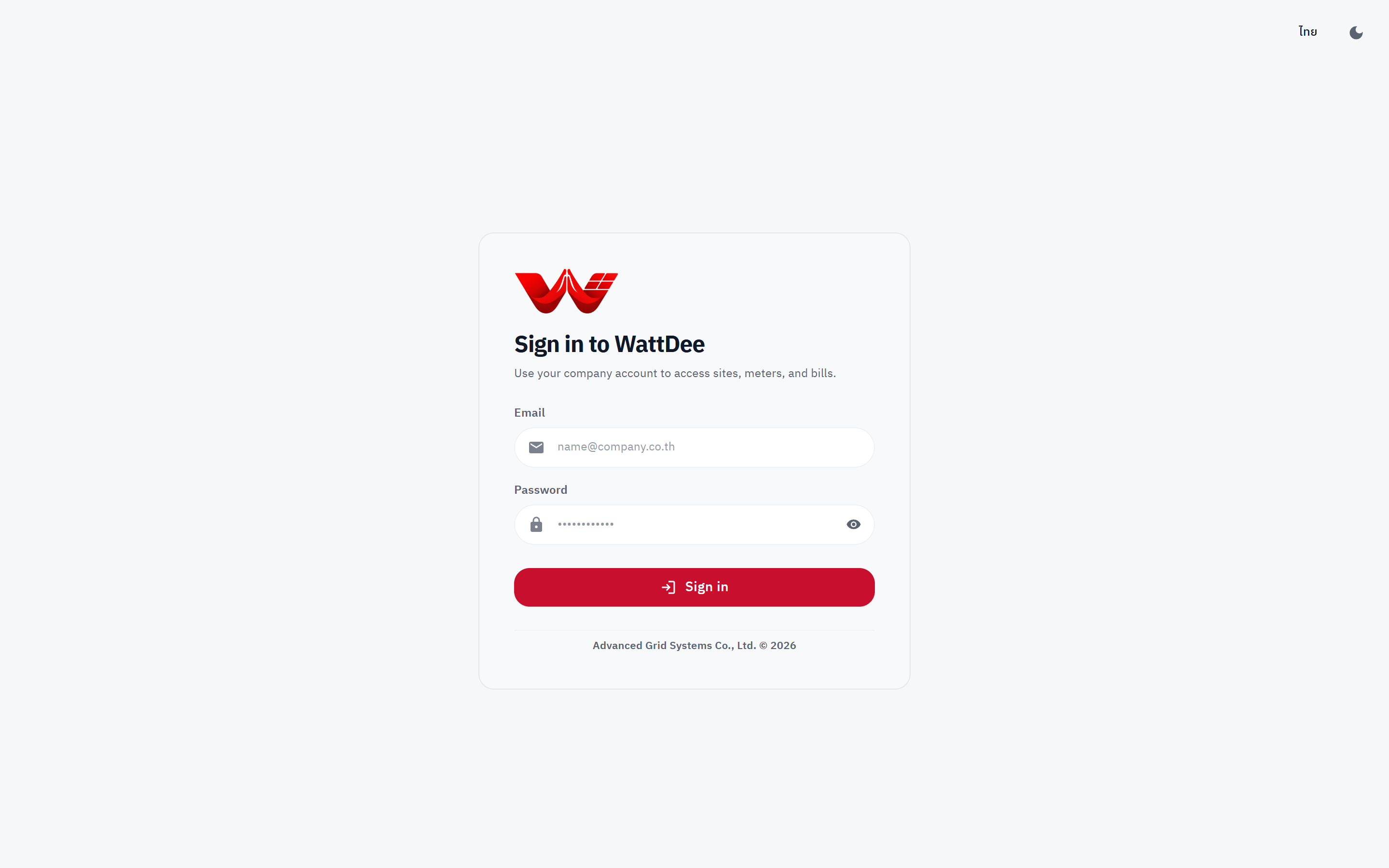
*Figure 1: WattDee sign-in screen with language switch and theme toggle in the top-right corner.*
::: warning Session Expiry, Rate Limits, and Suspended Accounts
- **12-hour session expiry:** Each sign-in session lasts **12 hours** (automatically refreshed hourly while active). After 12 hours or explicit sign-out, you must sign in again.
- **Sign-in rate limit:** Repeated rapid sign-in attempts trigger rate limiting (`Too many sign-in attempts. Please try again later.`). Wait briefly before trying again.
- **Suspended accounts:** If an administrator suspends your account, your active sessions end immediately and future sign-in attempts are blocked until reactivated.
:::
---
## 2. Top Bar: Portfolio Switcher & Global Search
The top bar lets you scope your view across developers or customers and jump straight to any permitted company, site, or meter.
### Portfolio / Customer Switcher (`GroupSwitcher`)
1. Click the pill selector on the left side of the top bar (next to the WattDee logo):
- **Platform staff (multiple developers):** Switch between **All developers** or a specific solar developer.
- **Solar developer staff (or single-developer view):** Switch between **All customers** or a specific customer off-taker company, showing `(X sites · Y meters)`.
- **Customer users with one organization:** Displays a read-only company pill showing your company name, site/meter count, and green active indicator.
2. When the list contains more than 8 organizations, a **Search** input appears inside the dropdown to filter quickly.
3. Changing the switcher updates both **Dashboard** and **Meter Monitoring**. *(While inside **Settings**, this area shows a **Companies** breadcrumb link instead.)*
### Global Search (`EntitySearch`)
1. Click **Search companies, sites, meters** in the top bar.
2. Type a company name, site name/code, or meter serial number.
3. Matching results appear hierarchically (**Company > Site > Meter**), scoped strictly to companies you are permitted to access.
4. Use Arrow keys + `Enter` or click a row to open that workspace. *(When searching from inside **Settings**, choosing a result opens the Settings view for that entity.)*
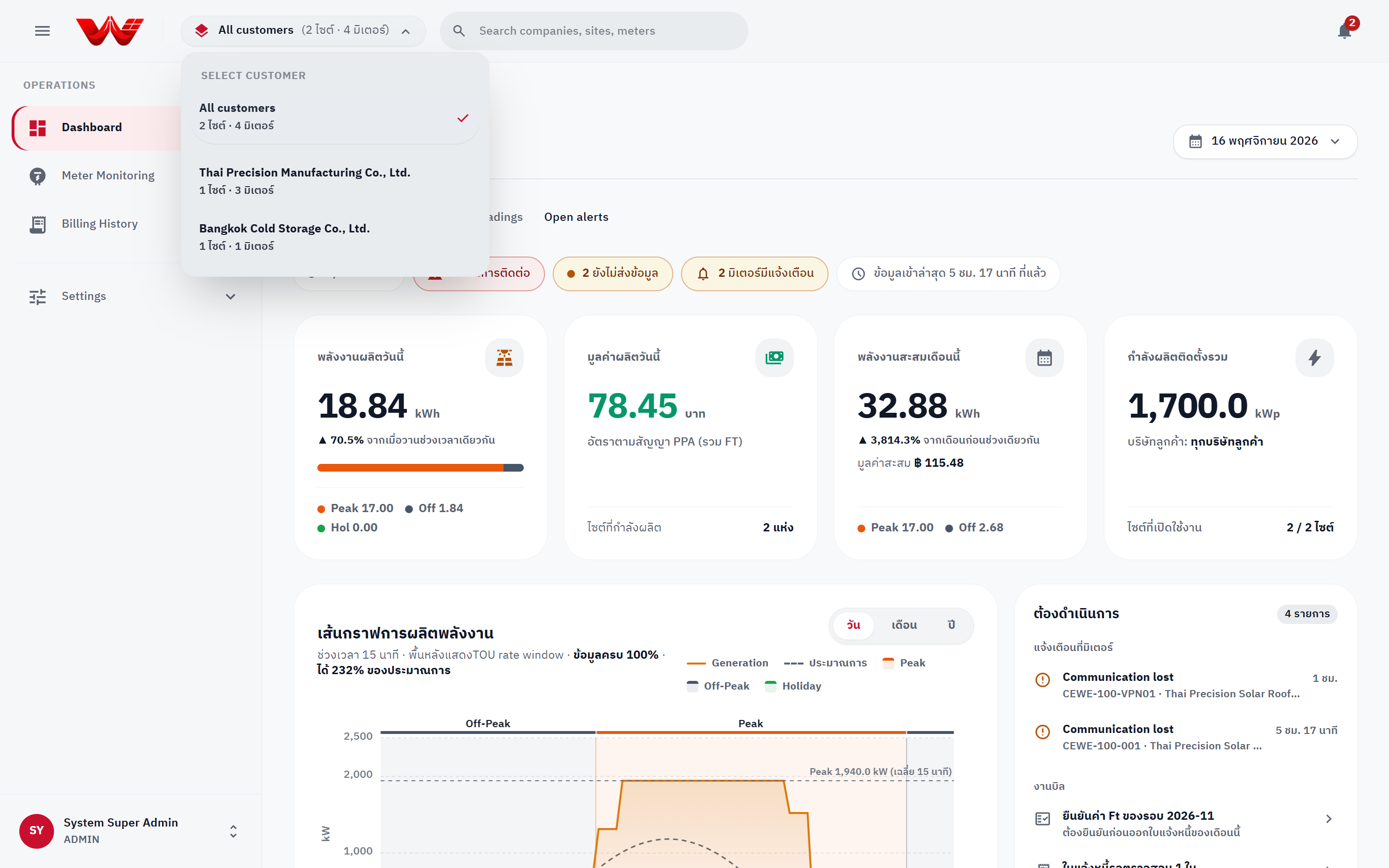
*Figure 2: Top bar showing sidebar toggle, portfolio/customer switcher, and hierarchical global search.*
---
## 3. Notification Center
The bell icon at the top-right shows your live count of unresolved meter alarms (`9+` when more than nine).
1. Click the **Notifications** bell icon to open the alert popover.
2. Switch between three filter tabs:
- **New:** All unresolved alarms.
- **Critical:** Only `CRITICAL` severity unresolved alarms.
- **All:** Includes alarms that have already been acknowledged or snoozed.
3. Click **View meter** on any item to jump directly to that meter, or click **Open alert workspace** at the bottom to open the full alert & history view (`/meter?view=anomalies`).
4. For roles with alarm-management rights (`alert.manage`: Platform Admin/Service, Developer Admin/Service/Operator):
- Click **Acknowledge** on an item or **Acknowledge all** in the header.
- Click **Manage** to **Snooze** (`1 h`, `8 h`, or `24 h`), **Assign to** a colleague in your organization, or add a **Note** (up to 500 characters) and click **Save note**.
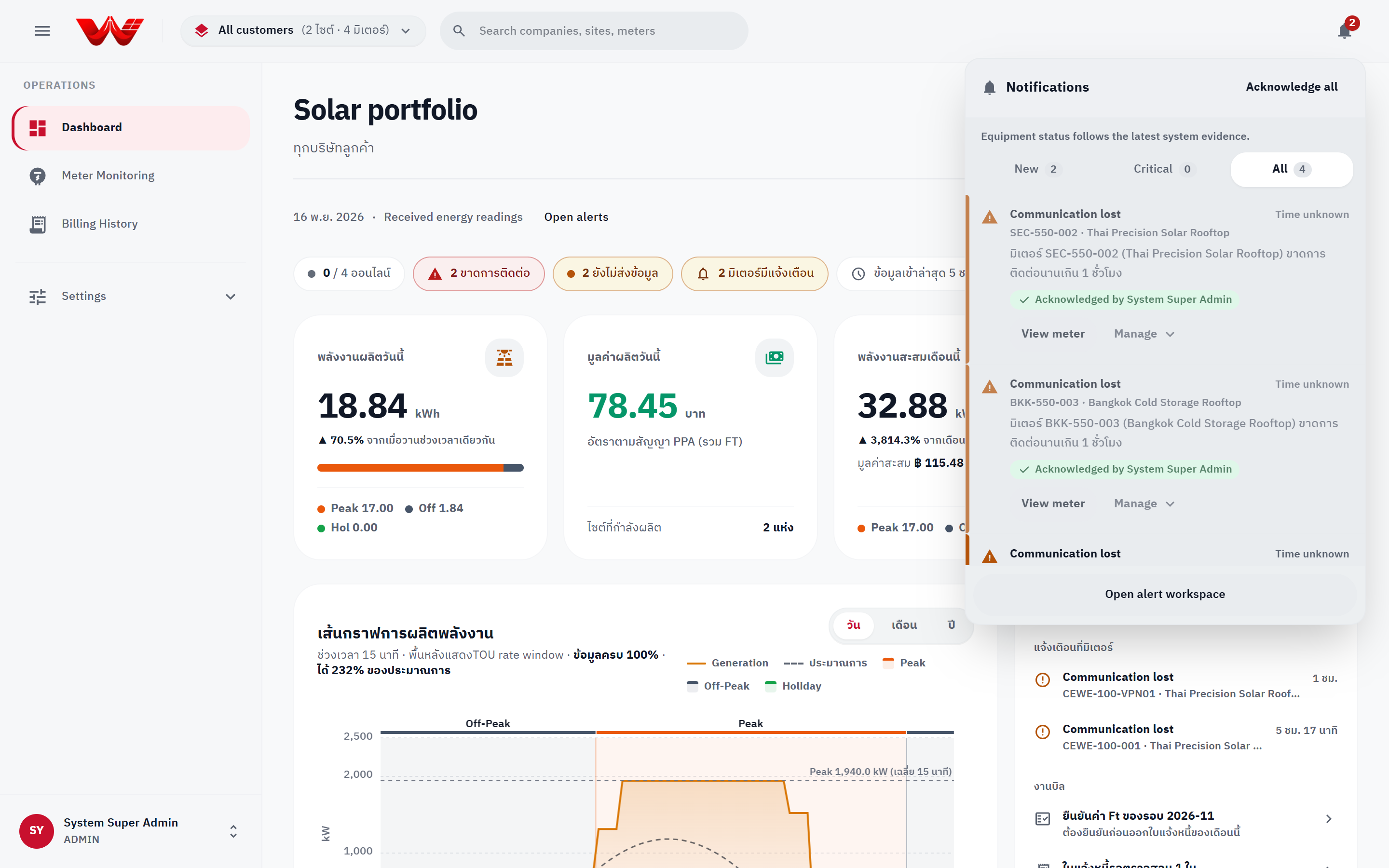
*Figure 3: Notification Center showing New / Critical / All tabs, alarm management controls, and link to the alert workspace.*
---
## 4. Sidebar Navigation & Account Menu
### Left Navigation Sidebar
- Under **Operations**:
- **Dashboard:** Portfolio generation overview, meter health strip, and your role's action queue.
- **Meter Monitoring:** Fleet status board, regional map, maintenance log, and alerts.
- **Billing History:** *(Visible only to roles that can view invoices; Customer `Read only` and Developer `System operator` roles do not see this item.)*
- Under **Settings** *(visible only when your role has settings access)*: Expand to access **Companies**, **Billing & tariffs**, **Bank accounts**, **Holidays**, **Database & system**, and **Audit log** (each item shown only if permitted).
- Use the sidebar toggle button (three horizontal bars) in the top-left to collapse or expand the sidebar rail.
### Account Menu (Sidebar Footer)
Click your name and avatar at the bottom-left of the sidebar to open the Account Menu:
1. View your full name, email, role badge, user ID, organization, and active customer scope.
2. Switch **Language** between **ไทย** and **English** at any time.
3. Switch **Theme** between **Light**, **Dark**, and **System**.
4. Use quick links to **My company overview** (for users without Settings access) or **Settings**.
5. Click **Change password** or **Sign out**.
---
## 5. Changing Your Password
You can change your own password at any time, and should do so immediately after receiving an initial or temporary password.
1. Click your account card at the bottom-left of the sidebar and select **Change password**.
2. Enter your **Current password**.
3. Enter your **New password** and confirm it.
4. Ensure every item in the password policy checklist turns green:
- At least 8 characters long
- At least 1 uppercase letter (`A–Z`)
- At least 1 lowercase letter (`a–z`)
- At least 1 number (`0–9`)
- At least 1 special character (`!@#$%&*`, etc.)
- Must differ from your current password and match the confirmation field.
5. Click **Confirm** to save the new password.
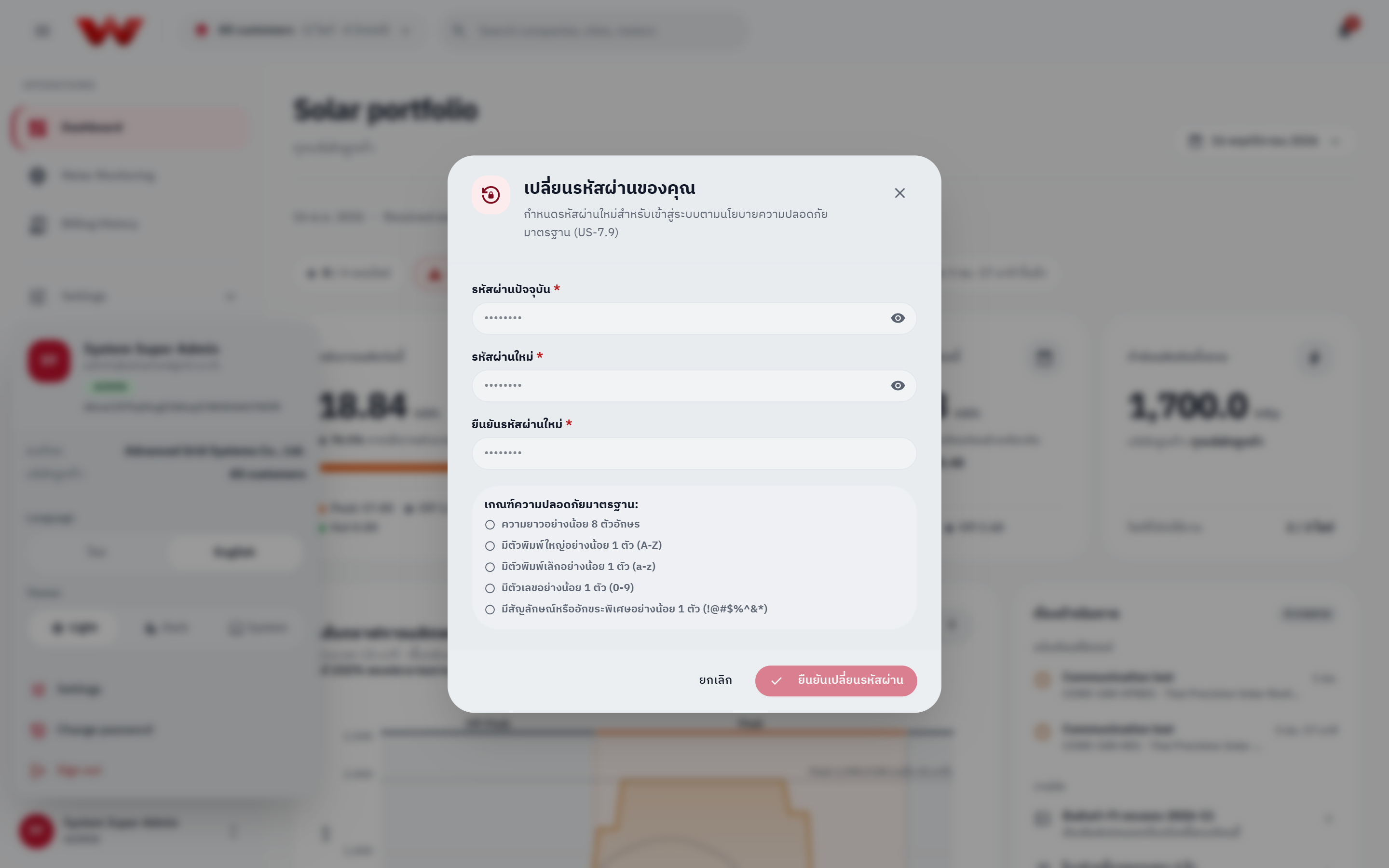
*Figure 4: Account menu at the sidebar footer showing language/theme controls and Change password.*
::: warning Session Revocation on Password Change or Admin Reset
- **Self-service password change:** Your current browser stays signed in with a refreshed token, while **all other active sessions on other browsers or devices are immediately signed out**.
- **Administrator password reset:** If an administrator resets your password from **People & access**, **every active session across all your devices is immediately terminated**. Sign back in with the new/temporary password and set a personal password.
:::
---
## Next Steps
- [Review Roles and Permissions](./01-roles-and-permissions)
- [Platform Admin Guide](./03-platform-admin-guide)
- [Developer Admin Guide](./04-developer-admin-guide)
- [Meter and Telemetry Guide](./05-meter-and-telemetry-guide)